3.2 Configuring Desktop Objects
Your KDE desktop comes with a predefined set of desktop icons. By adding various objects such as folders, files, or links, you can create additional icons on your desktop and arrange them as you like.
Adding Program Icons to the Desktop or Panel
To create a link to an application and place it on the desktop or the panel, proceed as follows:
-
Click the main menu button and browse to the desired application.
-
Right-click and select or from the context menu that appears. If these menu items are not available, your desktop elements are probably locked. Unlock them first as described in Section 1.2.1, Locking and Unlocking Desktop Objects.
If your desktop objects are not locked, you can also just drag items from the main menu onto the desktop and drop them there to create a link to this application or folder.
-
To change the icon position on the desktop, left-click the icon and drag it to the desired place.
To delete an icon from your desktop, right-click the icon icon and select .
Adding Widgets to the Desktop or Panel
Widgets are small applications that can be integrated into your desktop or your panel.
-
To add widgets to you desktop, right-click an empty patch on your desktop and select .
To add a widget to the panel, right-click an empty patch on the panel, and select .
If these menu items are not available, your desktop elements are probably locked. Unlock them first as described in Section 1.2.1, Locking and Unlocking Desktop Objects.
-
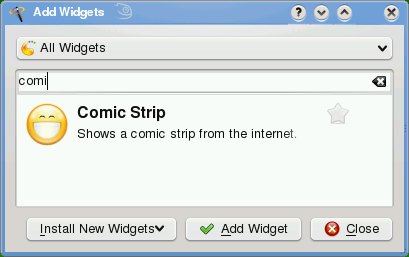
In the dialog box that appears, you can limit the selection of widgets that is shown with the drop-down list at the top.
-
Select a widget and click . The widget appears on your desktop or in your panel.
-
To position the widget on your desktop, left-click the widget and drag it to the desired place. To align all widgets to a grid, right-click an empty patch on the desktop and select or .
To remove a widget from your desktop, right-click the widget and select the entry. Alternatively, hover your mouse pointer over the widget and click the X symbol in the frame.
Configuring Widgets
In order to configure widgets, the desktop elements need to be unlocked as described in Section 1.2.1, Locking and Unlocking Desktop Objects.
-
To configure a widget, hover your mouse pointer over the widget until a translucent frame appears around the widget, showing a number of symbols.
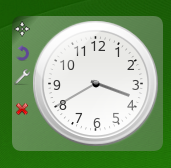
If the frame does not appear, your widgets are probably locked. Unlock them first as described in Section 1.2.1, Locking and Unlocking Desktop Objects
-
To change the widget size, left-click the star symbol in the frame and keep the mouse button pressed while moving your cursor across the desktop to scale the widget size.
-
To rotate the widget in any direction, left-click the arrow symbol in the frame and keep the mouse button pressed while moving your cursor in a circle across the desktop. There is a sticky boundary in the horizontal and vertical positions where you can
clamp
the widget, if you like. Of course, you can also arrange it in any tilted position. -
To change the contents, settings, or properties of a widget, left-click the wrench symbol in the frame. In the configuration dialog box that appears, set the options according to your wishes.
Use the X symbol in the frame if you want to close the widget.
You can change the background colors of your desktop or select a picture to use as the background. Because KDE offers virtual desktops, you can apply these changes to one or all of your virtual desktops.
Changing the Desktop Background
-
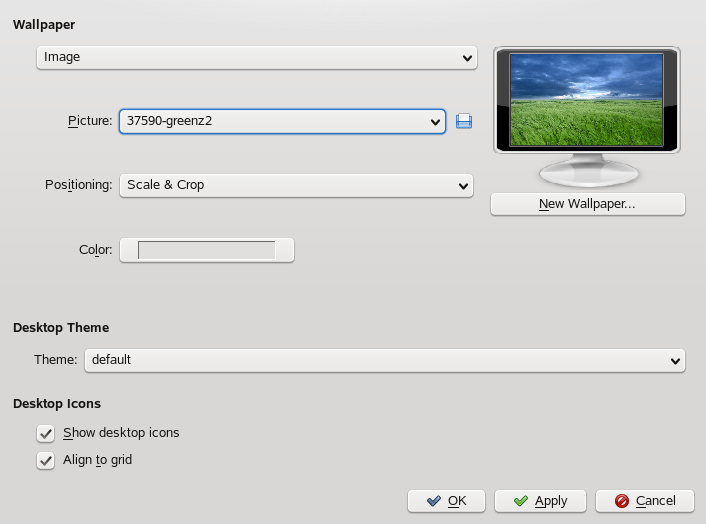
Right-click an empty patch of the desktop and select . A configuration dialog appears.
-
In select the virtual desktops to which the changes should apply.
-
To change the picture on the background, click and select one of the pictures in the list. To use a custom picture, click the folder button beneath the list and select an image file from the file system.
-
Click to have multiple images appear in a slide show mode.
-
If you do not want a picture on the background, click .
-
From the group, click the left button below to select the color for your background. For a multicolor background, set to an option other than and click the right button below to select a second color.
-
Click then to close the configuration dialog.
openSUSE® comes with predefined screen saver settings that you can adjust.
Configuring the Screen Saver
-
Right-click an empty space on the desktop and select .
-
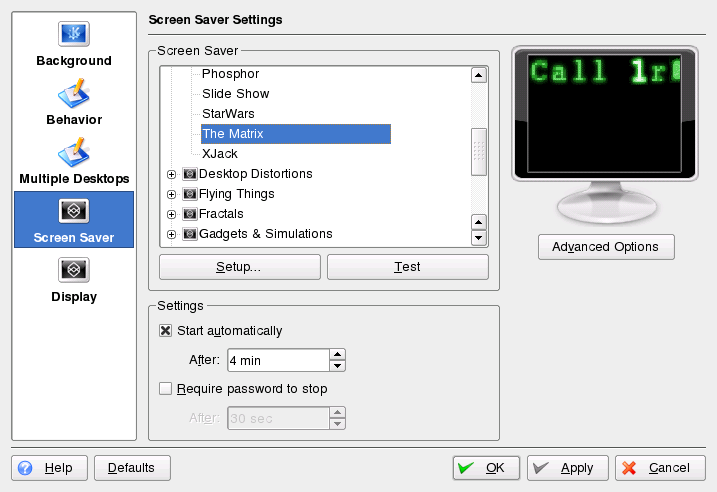
In the dialog that opens, click .
-
In the list of screen savers, click a screen saver to see a preview in the right side of the dialog.
-
Click to adjust options like speed or shapes.
-
You can also choose to view a blank screen instead or to let KDE start a random screen saver. Find these options at the end of the screen saver list.
-
Under , determine after how long a time of inactivity the screen saver should start and whether a password is required to unlock the screen after the screen saver has started.
-
Click to apply the changes and close the configuration dialog.
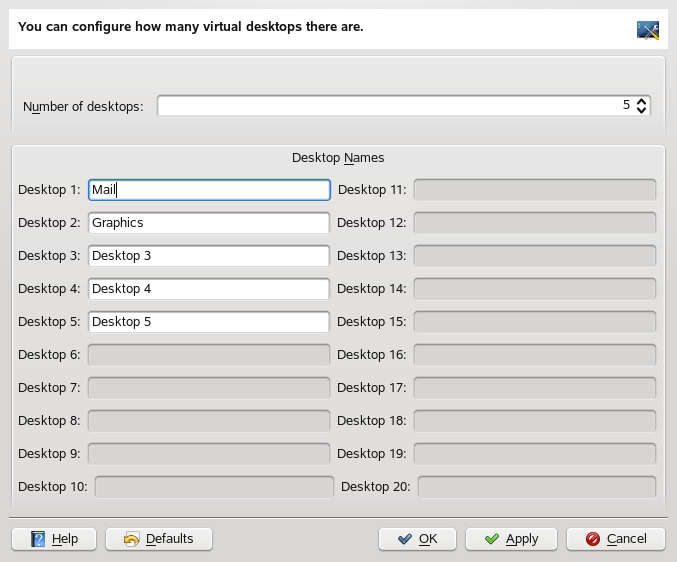
Some users might need more desktops than provided by default.
Adding Additional Virtual Desktops
-
Right-click the desktop previewer in the panel and select . A configuration dialog appears where you can increase or reduce the number of virtual desktops. You can also change the default names of the desktop.
-
Click to apply the changes and close the configuration dialog.
-
For the names of the desktops to appear in the desktop previewer rather than the number, right-click the desktop previewer and select .