2.5 Accessing Removable Media and External Devices
If you insert removable media (such as CDs or DVDs) in your computer's drive, or connect external devices such as USB sticks, external hard disks, media players or digital cameras, these are usually automatically detected. In KDE 4, a panel widget informs you about recently plugged or inserted devices.
Figure 2-2 Device Notifier
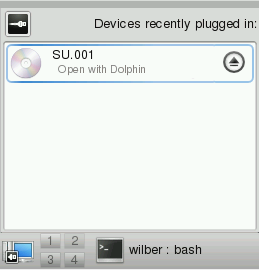
Click on the entry to show the device's contents with Dolphin.
If the device is not automatically displayed in the device notifier, try to access it manually with Dolphin.
Start Dolphin file manager and switch to the editable version of the
location bar as described in
Changing the View. Enter
/media to access any type of drive mounted there. If
the medium has been detected, it is also listed in the
panel. Click the respective entry to show the
contents. Digital cameras can also be accessed by entering the URL
camera:/ into Dolphin's location bar. In case your camera
is not automatically detected, configure it first with the KDE 4 Personal
Settings or with digiKam as described in
Section 23.1, Configuring Your Camera,
(↑ Application Guide ). Navigate through the camera's
directory structure until the files are shown. Use the usual Dolphin file
management features to copy the files as desired.
Another way to access detected media is to click the icon on your desktop. The detected devices are listed in the section.
NOTE: Removing Media Safely
If you want to remove or disconnect a medium from your computer, make sure that the data on the medium is currently not accessed by any application or user. Otherwise, you risk a loss of data. To safely remove the medium, proceed as follows:
-
Open a view that displays the removable medium (for example, with Dolphin or ).
-
Right-click the medium in the panel (or below ) and select or . unmounts the medium after which you can disconnect the medium from your computer. automatically opens the CD or DVD drive of your computer.