Installing the Event Server
Manually Installing and Configuring the Event Server
Typically, the Event Server is installed when you run the installation program. If either of the following has occurred, manually install or configure the desktop shortcut for the Event Server:
- You did not install the Event Server when you installed other components.
- Various directory paths were unavailable during the installation.
Installing the Event Server
The following steps assume that eDirectory has been installed on drive C: of the server in the \novell\remoteloader\ directory.
-
Copy the following to the c:\novell\nds directory.
- Nps75eventserver.exe for PeopleSoft 7.5
- Nps81eventserver.exe for PeopleSoft 8.1
-
Create a shortcut for the Event Server application on the desktop.
IMPORTANT: If you are running multiple PeopleSoft drivers, create one shortcut for each Event Server.
-
Edit the command line in the Target field.
The following graphic illustrates this field:
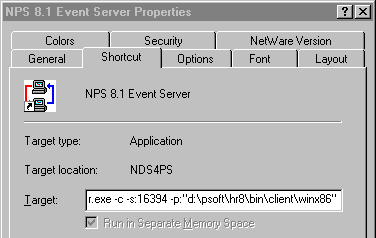
Right-click the shortcut > click Properties > Shortcut.
Enter parameters for the shortcut. In the following table, {PS_Home} is the root of the PeopleSoft directory structure.
PeopleSoft 7.5 |
C:\Novell\NDS\NPS75EventServer.exe -c -s:16386 -p:PS_Home\bin\client\winx86 |
PeopleSoft 8.1 |
C:\Novell\NDS\NPS81EventServer.exe -c -s:16394 -p:PS_Home\bin\client\winx86 |
The -c parameter configures the Event Server so that it runs as a console application. When you use this parameter, configure the DOS window properties with the following:
- A scroll bar
- A different color layout
The Event Server communicates with the driver using a Windows sockets interface or listening port. The following table lists the delivered socket number for each Event Server. If these numbers conflict with sockets already being used in your organization, use a different port set.
PeopleSoft 7.5 Event Server |
16386 |
PeopleSoft 8.1 Event Server |
16394 |
Because each Event Server requires four consecutive sockets or ports, socket numbers for multiple Event Servers must be at least four digits apart.
The Event Server must establish communications with the PeopleSoft Message Agent. It does this by connecting to the PeopleSoft Message Agent DLL files.
These DLL files are typically located in the PS_HOME\BIN\CLIENT\WINX86 directory.
For the NPS75EventServer shortcut, an example path to the PeopleSoft Message DLLs is -p:d:\psoft\hr757\bin\client\winX86. In this example, PS_HOME is equal to d:\psoft\hr757.
-
Type the following in the Start In field:
c:\Novell\NDS
This is the directory where eDirectory is installed. The following figure illustrates this field:

-
Select Apply, then click OK.
-
Open the application via the shortcut.
You can customize the scroll bar and color changes by customizing the Property tab on the window.
Stopping the Event Server
You might need to stop the Event Server to refresh PeopleSoft connectivity, recycle the server, or debug. When you stop the Event Server, the Event Server sends a stop command to the driver shim. This command shuts down the driver shim before the Event Server exits.
To stop the Event Server from a console window:
-
Select the Event Server window.
-
Enter Q.
IMPORTANT: You can stop the Event Server by clicking the Exit icon in the window. However, do this only if the driver shim is not running. Before clicking the icon, shut down the driver shim. Do this from the DirXML Driver Set Properties menu.
Installing the Event Server as a Service
You can install the Event Server as an NT or Windows 2000 service. Normally, the Event Server is installed during the driver installation.
Two additional shortcuts are placed on the desktop during the installation process. These shortcuts enable you to create or remove the Event Server as a service.
To install the Event Server as a service:
-
Ensure that the Event Server program is available.
- On a local machine, verify that NPSxEvent Server.exe is saved locally to the machine.
- If you are installing the Event Server on a remote server where eDirectory is not installed, copy dirxmllib.dll and expat.dll from the novell\nds directory to the directory that the Event Server will run from.
NOTE: The PeopleSoft client must always be installed on the server where the Event Server is going to run.
The remote server's IP address is used when configuring the Event Server in the driver parameters.
-
At the command prompt, go to the directory where the executable file is stored, then enter the following:
NPS75EventServer.exe -i -s:16386 -p: PS_HOME\bin\client\winx86
The socket number and the path to the PeopleSoft Psmsg.dll might be different, based on your environment and driver configuration.
-
From the Start menu, click Settings > Control Panel > Services > DirXML Event Server for PS 7.5 (or the appropriate release).
-
Click Startup > select the Automatic option button to automatically start the Event Server at login, then click Start.
To stop the service:
-
From the Start menu, click Settings > Control Panel > Services.
-
Select the service, then click Stop.
Manually Uninstalling the Event Server as a Service
You can uninstall or remove the Event Server as a service. Follow the same steps as for installing the Event Server. However, in Step 2 substitute the -u parameter for the -i parameter.
For example, enter NPS75EventServer.exe -u -s:16386 -p: PS_HOME\bin\client\winx86
NOTE: When the Event Server runs as a service, there is no console window. All debug information is only available in the DSTRACE log.