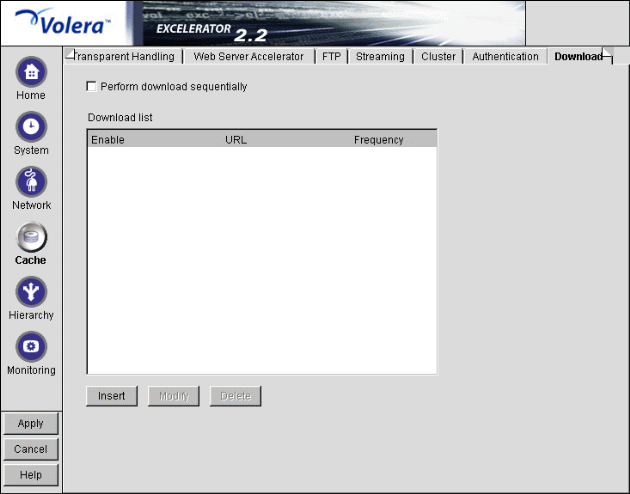
Figure 142
The Download tab lets you keep the cache of objects up to date for your users. You can schedule downloads of files from a Web site to the local cache. You can download a single URL, multiple URLs up to a specified number of links, or an entire Web site. You can download for both forward and reverse proxies. However, reverse proxy does not download links that are external to a site.
To conserve network resources, consider scheduling your downloads during times of low network usage.
Perform Download Sequentially: To conserve network resources, specify the downloads to occur sequentially rather than concurrently.
Download List: Create multiple lists of URLs for download by inserting them into this list.
Path: Cache > Download > Insert
Figure 143 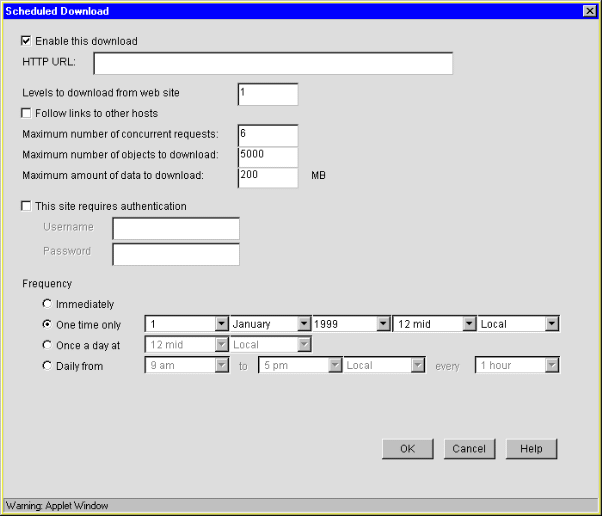
The Scheduled Download dialog box lets you set up download options for a specific URL.
Enable This Download: Lets you edit and enable a specific download. You can uncheck this if you want to turn various download categories off without deleting them.
HTTP URL: The URL or IP address of the site you want to use as the top level of the download.
Levels to Download from Web Site: Each link takes you one level away from the URL you specified. By default, you get one level---the top page (graphics and text objects). (Valid numbers are 1 - 999.) Increase this number for each level you want to download. For example, selecting a 2 will download the initial page (graphics and text objects) and all its links.
Follow Links to Other Hosts: By default, only links that are on the host of the HTTP URL specified above are followed. Check this option to allow the download to follow external links as well.
Maximum Number of Concurrent Requests: By default, Excelerator limits the concurrent requests for a specific download to 6. You can specify a larger or smaller number to increase or decrease the impact on network traffic. Valid numbers are 1 - 50.
IMPORTANT: If this number is set to a larger value than the default, it is possible to exceed the Maximum Amount of Data to Download setting.
Maximum Number of Objects to Download: You can specify a maximum number of objects (graphics and text) that are downloaded. By default, this number is 5000 (1 - 100,000).
Maximum Amount of Data to Download: You can specify a maximum MB size in the download. By default, this is 200 MB (1 - 4095).
IMPORTANT: This is a soft limit. The accuracy of this setting is dependent upon the Maximum Number of Concurrent Requests setting.
The reason for this is that the size of the downloaded object is not compared to the limit until after it has successfully downloaded. If the maximum limit has not been reached, then a new request to download an object is initiated. If that limit has been reached, then no new requests are initiated but all current requests are allowed to complete. If each object currently being downloaded is very large, then the maximum amount of data will be exceeded by a significant amount.
This Site Requires Authentication: If the origin server requires authentication, check this option and type the authentication username and password in their respective fields.
Frequency: Specify when this download should occur. Select one of the following options to establish download frequency: