CICS RPC Connect User's Guide
CHAPTER 2
Throughout this guide a prototypical COBOL program called SKUT02 will be used to illustrate the most interesting features of the CICS RPC Connect. SKUT02 is designed to perform read-only operations that query an Inventory system. A query is defined with three parameters. The first is a process switch identifying the type of operation to be performed (READ, UPDATE, etc.) For our purposes, this switch will always be set to R for READ. The second parameter is the specific SKU or product ID to obtain information about it. The third parameter is a switch specifying the information returned from the inquiry to be either a text message or an inventory record. The message will indicate that the item exists or doesn't exist. The record will contain data or be returned blank.
 Steps commonly used to create a new CICS RPC Component
Obtain or create copies of the host program DFHCOMMAREA definitions as copybooks and make them accessible from your local machine.
Create an Input XML Template and Sample Documents (or you can optionally use the Auto Map feature to do this for you).
Create Map Actions moving data from the Input DOM into the Copybook (or you can optionally use the Auto Map feature to do this for you).
Before you create a CICS RPC Component, you need to create a Connection Resource to access the mainframe program.

When you create a Connection Resource for the CICS RPC Connect, select ECI CICS RPC Connection. The ECI CICS RPC Connection is used when you want to connect to a CICS TCP protocol application. This connection allows you to get through the TCP/IP port on the host to the CICS gateway.
When using the CICS Transaction Gateway with exteNd Composer, you want to be sure to tune the gateway for the applications you will be using. Doing this requires knowledge of how many simultaneous users are expected to be using the Composer service. With this knowledge there are two gateway parameters which can be set to help tune the connections. The parameters are: initworker and initconnection.
Initworker represents the initialized number of worker threads. Initconnection represents the initialized number of connections. These two parameters can be set as command line parameters on startup of the gateway or in the ctg.ini file for the 3.1.x version of the gateway or in the gateway.properties file for the 3.0 version of the gateway.
As mentioned above, knowledge of the workload for the application is needed to set these parameters appropriately. For example, if you are expecting 50 concurrent users for the application, then you would set both the initworker and initconnection to 50. The examples below demonstrate how to set the parameters via a command line in the ini files.
To set them as command line parameters, use the switches -initconnect=50 -initworker=50 on startup of the gateway.
For version 3.1.x of the gateway, the initconnect and initworker parameters are set in the ctg.ini file. Below is a sample of the SECTION GATEWAY from the ctg.ini file. showing the init lines.
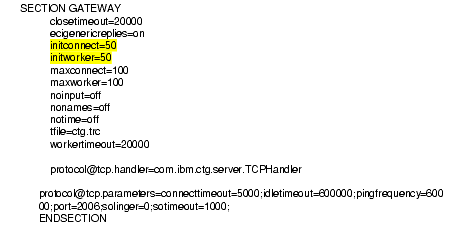
For version 3.0 of the gateway, the initconnect and initworker are set in the Gateway.properties file. Below is a sample of the Gateway.properties files showing the init lines. It is recommended that you upgrade to the version 3.1 since IBM is dropping support for version 3.0

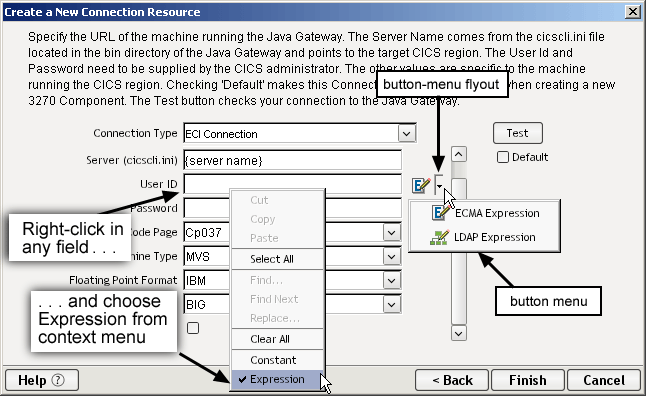
You can specify Connection parameter values in one of two ways: as Constants or as Expressions. A constant based parameter uses the value you enter in the Connection dialog every time the Connection is used. An expression based parameter allows you to set the value using a programmatic expression, which can result in a different value each time the connection is used at runtime. This allows the Connection's behavior to be flexible and vary based on runtime conditions each time it is used.
For instance, one very simple use of an expression driven parameter in a ECI CICS Connection would be to define the User ID and Password as PROJECT Variables (e.g. PROJECT.XPath("USERCONFIG/MyDeployUser"). This way when you deploy the project, you can update the PROJECT Variables in the Deployment Wizard to values appropriate for the final deployment environment. At the other extreme, you could have a custom script that queries a Java business object in the Application Server to determine what User ID and Password to use.
To switch a parameter from Constant driven to Expression driven:
Click the right mouse button in the parameter field you are interested in changing.
Select Expression from the context menu (as shown below) and the editor button will appear or become enabled.
Click on the button and then create an ECMAScript expression that will evaluate to a valid parameter value at runtime.
To Create a CICS RPC Connection Resource:
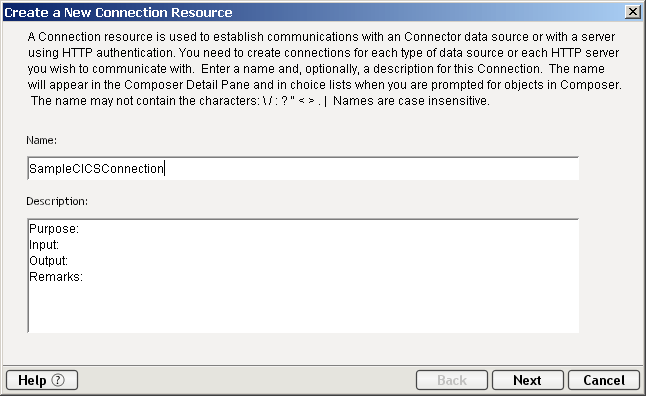
From the File menu in exteNd Composer, select New > xObject, then open the Resource tab and select Connection. The Create a New Connection Resource Wizard appears.
NOTE: Alternately, you can highlight Connection in the Composer window category pane, click the right mouse button, then select New.
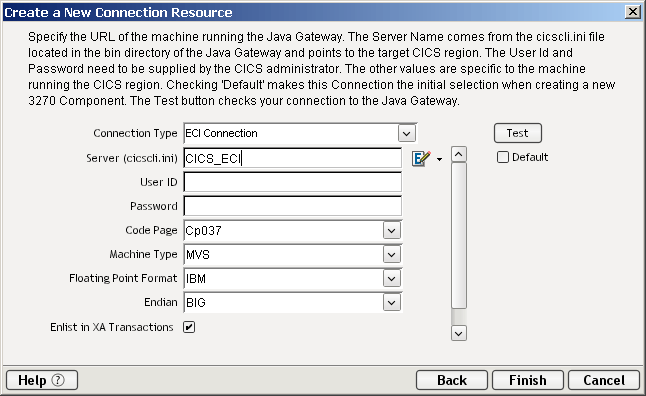
Select ECI Connection from the Connection Type drop down menu.
NOTE: Use the ECI Connection type if you are connecting to a CICS application.
In the Server (cicscli.ini) field, enter the server name, CICS_ECI in our example.
In the User ID and Password fields, your system administrator will provide you with this name and password, which is defined in a separate client initialization file.
In the Code Page field, from the drop down menu, select a code page dependent upon the remote machine operating system character data standard.(i.e. CP037 for EBCDIC or 8859_1 for ASCII).
In the Machine Type field, from the drop down menu, select the target platform of your CICS Region/Server (MVS, OS2, NT, AIX).
In the Floating Point Format field, from the drop down menu, select a name dependent upon the machine type selected: IBM or IEEE .
In the Endian field, from the drop down menu, select the order of the most/least significant bytes in integers (BIG if the most significant byte precedes the least significant byte in memory, otherwise select LITTLE).
If a component that uses this connection will be running under XA transaction control, check the Enlist in XA transactions checkbox.
NOTE: This option has no effect at design time. It affects runtime behavior only.
Optionally click the Test button to verify that the connection is valid. (A live connection will be attempted.)
Optionally click on the Default checkbox if you wish the connection to be saved as a default connection setting for CICS RPC Components.
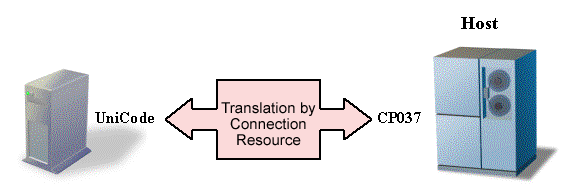
Code Page support in exteNd Composer's Connection Resources allows you to specify which character encoding scheme to use when translating characters sent between exteNd Composer and other host systems. Novell exteNd uses Unicode character encoding (the Java and XML standard). Existing legacy and other host systems use a variety of character encoding schemes (e.g., Code Pages) specific to their language or usage. Therefore, a mechanism is needed to translate the character encoding between these systems if they are to communicate with each other. This is handled in exteNd Composer by specifying the Code Page used by a host system in the Connection Resource used to access that system. Refer to Appendix E for list of Code Pages supported by Java.
Unique to CICS RPC, you can automatically create XML templates and sample documents based on the copybook(s) you associate with the CICS RPC Component through the Auto Map selection in the Component Menu. This feature should be used especially when the information from the application can be used by multiple services or the CICS program is a multi use program (e.g., a program that performs all types of information access: inquiry, update, insert and delete).
However, you can create your own XML templates prior to designing your component. See Chapter 5, Creating XML Templates in the exteNd Composer User's Guide for more information. Use this option when the component uses only a portion of data available in the Copybook.
Also, if your component design calls for any other xObject resources such as custom scripts or code table maps, it is best to create these before creating the CICS RPC Component. For more information, see the exteNd Composer User's Guide.
Copyright © 2004 Novell, Inc. All rights reserved. Copyright © 1997, 1998, 1999, 2000, 2001, 2002, 2003 SilverStream Software, LLC. All rights reserved. more ...