2.3 Linux Installation
Redline provides a RPM file for automatic installation and update and a tar.gz file for manual installation. With the RPM file, you need root access during installation. It is possible to run Redline as a user as well.
Redline ships in 2 versions for Linux: 32-bit and 64-bit versions, ensure that you use the appropriate version for your installation.
2.3.1 RPM Installation
-
Login as root or use su to switch to root.
-
Go to the folder where Redline was unpacked. Here go to the subfolder linux.suse64/redline. (Or linux.suse32/redline as system appropriate

-
Install the RPM with the rpm command: rpm –U redline-<version number>-1.<platform>.rpm. For example:
rpm -J redline-4.0.0-1.i586.rpm
-
If you see errors that some xml or html files conflict, Install the RPM with the rpm command:
rpm -U -force redline-4.0.0-1.i586.rpm
RLCENTER and RLAGENT startup scripts will automatically be copied to /etc/init.d and set up with the appropriate run level symbolic links
Install with the tar.gz file
-
Login as root or use su to switch to root.
-
Create the folder /opt/beginfinite/redline
mkdir /opt/beginfinite/redline
-
Give the user who will run Redline read and write permissions to that folder. You can do this by switching the owner of the folder to that user.
chown uli /opt/beginfinite/redline/
-
Login as a regular user or exit from root user access
exit
-
Go to the folder where Redline was unpacked
cd /Redline/linux.suse10/redline
-
Unpack the tar.gz file
tar -zxvf redline.tar.gz
-
Go to the subfolder bintree/opt/beginfinite
cd bintree/opt/beginfinite/
-
Copy Redline to /opt/beginfinite/redline
cp -r redline/ /opt/beginfinite/
-
Switch to root again
-
Copy bintree/lib/libredline.so.4.0.0 to /lib or /lib64 as appropriate
cp libredline.so.4.0.0 /lib/
-
Go to the /lib or /lib64 folder
cd /lib/
-
Create a link to libredline.so.4 in the /lib or /lib64 folder
ln -s libredline.so.4 libredline.so.4.0.0
-
run ldconfig to import the new library symbols
ldconfig
-
(Optional) Copy rlcenter and rlagent from redline/linux.suseXX/redline/bintree/etc/init.d to /etc/init.d
Start Control Center on Linux
Redline on Linux can run as a background process and, mostly for debugging purposes, as a foreground process with a screen like the NetWare screen. There is a start/stop script in the folder /etc/init.d.
To start the Control Center, go to /etc/init.d and type rlcenter start.
cd /etc/init.d/
./rlcenter start
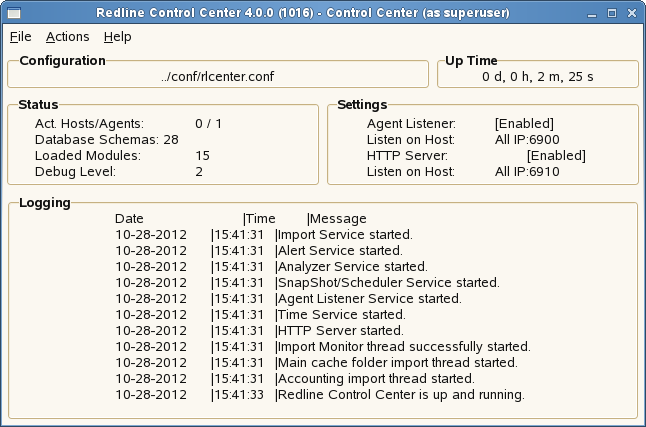
In order to start the Control Center with a GUI screen, make sure you have the GNOME desktop installed. It is possible to use the KDE desktop as well, but the GTK libraries need to be installed on your system. To start the Control Center with a screen:
-
go to the folder /opt/beginfinite/redline/bin
cd /opt/beginfinite/redline/bin/
-
start the control center with the command line switch --show
./rlcenter -c /opt/beginfinite/redline/conf/rlcenter.conf --show
The Control Center Screen on Linux shows up with a couple of options available through the main menu.
Start Agent on Linux
Redline on Linux can run as a background process and, mostly for debugging purposes, as a foreground process with a screen like the NetWare screen. There is a start/stop script in the folder /etc/init.d. To start the Agent, go to /etc/init.d and type ./rlagent start.
cd /etc/init.d/
./rlagent start
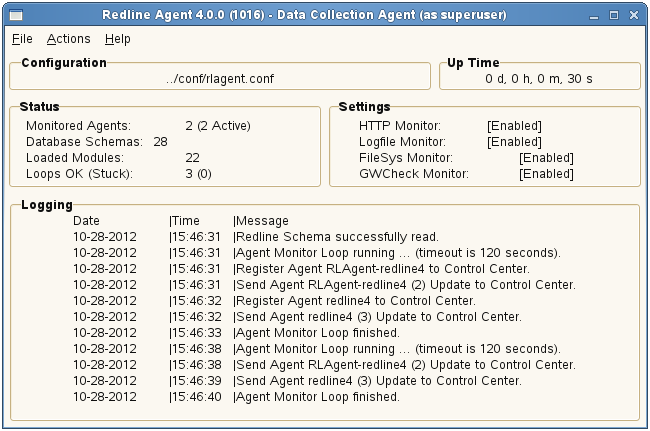
To start the Agent with a GUI screen, make sure you have the GNOME desktop installed. It is possible to use the KDE desktop as well, but the GTK libraries need to be installed on your system. To start the Agent with a screen:
-
go to the folder /opt/beginfinite/redline/bin
cd /opt/beginfinite/redline/bin/
-
start the agent with the command line switch --show
./rlagent -c /opt/beginfinite/redline/conf/rlcenter.conf --show
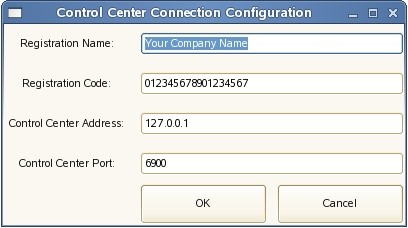
The agent configuration file (listed above) holds a ‘NEWINSTALL’ switch and requires the registration name, code, address and port for the Control Center. This can be edited manually, or, if desired, the agent may be started in the GUI. (This does not work over SSH) You will be asked for Registration Name, Registration Code, Control Center IP address and port. Everything else can be configured through the Control Center web interface.
The Agent Screen on Linux shows up with a couple of options available through the main menu.