2.5 Windows Installation
-
Unzip the Redline package onto your Windows desktop.
-
From the /redline/windows/ folder run the setup.exe. Click Next.

-
Accept the license agreement. Click Next.

-
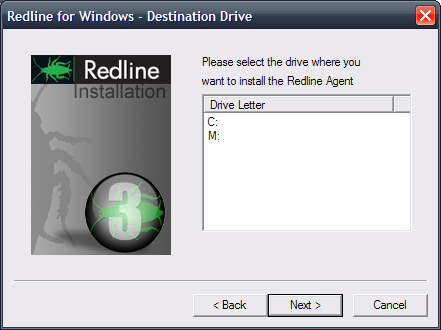
Select the drive letter where you want to install the agent. This is necessary if you want to install the agent in a Windows Cluster.
-
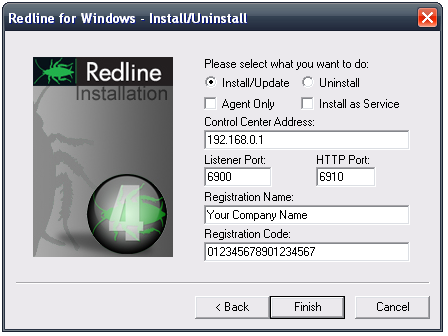
Select the components to install / Update and click Finish. Optional: you can select to install Redline as a Windows Service.
2.5.1 Start Redline on Windows
Redline on Windows can run as a Windows Service and, mostly for debugging purposes, as a foreground process with or without a screen like the Linux screen. It is recommended to first launch Redline 'with screen' to ensure that the configuration is correct. After configuring, shut down the application and restart without the screen. To start Redline as an application, double click on one of the icons:

If you installed Redline as a service, the agent is not started. It is important to start the agent manually after installation. To start Redline as a service, start it from the Windows Services interface.
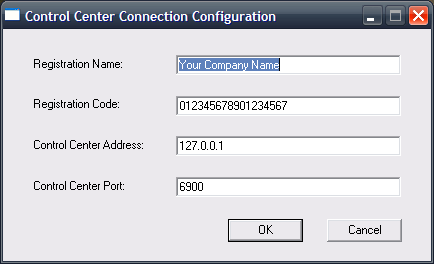
If the Agent is started the very first time and the Registration Name is still the default, you will be asked for Registration Name, Registration Code, Control Center IP address and port. If you start the Agent as a service, this dialog does not show up. Everything else can be configured through the Control Center web interface.
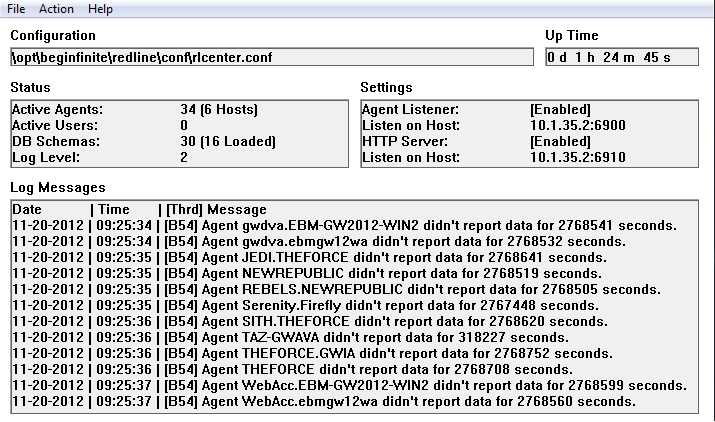
The Agent and Control Center screens on Windows show up with all the log entries, like the Linux screens.
Control Center
Agent
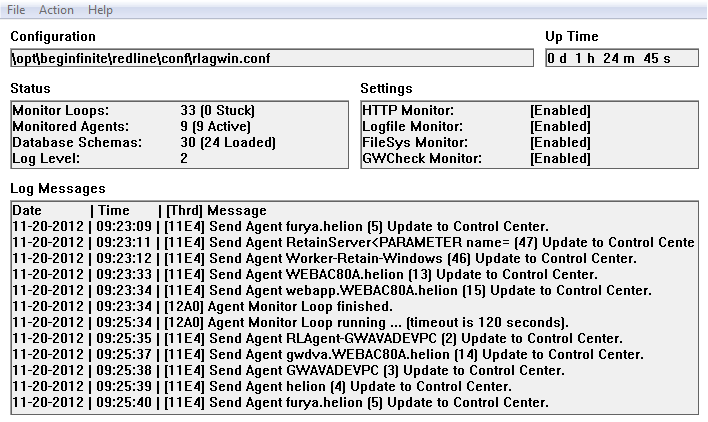
It is recommended to run the agent as a Windows Service. A Service is started without logging in to the server, just by booting the machine. That way the Redline Agent is started every time the server is restarted.
2.5.2 Multiple Redline Agents on Windows
It is possible to run multiple instances of the Redline Agent on a Windows box as a server. To set this up, you need to do the following:
-
Copy the folder c:\opt\beginfinite\redline to c:\beginfinite\redline2 (or another folder like redline3, redline 4 etc.)
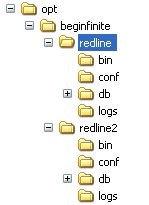
-
Open a cmd prompt
-
Go to the folder where you've copied your new Redline Agent installation conf folder (c:\opt\beginfinite\redline\conf2
-
Edit rlagwin.conf and adjust the folders for LogFilePath, DataPath, BinPath and SoftwarePath
-
Go to the bin folder of your new Redline Agent installation
-
Run rlagent install RedlineAgent2 (or any other unique name for this service)

-
Wait a moment until a message appears that the agent has been installed successfully.
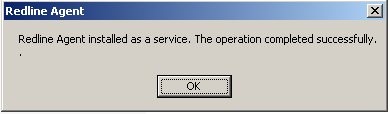
-
(Optional) To uninstall the service, type rlagent uninstall RedlineAgent2 (or whatever name you've given the service).
Now you can run the Redline Agent multiple times on your Windows Server:
