4.6 Message Tracking
With Redline Message Tracking it is possible to track every message that is coming in to GroupWise or leaving GroupWise through a gateway like the Internet Agent. From there you can see through which domain(s) and at the end to which post office and user the message was delivered to or sent from. Status messages are tracked as well.
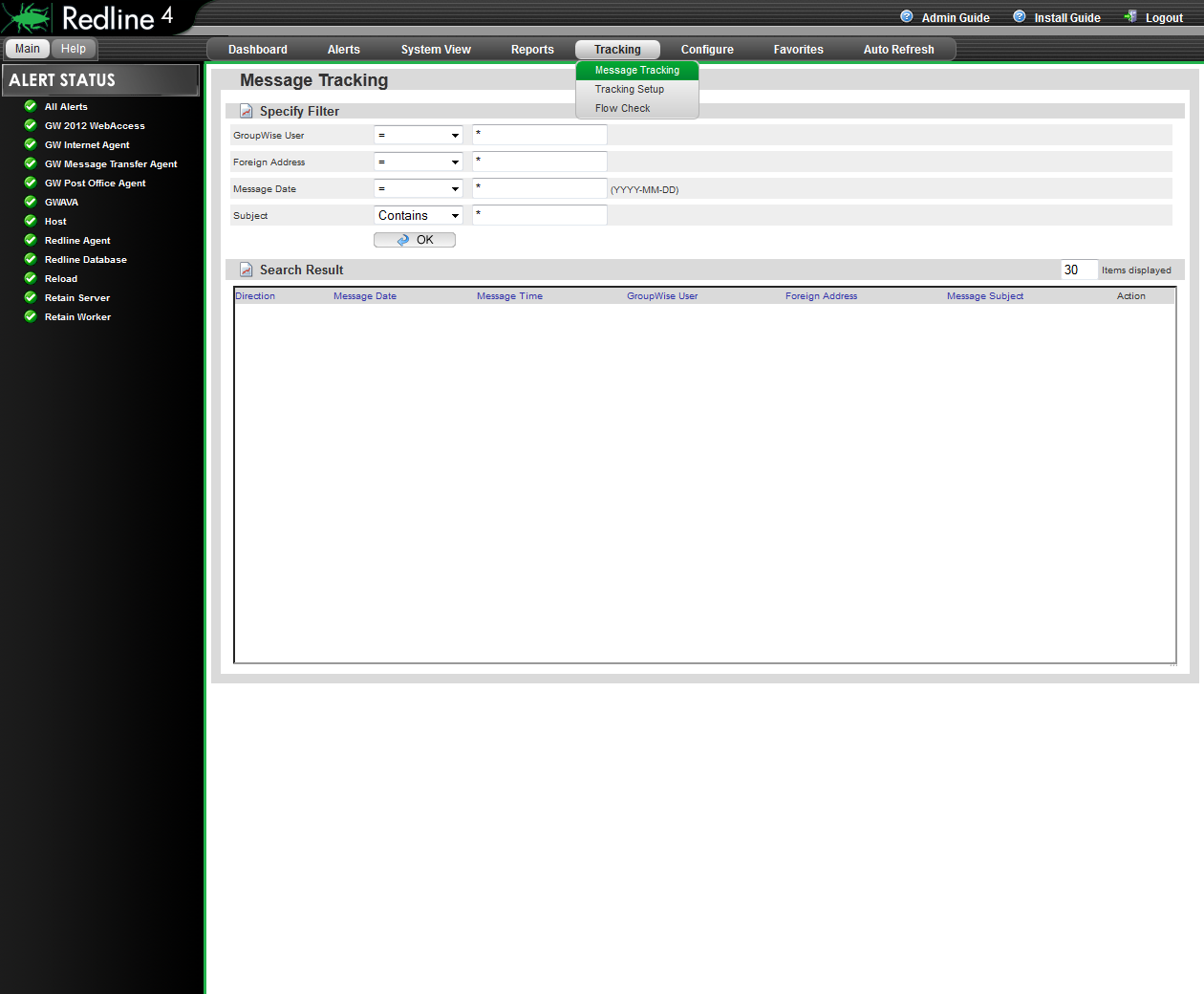
Before you can use Message tracking, it is necessary to set up accounting for your gateways and import the accounting log files into Redline.
4.6.1 Message Tracking Setup
Message tracking works by pulling the audit information from the GWIA and MTA. Redline detects and pulls these log files automatically, but they must first be generated by GroupWise. After accounting has been setup in the GWIA, the appropriate information must be provided: POA address, SOAP port, Audit account, and password. Message tracking will not function unless the setup is set to enabled.
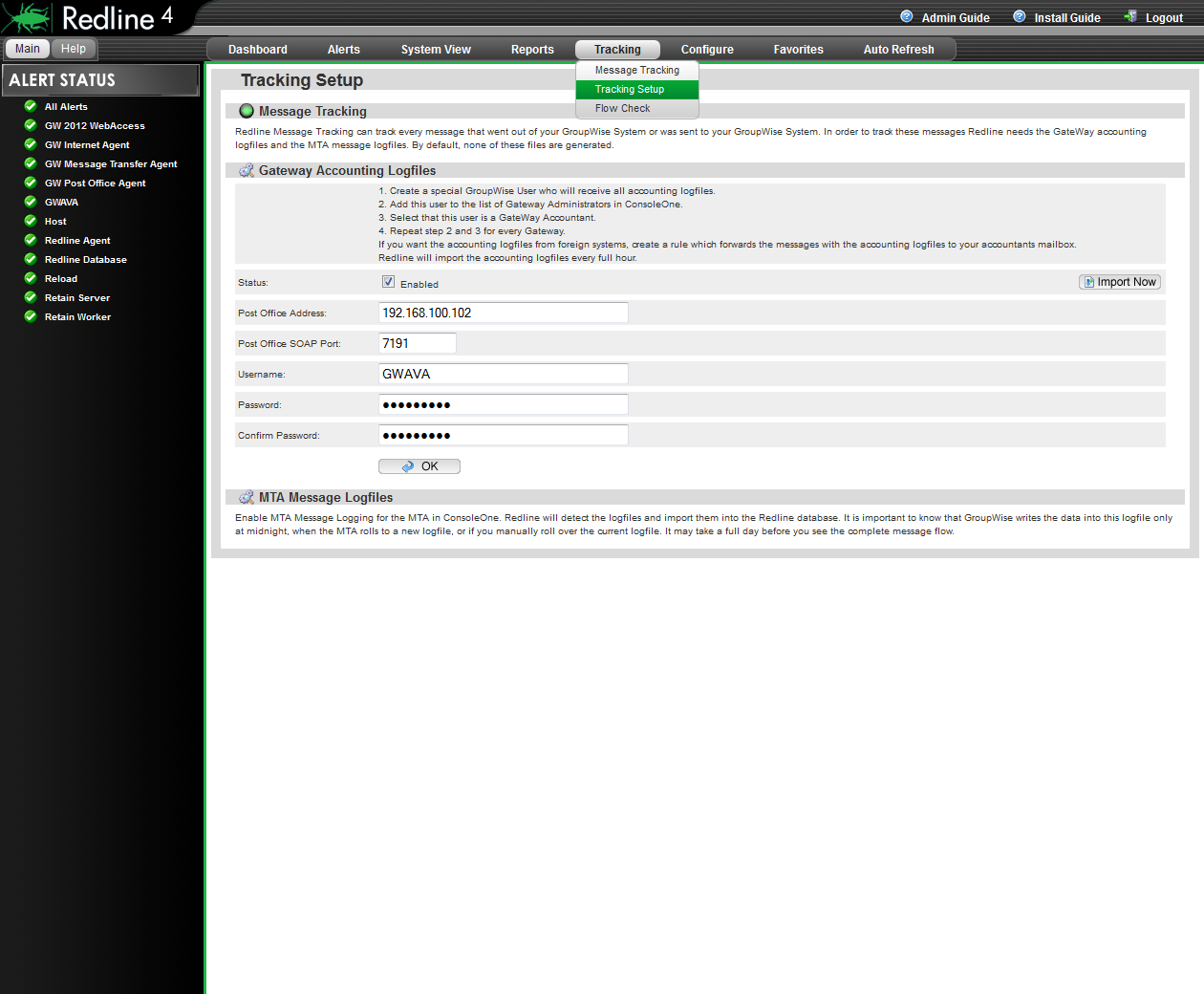
How to setup accounting for the GroupWise Internet Agent
-
Select the GWIA where you want to setup accounting
-
Click on the Tab “GroupWise“ and the sub tab “Gateway Administrators“
-
Add a user to the GroupWise Admin
-
Check that this user is an accountant for this gateway
After that, GroupWise will send accounting messages to this user. Check how large the attachments of these messages can be. If they are larger than 1MB, for example 6MB, you need to specify the /soapsizelimit=8192 in your Post Office startup file. Possible entries for /soapsizelimit are:
-
4096
-
8192
-
16384
-
32768
-
65536
Automatic import of accounting files into Redline
-
Ensure that accounting import is enabled.
-
Specify the IP address of your Post Office.
-
Specify the SOAP Port of the Post Office.
-
Specify the Username and Password of the User assigned as the Gateway Accountant.
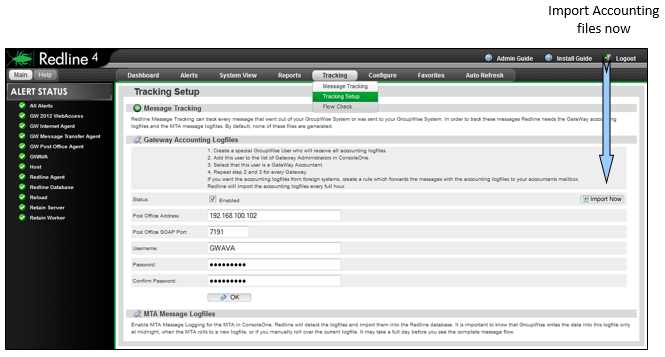
If you want to import all available accounting log files from the specified mailbox, click on the button “Import Now“. After a few moments, the log files should be imported.
To have message tracking through the domains and to the Post Office, you need to enable the MTA Message Log files for every MTA in your environment. Redline will find and read these log files automatically. After that Message Tracking can be used.
4.6.2 Track a Message
Browse to Message Tracking and specify some filter. If you don't specify any filter, all messages will be listed if you click on OK.
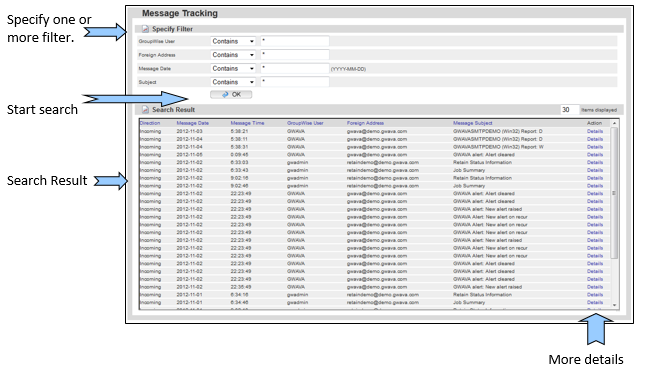
Redline lists 50 messages only, so it is important to specify the correct filter or sorting to find the message you are looking for. If you've found the message, you can click on the “Details” button to see through which Domains the messages were routed and which Post Office and User was the destination or source.

4.6.3 Message Flow Check
Redline monitors message flow by creating a test message and sending it through the system via a relay. The test message never is external to the system. Redline monitors the time that the Message is accepted by the GWIA, by monitoring the GWIA log file, and then checks the time that the message makes it through the POA, by monitoring the POA log file. Through comparison of these two times, Redline will know if the message takes more than the allotted time, (default is 20 seconds), to move through the system, and will generate an alert if the system is slow or unresponsive. The allotted time for this test is specified in the Post Office Threshold called Message Flow Processing Time. This test is performed per the interval specified. From the Post Office, the message can flow to a BlackBerry device, with the help of the Blackberry Enterprise Server, or to another mobile device through a GroupWise Mobile Server.
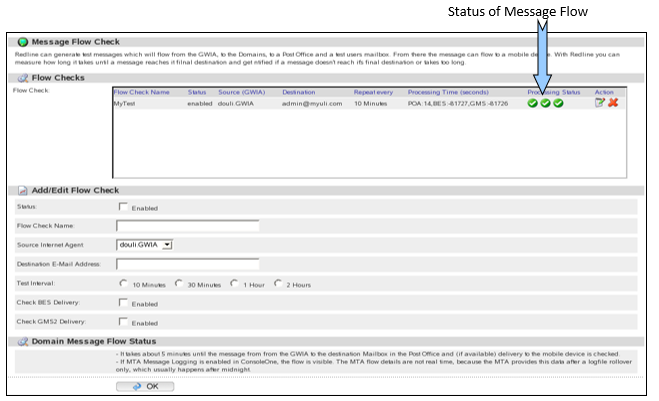
How to set up message flow check
-
Specify a Name for the flow check.
-
Select the Internet Agent where the message starts.
-
Specify a username who will receive the message.
-
Specify the interval how often a message will be sent.
-
Check if delivery to a mobile device should be checked.
-
Create a rule in the destination mailbox, that incoming messages will be deleted automatically.
If a message couldn't be delivered in 30 seconds, an alert is generated. The time until a message needs to be delivered can be configured based on a threshold called “Message Flow processing time”. This threshold exists for the Post Office agents and the GroupWise Mobile Server as well. Threshold settings are found under the Configure | Thresholds dropdown menu, with specific modules on the left-hand side.