

| |
IMPORTANT: Telnet access is not secure unless a password is set. We strongly recommend you set system passwords as part of the appliance initialization process. For more information, see Password Dialog Box.
You can manage the iChain Proxy Services by using commands from a workstation with a Telnet connection to the appliance.
This section assumes you are using a Windows* 95/98 or Windows NT* 4 workstation. If you are using another type of workstation, use the following steps as general guidelines to configure your Telnet software to work with the appliance.
IMPORTANT: The appliance Telnet connection supports only the VT-100 terminal type.
Ensure that you have a network connection between the workstation that you are running Telnet on and the appliance.
Click Start > run TELNET.EXE.
From the Telnet screen, click Terminal > Preferences.
Figure 99
Telnet Preferences Dialog Box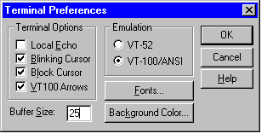
Under Terminal Options, check VT 100 Arrows.
Under Emulation, check VT-100/ANSI.
Set the Buffer Size to 25.
(Optional) Set any of the other preferences that you desire.
Click OK.
Click Connect > Remote System.
Figure 100
Connect Dialog Box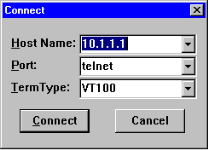
Enter the appliance IP address in the Host Name field > select Telnet for the port and VT100 for the terminal.
The uppercase VT100 option usually works better with the appliance than the lowercase vt100 option.
Click Connect.
Type the Config user password.
All appliance passwords are case-sensitive.
| |