Accelerator Authentication Parameter Page
The fifth page of the wizard is where the accelerator authentication parameters are specified. The user enables or disables authentication, enables or disables Secure Exchange, and creates authentication profiles. See Figure 32.
Figure 32
Accelerator Authentication Parameter Page
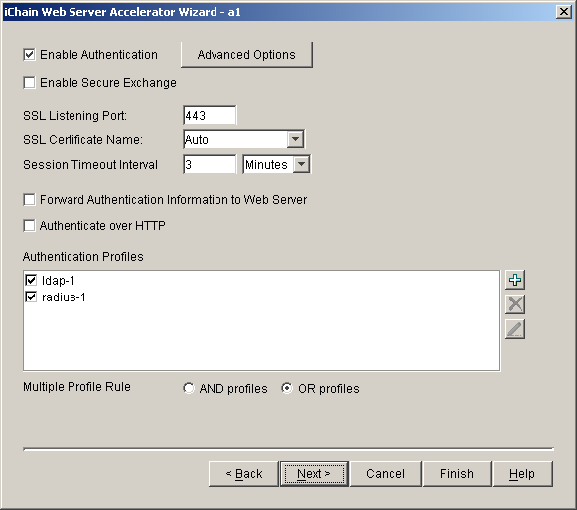
The following table describes the fields on this page:
Enable Authentication |
Checking this option forces a user to authenticate to access this Web server |
Optional |
Enable Secure Exchange |
Checking this option enables Secure Exchange (formerly known as SSLizer). Advanced options for Secure Exchange are not currently available from the wizard, but can be set from the proxy server administration application. |
Optional |
SSL Listening Port |
The SSL port that the user is redirected to for authentication if Secure Exchange is enabled. |
Required if authentication or Secure Exchange is enabled |
SSL Certificate Name |
The certificate name for this accelerator. If the name does not appear in the drop-down list, it can be entered manually. |
Required if Secure Exchange is enabled |
Session Timeout Interval |
The amount of time a connection can be inactive before re-authentication is required. |
Required if authentication is enabled or Secure Exchange is enabled |
Forward Authentication Information to Web Server |
Sends username and/or password to the Web server |
Optional |
Authenticate over HTTP |
Allows authentication over unencrypted HTTP instead of HTTPS. This feature is not compatible with RADIUS authentication profiles. |
Optional |
Authentication Profiles |
Each existing profile is listed, those in use appearing with a check box. At least one profile must be checked when authentication is enabled. When multiple profiles are in the list, more than one may be enabled. Currently, only Mutual SSL profiles may be used with LDAP or RADIUS profiles. LDAP and RADIUS profiles can not be used together. |
Required if authentication is enabled. |
Multiple Profile Rule |
Only valid if multiple Authentication Profiles are checked. Selects whether only one profile is required (OR) or if all selected authentication methods need to be fulfilled before authentication is granted (AND). OR is the default when multiple profiles are checked. |
|
Controls for Accelerator Authentication Parameters
This section describes the following buttons:
Advanced Options
The Advanced Options button launches the Advanced Authentication Options dialog as shown in Figure 33.
Add
The Add button launches the Add Authentication Profile dialog box.
Delete
The Delete button allows the user to delete an existing Authentication Profile.
Edit
The Edit button launches the Modify Authentication Profile dialog box.
Advanced Authentication Options Dialog Box
The Advanced Authentication Options dialog box allows you to specify advanced authentication options, including options that are set under special circumstances. See Figure 33.
Figure 33
Advanced Authentication Options Dialog Box
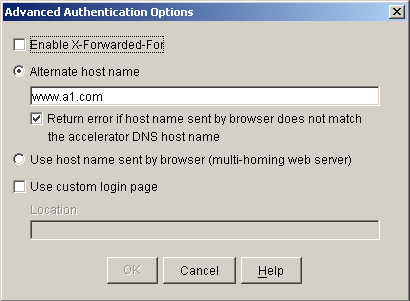
The following table describes the fields in this dialog box:
Enable X-Forwarded-For |
Checking the X-Forwarded-For option causes the appliance to either add information to an existing X-Forwarded-For or Forwarded-For header, or to create a header if one doesn't already exist. |
Optional |
Alternate host name |
Checking this option causes the specified string to be substituted for the host name in the HTTP header before the request is forwarded to the Web server. |
Optional |
Return error if host name sent by browser does not match the accelerator DNS host name |
Checking this option causes iChain Proxy Services to match the host name in the DNS header that came from the browser against the DNS name specified in this accelerator definition. If the names don't match, the request is not forwarded to the Web server. Instead, iChain Proxy Services returns an error to the requesting browser. |
Optional |
Use host name sent by browser |
Checking this option preserves the host name in the HTTP header exactly as it came in the browser request. |
Optional |
Use custom login page |
Checking this option allows for the specification of different login/error pages for this accelerator. |
Optional |
Location |
Specifies the location of the login page for this accelerator. The login page must exist on the iChain Proxy server. |
Required only if Use custom login page is checked. |
Add (Modify) Authentication Profile Dialog Box
The Add Authentication Profile dialog box allows you to name and create authentication profiles. The Modify Authentication Profile dialog box is exactly the same except for the dialog box title. See Figure 34.
Figure 34
Add Authentication Profile Dialog Box

The following table describes the fields in this dialog box:
Authentication Profile Name |
The name of the authentication profile. This name must be unique and must be less than 8 characters with no special characters. |
Required |
SSL Certificate Mutual Authentication |
Specifies a mutual authentication profile. No options are available. |
Optional |
LDAP Authentication |
Creates an LDAP profile. Selecting this button enables the corresponding options button. |
Optional |
RADIUS Authentication |
Creates a RADIUS profile. Enables the Radius Options button. |
Optional |
Controls for Authentication Profiles
This section describes the following buttons:
LDAP Options
The LDAP Options button launches the LDAP options dialog box.
RADIUS Options
The RADIUS Options button launches the RADIUS options dialog box.
LDAP Options Dialog Box
The LDAP Options dialog box allows the user to specify LDAP authentication parameters. It is functionally identical to the corresponding dialog box in the iChain Proxy Server administration application. See Figure 35.
Figure 35
LDAP Authentication Profile Options Dialog Box

The following table describes the fields in this dialog box:
LDAP servers |
This table lists the IP address, port, and connection type for all the LDAP servers used for this profile. Currently, the port and connection type must be the same for all servers. |
Required |
Use Distinguished Name |
Selecting this option requires users to log in using their DS name. |
Optional |
Use User's Email Address |
Selecting this option requires users to log in using their e-mail address. |
Optional |
Use LDAP Field Name |
Selecting this option requires users to log in using some LDAP field. |
Optional |
LDAP Search Base (LDAP User Contexts) |
This field will display as LDAP Search Base when either Use User's Email Address or Use LDAP Field Name is selected. It allows entry/deletion/modification of LDAP search bases or user contexts. |
Required |
Use anonymous bind for LDAP search |
Bind anonymously to search the LDAP directory. |
Optional |
Use username/password bind for LDAP search |
Bind with a proxy server to search the LDAP directory. |
Optional |
Username |
Proxy username in LDAP format. |
Required when Use username/password bind for LDAP search is selected |
Password |
Proxy user password. |
Required when Use username/password bind for LDAP search is selected |
Password confirmation |
Proxy user password confirmation. |
Required when Use username/password bind for LDAP search is selected |
LDAP Field Name |
LDAP field name to search for (only visible with Field Name). |
Required when Use LDAP Field Name is selected. |
Controls for Authentication Profile Options
This section describes the following buttons:
Add LDAP Server
The Add LDAP Server button allows you to launch the New LDAP Authentication Server dialog box.
Delete LDAP Server
The Delete LDAP Server button allows you to delete an authentication server from the list.
Edit LDAP Server
The Edit LDAP Server button allows you to launch the Modify LDAP Authentication server dialog box.
Add LDAP Context
The Add LDAP Context button allows you to launch the dialog box to add an LDAP Search Base/User Context (if DN is selected).
Delete LDAP Context
The Delete LDAP Context button allows you to delete an LDAP Search Base/User Context from the list.
Edit LDAP Context
The Edit LDAP Context button allows you to launch the dialog box to modify an LDAP Search Base/User Context (if DN is selected).
New LDAP Authentication Server Dialog Box
The New LDAP Authentication Server dialog box allows you to specify the parameters for new LDAP authentication servers. The Modify LDAP Authentication Server dialog box is exactly the same except for the dialog box title. See Figure 36.
Figure 36
New LDAP Authentication Server Dialog Box
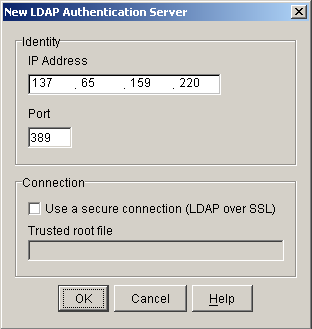
The following table describes the fields in this dialog box:
IP Address |
The IP address of this LDAP server. |
Required |
Port |
The LDAP port to communicate over. Currently, this is only modifiable for the first LDAP server in the list. |
Required |
Use a secure connection (LDAP over SSL) |
If checked, authentication information will be sent over LDAPS (encrypted). This is only modifiable for the first LDAP server. |
Optional |
Trusted root file |
Specifies the trusted root file to be used for secure communications. This is only modifiable for the first LDAP server. |
Required when Use a secure connection is selected. |
Add LDAP Context Dialog Box
The Add LDAP Context dialog box provides the input of LDAP search bases or user contexts. The Modify LDAP Context dialog box is exactly the same except for the dialog box title. See Figure 37.
Figure 37
Add LDAP Context

The following table describes the field on this dialog:
Container name in LDAP format |
The name of the container in LDAP (comma delimited) format |
Required |
Controls for Add LDAP Context
This section describes the following button:
Object Browser
The Object Browser button allows you to launch an object browser to select the desired container.
Radius Options Dialog Box
The Radius Options dialog box allows you to specify the parameters for RADIUS profiles. This dialog box is functionally identical to the corresponding iChain Proxy Server administration application dialog box. See Figure 38.
Figure 38
RADIUS Profile Options Dialog Box
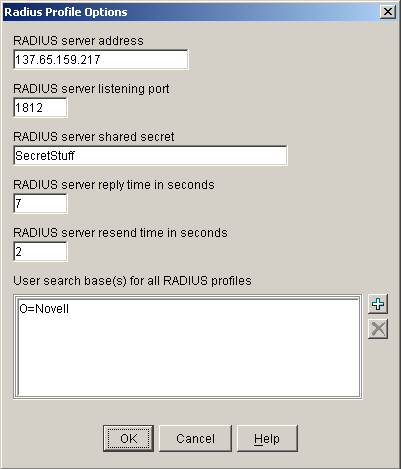
The following table describes the fields in this dialog box:
RADIUS server address |
The IP address of the RADIUS server. |
Required |
RADIUS server listening port |
The port number on which the RADIUS server listens for incoming authentication. |
Required |
RADIUS server shared secret |
The string the RADIUS server uses to verify that the appliance can request authentication of users. |
Required |
RADIUS server reply time in seconds |
The total time the appliance will wait for a response from the RADIUS server before authentication fails. The default is 7 seconds. |
Required |
RADIUS server resend time in seconds |
The interval in seconds between appliance requests to the RADIUS server. The default is two seconds. This means that the appliance could send three requests before the 7-second default limit expires and the authentication request fails. |
Required |
User search base(s) for all RADIUS profiles |
Lists the contexts that the proxy server will use when searching for the user being authenticated when using non-Novell RADIUS authentication. This list applies to all RADIUS profiles, not just the current one being created or modified. |
Optional |
Controls for RADIUS Options
This section describes the following buttons:
Add Search Base
The Add Search Base button allows you to launch an object browser to select the desired container.
Delete Search Base
The Delete Search Base button allows you to delete a search base from the list.

