17.4 Performing Post-Update Tasks
After you start Kablink Teaming 2.1, you can access your Teaming site as usual. However, you need to reset some aspects of the interface before you allow users to access the updated site. The interface reset affects only those definitions and templates that are included with the Teaming product. If you have created custom definitions and templates, they are unaffected by the interface reset.
IMPORTANT:If you have manually customized any templates that are included with the Teaming product, back up the files you have modified before performing the interface reset.
-
Reset your definitions.
-
Log in to the Teaming site as the Teaming administrator.
-
Click , click , then click .
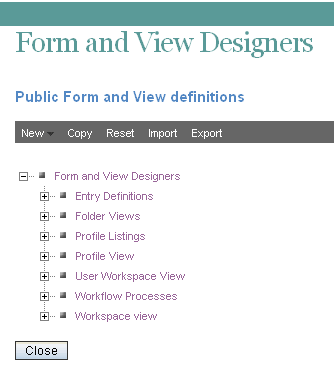
-
-
Reset your workspace and folder templates
-
Log in to the Teaming site as the Teaming administrator.
-
Click > .
-
Click .

-
Click .
-
Click to confirm, then click .
-
Your Teaming 2.1 site is now ready for use.
IMPORTANT:If Teaming users encounter problems displaying any pages on the Teaming site after the update, simply have them clear the browser cache.