

| |
SecureLogin provides wizards that help you generate login scripts and store variables. These scripts avoid lengthy setup periods.
Scripts store the login name, password, and any other information fields required for authentication. Scripts are stored in the local database and in eDirectory.
After detecting a Windows login panel, SecureLogin displays a dialog box so that you can enable single sign-on to this product.
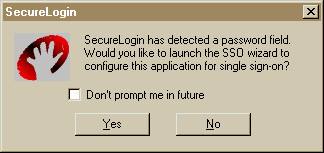
You can choose not to enable single sign-on for this application as well as configure SecureLogin so that this setup window does not display again for this application. If you select not to be prompted, SecureLogin generates a blank script for this application and doesn't prompt you again. If you decide to set up single sign-on, SecureLogin launches a wizard that guides you through the setup.
For some applications, SecureLogin may contain a pre-built script. In this situation, SecureLogin prompts you for your login credentials and enables single sign-on to that application. For more information, see Predefined Applications.
The next time you open the application, SecureLogin authenticates for you.
When you navigate to a Web page that has a login field and then submit your login information, SecureLogin prompts you whether to enable single sign-on for the site.
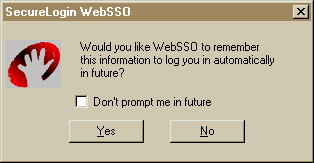
If you select Yes, SecureLogin extracts the login information from the Web page and stores it for future single sign-on authentication.
If you earlier selected "Don't prompt me in future" or for some reason do not want to launch the application to set up single sign-on, you can launch a wizard manually by clicking Login Wizard on the user management tool.
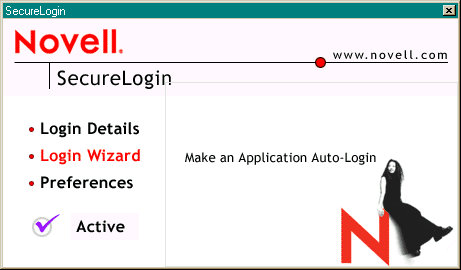
Right-click the SecureLogin icon on the system tray.
Select Login Wizard.
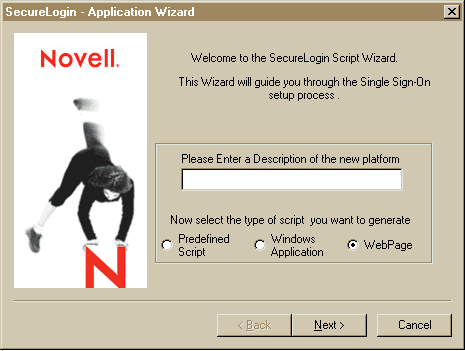
Enter a description for the application (platform) > select the type of application > follow the on-screen prompts.
| |