Getting Started
When you start your system, you are usually prompted to enter your username and password. If someone else installed your system, check with your system administrator for your username and password.
After logging in to GNOME for the first time, you see the GNOME desktop, which offers the following basic elements:
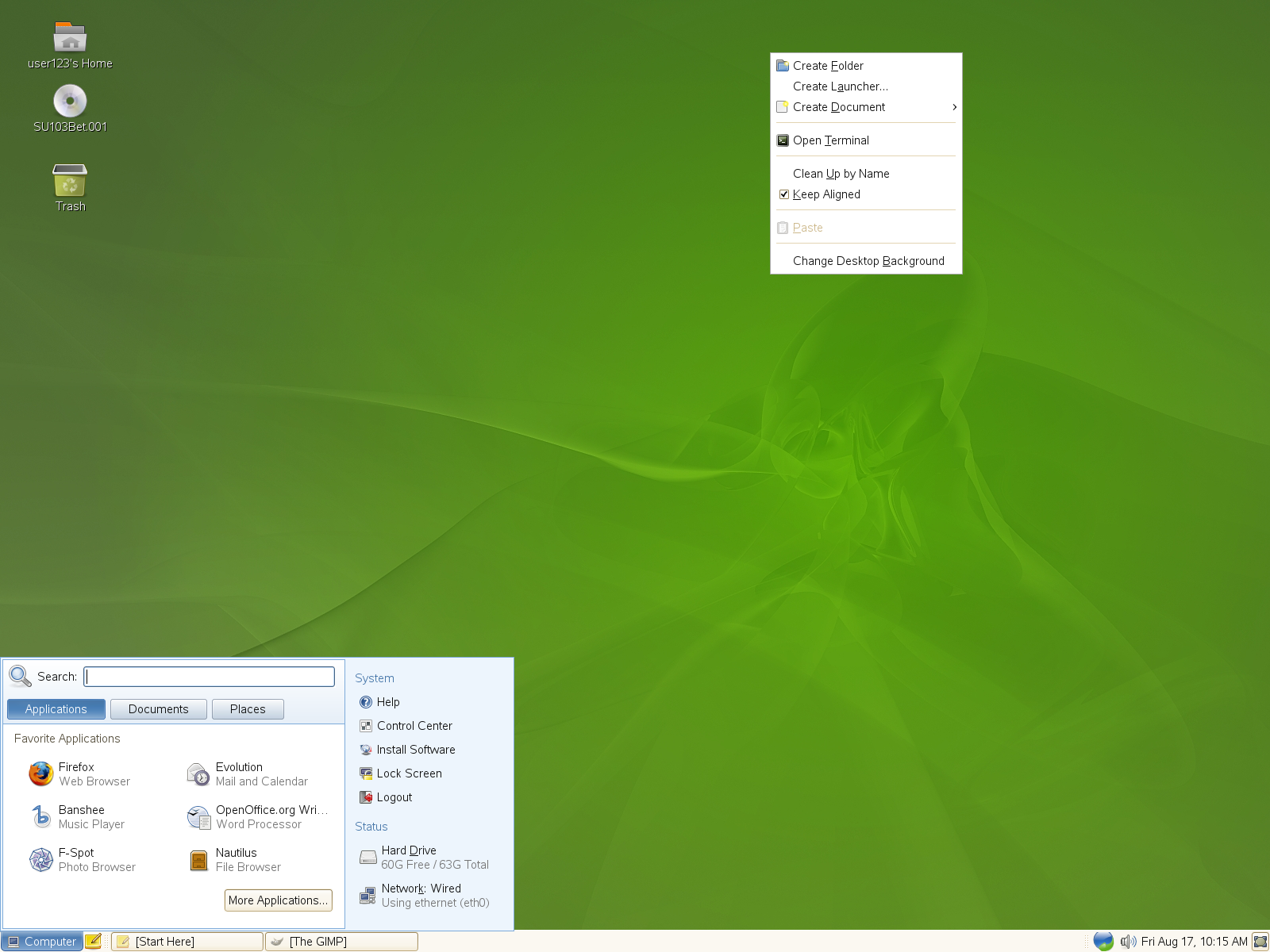
Desktop Icons: Access programs and features on your system by double-clicking an icon. Right-click an icon to access additional menus and options.You can add as many icons to your desktop as you want. By default, the desktop features two key icons: your personal Home folder and a trash can for deleted items. Other icons representing devices on your computer, such as CD drives, might also be present on the desktop. If you double-click your Home folder, the Nautilus file manager starts and displays the contents of your home directory.
Bottom Panel: The desktop includes a panel across the bottom of the screen. This panel contains the Computer menu (similar to the Start menu in Windows*), the system tray, and a taskbar to display icons for all applications currently running. You can also add applications and applets to the panel for easy access.
Main Menu: Click on the far left of the bottom panel to open the main menu. Commonly used applications appear in the main menu, along with recently used applications. You can also click to display your recent documents, or you can click to display your favorite places (such as your home directory or the Desktop). Click to access additional applications, listed in categories. Use the options on the right to access Help, install additional software, open the GNOME Control Center, lock your screen, log out of the desktop, or check the status of your hard drive and network connections.
System Tray: The right side of the bottom panel holds some smaller icons, including the system clock that displays the date and time, the volume control, and icons for several other helper applications.
Taskbar: By default, all started applications are displayed in the taskbar (the area in the middle of the panel between the Computer button and the system tray). You can access any started application regardless of the currently active desktop. Click an application name to open it. Right-click an application name to see options for moving, restoring, or minimizing the window.
Desktop Menu: Right-click an empty spot on the desktop to display a menu with various options. Click to create a new folder. Use to create a launcher icon for an application. Provide the name of the application and the command for starting it, then select an icon to represent it. You can also change the desktop background, open a terminal, create a document, and align desktop icons.