Configuring 3D Desktop Effects
Xgl is an Xserver architecture that lets you turn your desktop into a rotating 3-D cube, tile windows so they don’t overlap, and switch tasks while viewing live thumbnails. You can enable translucent or transparent windows, zoom in and out of the desktop screen, and use other window effects such as shadows, fading, and transformations. You can also configure windows to snap to other windows and screen edges when they are moved.
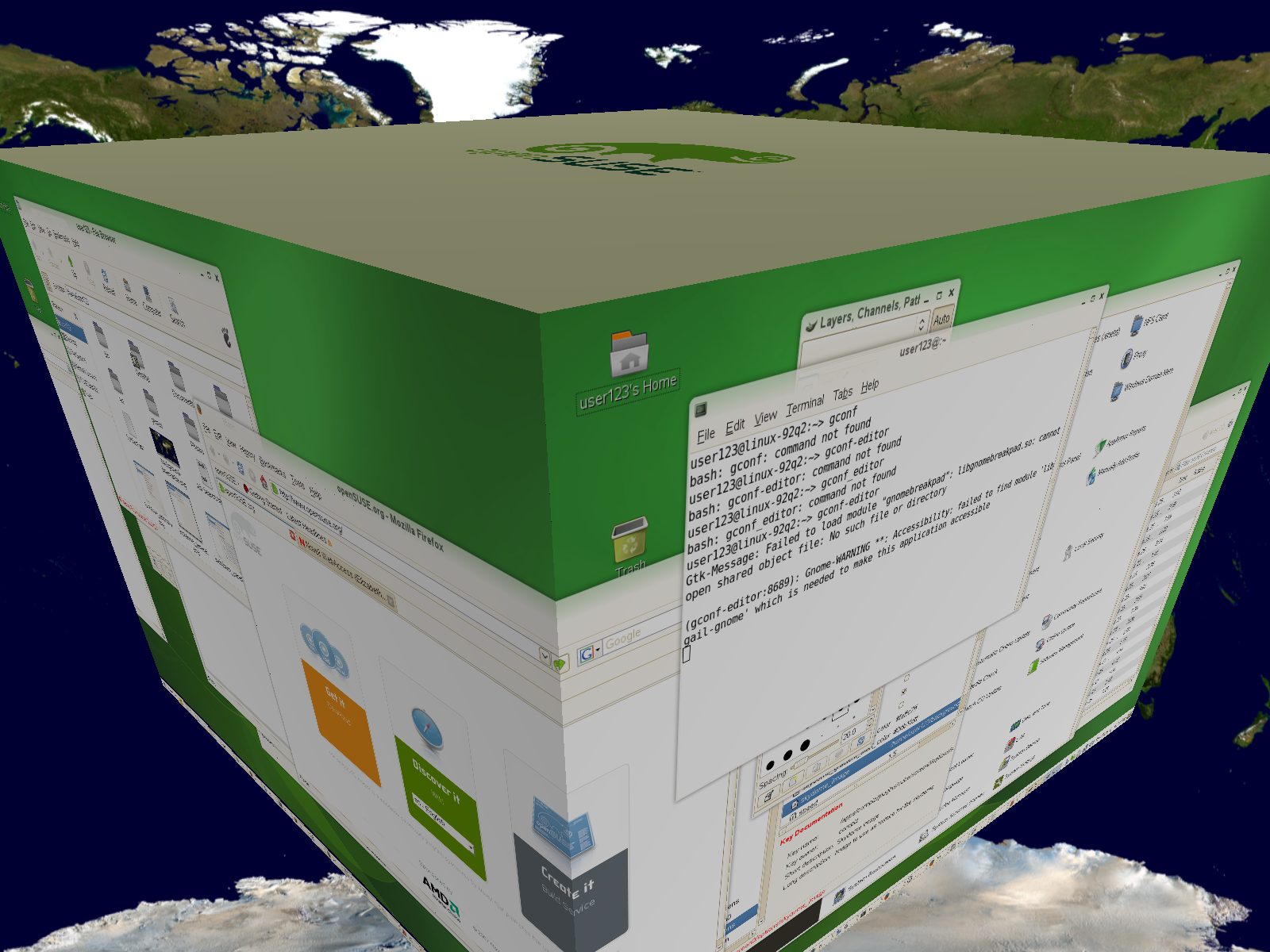
To enable Xgl, you need a graphics adapter capable of providing 3-D support, and you also need the graphics driver that Linux uses to operate the graphics adapter. This driver must be able to handle OpenGL (or 3-D) requests from the Linux kernel. Your screen resolution must be within the 1024x768 to 1920x2000 range, and your color depth must be set at 24-bit. 3-D acceleration must also be enabled. Use SaX2 to change your graphics card and monitor properties if necessary.
-
Click .
-
Click in the group.
The Desktop Effects tool analyzes your system and tries to determine whether or not you can run Xgl. If it finds anything wrong, it advises you on what actions you can take. For example, you might be advised to change your screen resolution or color depth, or to activate 3-D acceleration. Follow the on-screen prompts to configure your system for Xgl.
-
After your system is configured for Xgl, click .
-
Type the root password, then click .
-
Log out of your session, then log back in.
The default desktop effects are now enabled. For example, windows are translucent when you move them, they fade away when you close them, and dragging a window to the far right of the screen rotates the desktop cube. To change any of these effects, use the options in the Desktop Effects Setting dialog box.
After your system has been configured for Xgl, you can use the following effects:
-
Wrap your virtual desktops around a cube and rotate the cube to get to another virtual desktop. Rotate the cube with Ctrl+Alt+→ or Ctrl+Alt+←.
-
Fly through the range of virtual desktops without having to use the pager and select the one to use. To change to this panel-like view, use Ctrl+Alt+↓. To scroll to a desktop left or right of the current one, keep holding Ctrl+Alt and use → and ←.
-
Zoom into certain parts of the desktop. Select the area to enlarge and right-click while holding the Windows key.
-
Show all windows opened on one virtual desktop as if they were resized so all fit in the display at once. Arrange the windows using Ctrl+Alt+↑. While holding down Ctrl+Alt, use the arrow keys to determine the focus.
-
Create virtual raindrops on your desktop and use a virtual windshield wiper to get rid of them. Toggle the raindrops with Shift+F9 and toggle the windshield wiper with Shift+F8.