Browsing the Internet with Firefox
Firefox* is becoming the Web browser of choice. It has all the familiarity of other browsers, plus added features such as security and privacy tools.
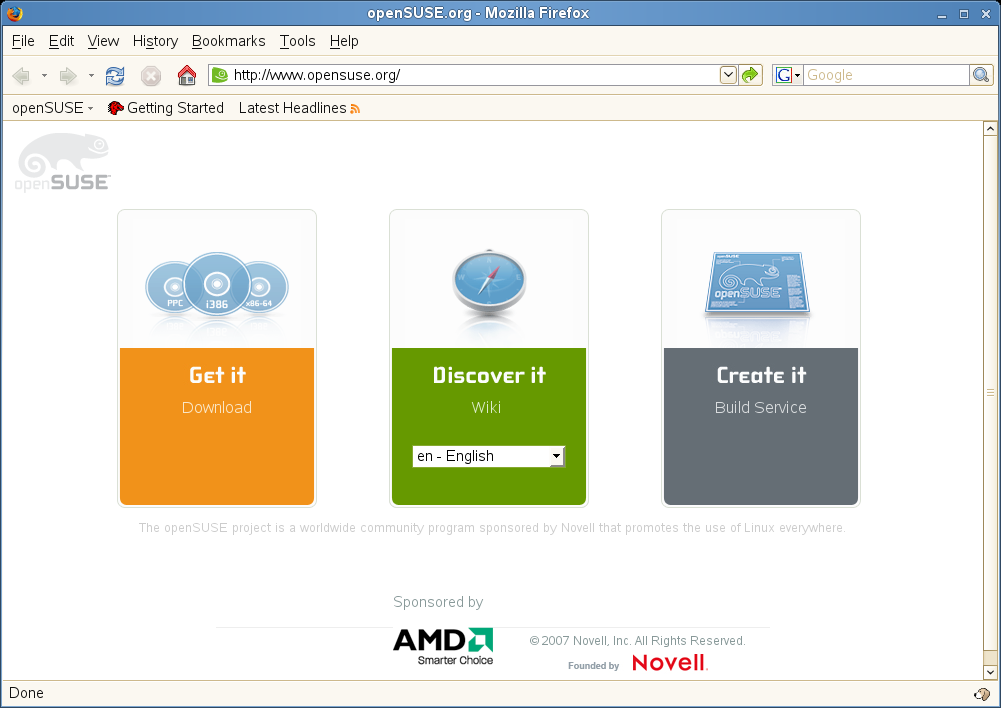
To start Firefox, click .
With features like tabbed browsing, pop-up window blocking, and download and image management, Firefox combines the latest Web technologies. Its easy access to different search engines helps you find the information you need. Enter a URL in the location bar to start browsing.
To open an empty tab in Firefox, press Ctrl+T and type a new URL. To open a link in a new tab, click the link with your middle mouse button. Right-click a tab to access more tab options. You can create a new tab, reload one or all existing tabs, or close a single tab or all tabs. You can also change the sequence of the tabs by dragging and dropping them to a new position.
Finding Information on the Web
-
To start a search on the Web with the Google* engine, type your search keywords in the integrated search box
 on the right of the location bar, then press
Enter. The results display
in the window.
on the right of the location bar, then press
Enter. The results display
in the window. -
To use a different search engine, click the G icon in the search box to open a list of other search engines.
-
Click the desired engine, then press Enter to start the search.
You can also search the current Web page for keywords. To do so, press Ctrl+F to open a bar at the bottom of the window. Enter your search keyword there and use the buttons to the right of the box to search in different directions or to select all hits in the text.
Downloading Files with Firefox
If you download a file with Firefox, the starts and saves this file to the folder configured in . By default, your desktop is the destination folder for downloaded files. Firefox shows your finished downloads in the window.
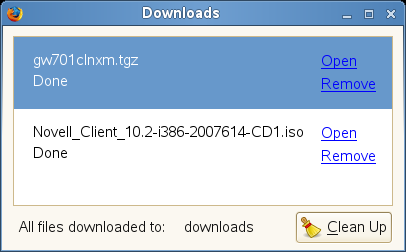
You can open the downloaded files directly from the window or from the destination folder. To clean up the history of downloaded files, click .
Configuring Firefox Preferences
To adjust the default download folder or to activate or modify the pop-up blocking feature, click .
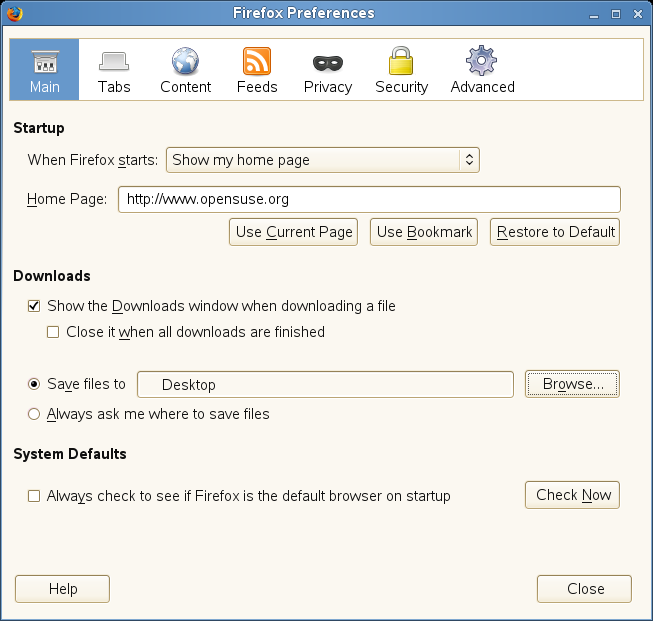
From here you can also configure numerous other settings such as appearance, language, privacy, and tab options. Click the icons and set the options on each page according to your preferences. Click to apply the changes.