E-Mailing and Calendaring
For reading and managing your mails and appointments, you can use Kontact as your personal information management tool (PIM). Kontact combines KDE applications like KMail, KOrganizer, and KAddressBook into a single interface. This gives you easy access to your e-mail, calendar, address book, and other PIM functionality. Kontact can also manage multiple e-mail accounts, such as your private e-mail and your business ones. Kontact is not yet available as a KDE 4 application, but you can use the KDE 3 version of Kontact on your KDE 4 desktop.
Starting Kontact for the First Time
To start Kontact, press Alt+F2 and enter kontact. To access one of the components, click the corresponding icon in the left sidebar.
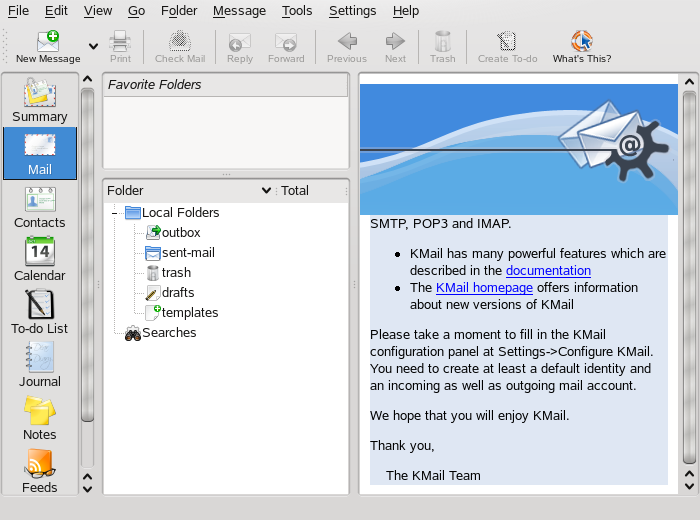
Before you can send or receive mails, you must configure an e-mail account. When starting KMail for the first time, a configuration wizard appears that assists you in setting up your account: Select the you want to create (like IMAP or POP3), enter your like name and e-mail address, and enter your for the e-mail account. In the last step, enter the for incoming and outgoing mail and click .
If you want to modify your e-mail account (for example, if you need to change any ports or want to add a second account), click the icon, then select to open the configuration dialog. If you are not sure about the settings or items to select, consult your Internet Service Provider or system administrator.
To write a new mail, click the icon in the Kontact main window and press Ctrl+N to open the mail composer. After you have finished your mail, click to send it immediately. In case you have configured multiple e-mail accounts, keep the button pressed, then select the account from which you want to send the mail.