6.1 Users
User and Rights Management in Retain include:
-
Creating, deleting, and editing users
-
Allowing new user accounts, and restricting specific ones from being created
-
User expiration
-
Assigning users to groups, to conveniently grant rights or set initial settings on a multiple user basis
-
Granting access to mailboxes other than the user's personal mailbox
-
Changing the specific functions the user can perform
To access User and Groups Management, the user logging in needs the “Manage users and groups” administrative right.
6.1.3 Creating a new user
-
Begin by clicking on the “Add User” button
-
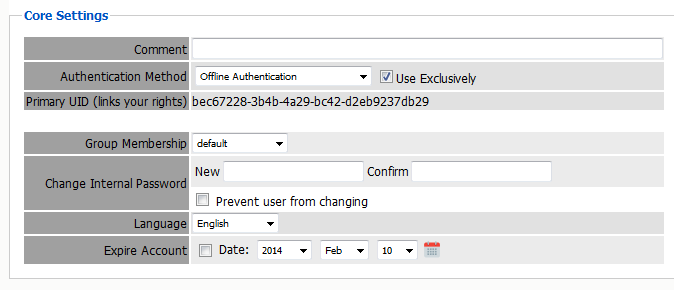
Enter a new user name and then fill out the options under each tab
-
When you are done, click the save changes disk icon at the upper right
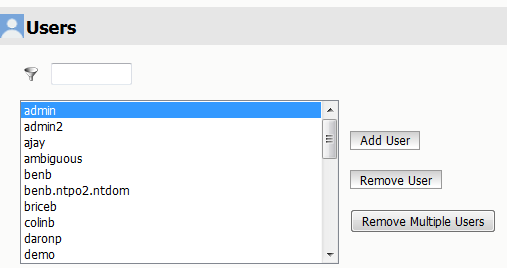
All previously created users are listed and can be edited or removed, by clicking on the user and editing the values, or through clicking on the Remove User button.
6.1.5 User Rights
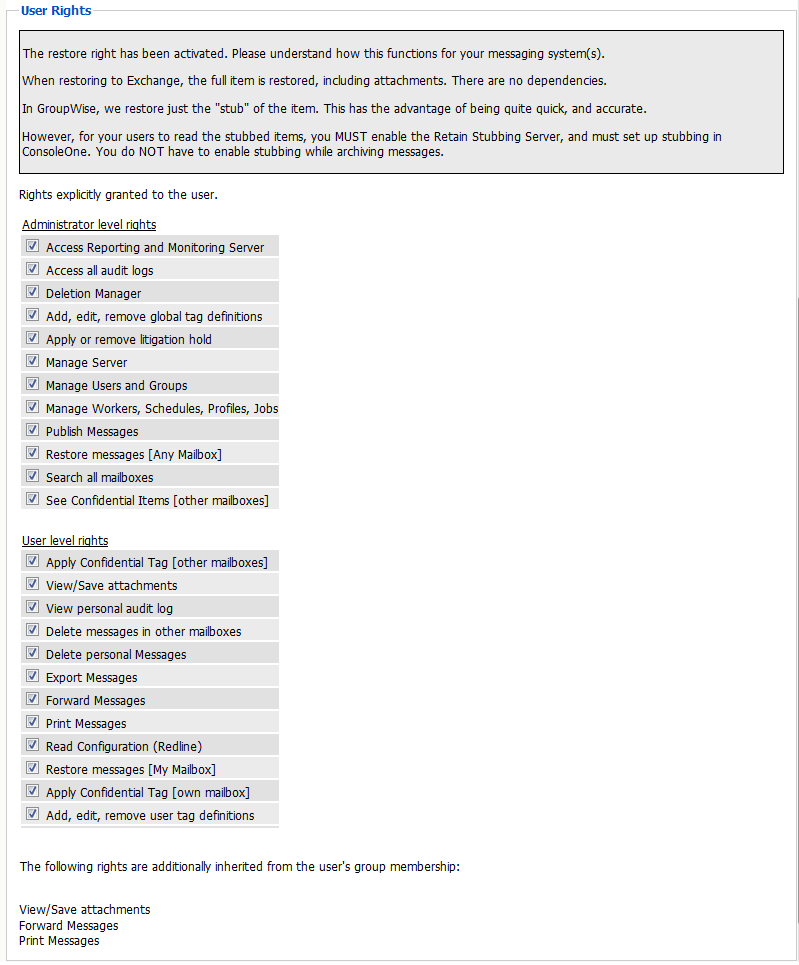
When an administrator level right is granted a user, that user will see that right in the management console when they log into Retain. If a right that the full Administrator can view is missing from the menu of that user, they are missing that right. To view and have access to that option, they must have the missing right granted to that user. If you have performed an upgrade and are missing options, check for a missing administrator right.
-
Control what rights you grant to the user here. Check the box to enable the right
-
These are extra rights
-
You don't need any of them for the user to access their mailboxes
-
You do need them to do “special things”. The first admin account gets them all
-
-
Retain first checks your assigned group and you start with the Group Rights
-
The rights you explicitly set here are added to the group rights for the user’s effective rights
-
This way, you can control users as a group and give different rights to different groups
-
If you don’t have rights to an administrative option, it won’t appear on the left
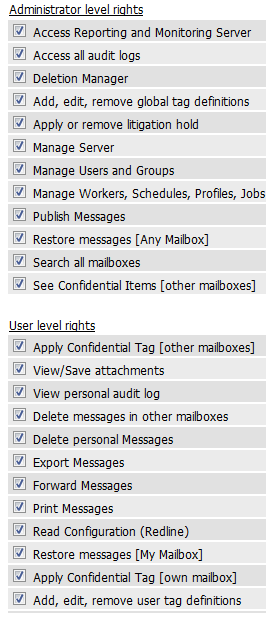
It should be clear from this screen that there is no such thing as an Administrator per se in Retain. Instead, some users simply have more rights to do more things than others. A distinction is made between Administrator level rights (which allow a user global system wide power) and User level rights, but any user can have zero or more rights in either category. The Administrator you created in the setup wizard was simply a user account with all of the Administrator level rights granted by default.
6.1.7 User-level rights
All user level rights are strictly optional, and add additional functionality.
-
None are needed to access your own mailbox and other mailboxes assigned to you
-
You may wish to grant Forwarding, View Attachment, and Printing rights
-
The initial “default” group created upon installation does this
NOTE:There is no way to perfectly block printing in a web browser, so using this feature should not be taken as a 100% guarantee that users won’t be able to print. Nonetheless, for most users, it is effective
These rights are self-explanatory:
-
View/Save Attachments
-
View own audit log
-
Forward Messages
-
Restore Messages (My mailbox only)
-
Print Messages
Other rights:
-
Delete messages in other mailboxes
-
Allows access to delete items from mailboxes that the user is granted access to, but is not their personal account
-
-
Delete personal Messages
-
Allows deletion of items from the user’s personal account
-
-
Export Messages
-
Grants the right to use the export option which sends groups of messages or items as a single PDF document.
-
-
Add, Edit, remove user tag definitions
-
This allows the user to create, remove, and edit the user’s tags in the search messages interface.
-
The Read Configuration right (Redline Integration)
If you are integrating with GWAVA’s Redline monitoring product, you will need to create a user account so that Redline can log in and retrieve monitoring information. We recommend the following settings:
-
Account Never Expires
-
Offline Password Authentication is required. (use exclusively) (be sure to set the password)
-
Read Configuration (Redline) right.
Mailboxes
Select the mailboxes this user will be able to access in addition to their own.
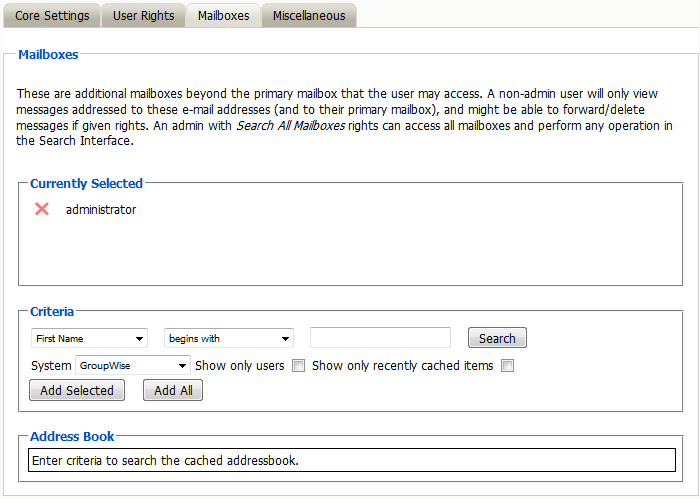
Often, you will want some users to be able to search through more than just their own mailbox. Administrators can have “Search All Mailboxes” as a right which gives them access to everything. This section allows you to give a far more selective range of mailboxes to a user for searching.
In the example above, the user has explicit rights to two mailboxes. These mailboxes can be taken away from the user simply by clicking on the red ‘X’.
Adding users to the list is done using the Address Book selector. In the criteria section, you may enter information to search for a mailbox or a set of mailboxes. The search results will appear in the Address Book section. Each listed entry has a check box you can use to select that mailbox for addition to the list. Once you are done selecting, click Add Selected Items to add those mailboxes to your list of searchable mailboxes.
6.1.8 Address Book Selector
This interface is utilized in various other areas, but is described here.
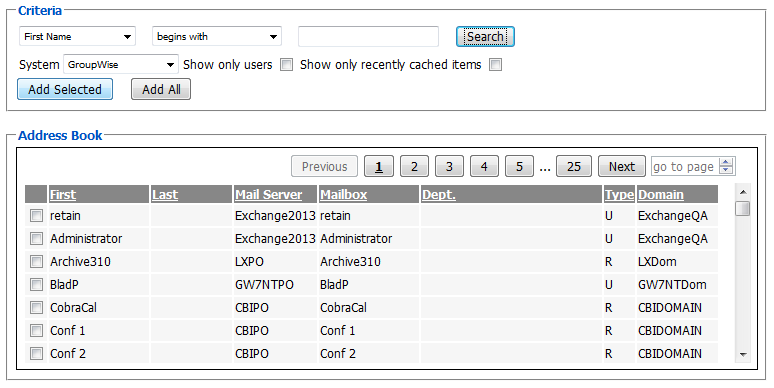
It shows the currently selected items at the top, and lets you delete an item by clicking the red X.
(The New Mailbox selector in the Search Interface is an exception; just choose another item)
Adding Mailboxes
-
Choose between the configured module systems
-
Fill out basic criteria to narrow your search results (or no criteria for the first 100)
-
Click Search
-
The results up to a maximum of 100 are displayed
-
The user can then page back and forth among the first 5 pages of results
-
Choose which of the results you want to add to the selected list
-
Click Add Selected Items
NOTE:You can restrict to just Users (skipping Resources). You can show only recently cached items (last 10 days). The search is not case sensitive.
About “Show only recently cached items”
This option restricts the list of items shown in the selector to those with items stored within the last 10 days. In user/group management, it restricts the list to users who have logged in to the live Mail system within the last 10 days. The idea is to show only current items. If you DO want to see all items regardless of whether they’ve shown activity within the last 10 days, just uncheck this option.
Miscellaneous Tab
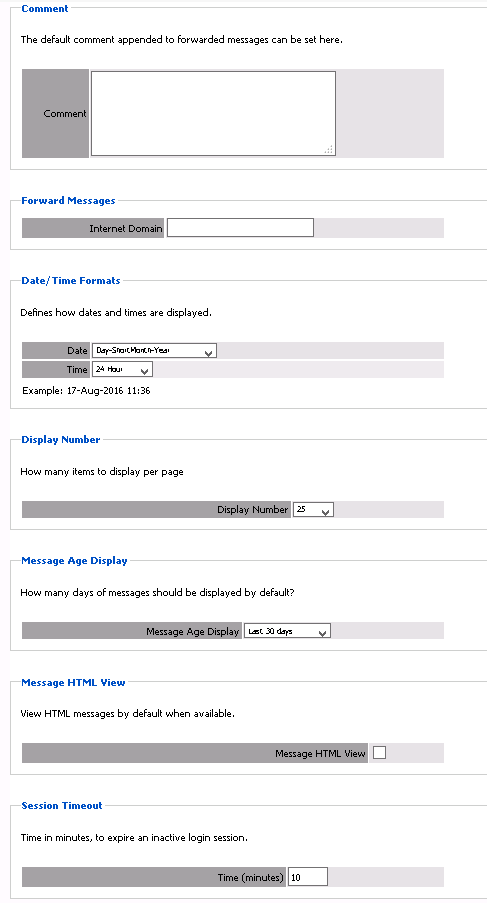
This tab contains settings that mainly govern the way the Search Interface works for the selected user.
Note that the user can change any of these settings by using the User Options tab in the Search interface.
-
Comment: Default comment for forwarding messages
-
Date/Time Format: How you want your dates and times to be displayed
-
Display Number: How many items to display per page
-
Forward Messages: Automatically append the specified address to forwarded messages
-
Message Age Display: Default date filter for searching. May be changed on the fly
-
Message HTML View: Have Retain display HTML messages by default, when available:
-
Session Timeout: Inactive session timeout. Can be between 5 and 60 minutes