8.11 Outlook Plugin User Guide
The first time you start Outlook after the installation of the plugin there will be a log-in error. This is nothing to be worried about, it only means that your credentials haven't been entered yet. This is not difficult.
8.11.1 Outlook Account Setup
To enter your log-in credentials:
-
Go to the Retain tab
-
Select "Download settings"
-
Then click the "Account settings" button
-
Enter your Username which is your logon name from Active Directory (AD) for Exchange including the domain (George@gwava.com) or your username from GroupWise (George).
-
Enter your password.
-
Select the messaging system you wish to connect to.
-
-
Then click Save.
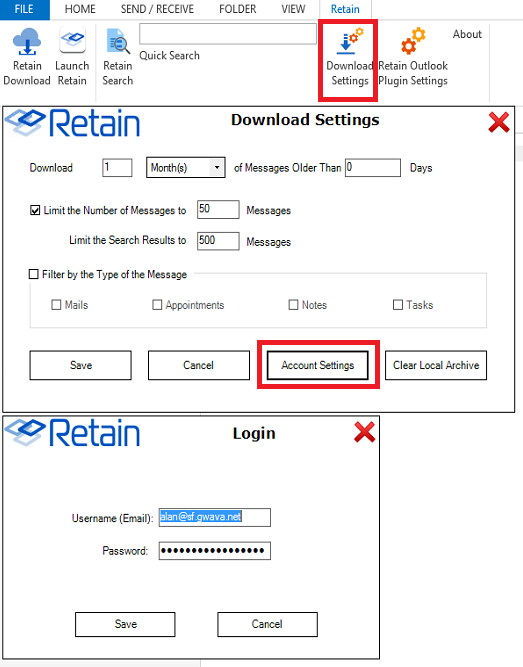
Figure 1: Download Settings
8.11.2 Using Retain Outlook plugin
Outlook Mail
Once the connection is made a new folder will show up in your left sidebar. It will be labeled "Retain Download" (Figure 2) which gives you access to your Retain archive mailbox.
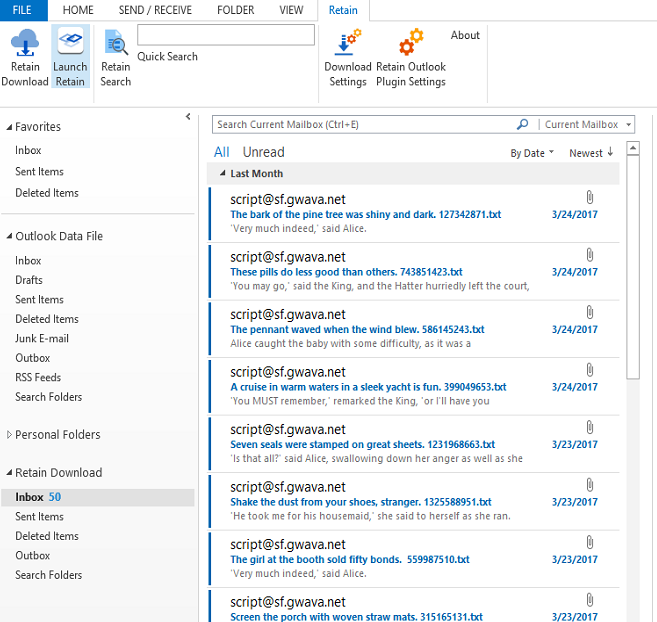
Figure 2: Retain folder
Outlook will download a copy your archived messages to your local drive, just like a normal Exchange archive mailbox. Depending on the settings you chose in the Download Settings (see Figure 1).
This can be very useful after a migration (for example, from GroupWise to Exchange). You can choose to download the messages Retain archived from the GroupWise system so you can see them in Outlook.
The Retain Download folder does not allow you to move messages between folders, an error dialog box will appear. Retain is not a email management system, it is only archiving.
Automatic download is useful for having easy access to past emails you have removed from Exchange to keep your inbox clean.
8.11.3 Retain Search
This is the main function of the Retain Outlook Plug-In, and what you will use most often.
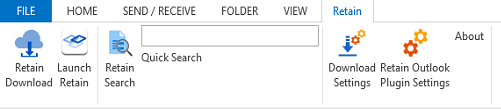
Figure 3: Retain Search Button
Retain search will perform a search on the messages in your Retain mailbox on the Retain Server. The results will be shown in the Retain search results folder. This is different from Outlook's search which only applies to messages that are on your local computer.
There are two ways to do a Retain search: Easy and Advanced.
Easy Search
-
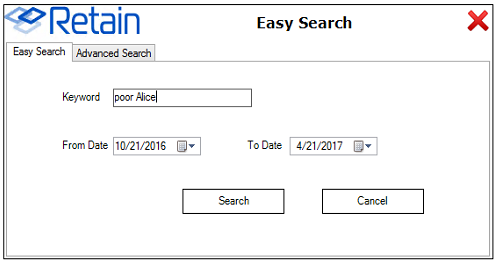
Figure 4: Retain Easy Search
-
Easy search is as simple as it gets you give it a keyword and a date range and it will search To:, From:, Subject:, and message contents fields for the keyword. By default "To date" will be today's date and the "From date" will be 6 months ago. Clicking on the calendar icon will allow you change the dates.
Advanced Search
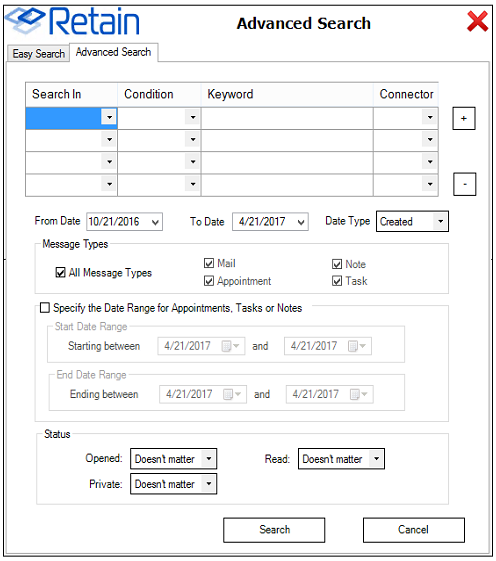
Figure 5: Advanced Search
Advanced search allows for more precision in how you do a search for a message. This is very useful if you know who it came from or where a particular keyword is or when it was sent.
You can use the various fields to narrow the search focus.
Search In
-
Content
-
Sender email
-
Sender name
-
Recipients
-
Subject
-
File name
Condition
-
Contains (exact)
-
Contains (fuzzy) (not recommended for use)
-
Starts with
-
Ends with
-
Does not contain
Keyword
-
This is the word you are looking for.
Connector
-
AND (returns messages that contain all of the keywords)
-
OR (returns messages that contain any of the keywords)
-
By default, the "To date" is be today's date and the "From date" will be 6 months ago. Clicking on the calendar icon will allow you change the dates.
8.11.4 Outlook Search
Once Retain has completed the Retain Search the messages will be downloaded into Outlook. You can then use Outlook’s search to further refine which message you are searching for.
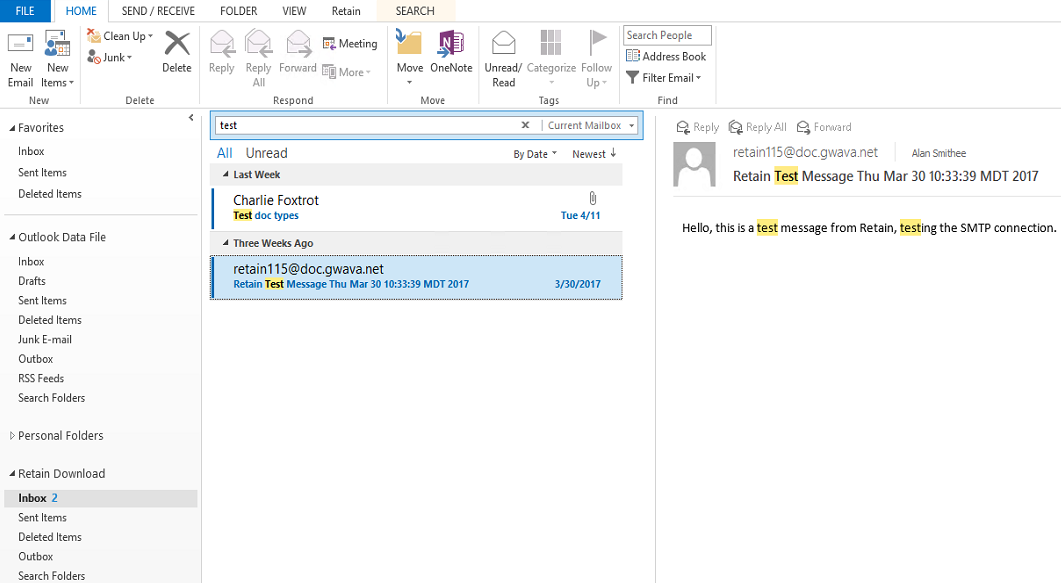
Figure 6: Outlook Search
Outlook Calendar
Retain archives calendar items and it can be shown side-by-side to your Exchange calendar.
Just click the checkbox to enable the Retain Download calendar.
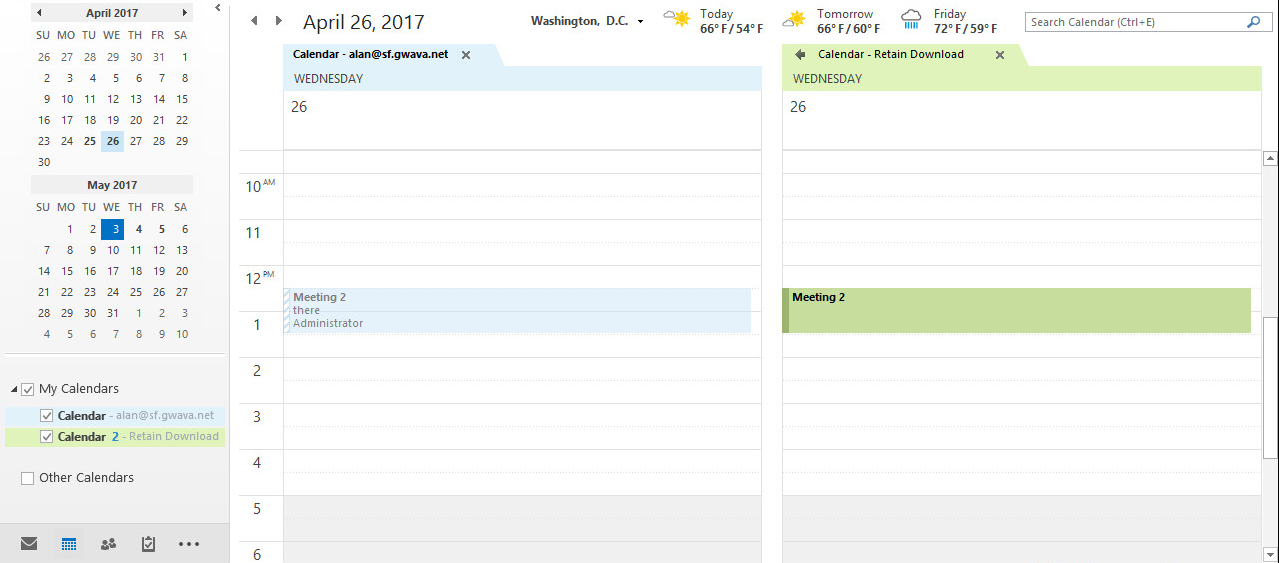
Figure 7: Side-by-side live and Retain archived calendars
Outlook Tasks
Retain archives Tasks
Select the Retain Download Task list to see items stored in Retain.

Figure 8: Tasks archived in Retain
Outlook Notes
Retain archives Notes.
Select the Retain Download Notes list to see items stored in Retain.

Figure 9: Notes archived in Retain
8.11.5 Other buttons under the Retain tab
The Retain ribbon has a number of available functions. These may be restricted by your System Administrator.
Figure 10: Tab buttons
The other buttons under the Retain tab:
-
Retain download will manually download messages from Retain if you want to update right now. The default is every 3 hours.
-
Retain search will perform a search your Retain mailbox on the Retain Server. The results will be downloaded into the Retain search results folder.
-
Download settings allows you to customize how many and how often messages are downloaded as you can see in Figure 1 above.
-
Launch Retain will open your Retain mailbox in your browser.
-
Retain Outlook plugin settings is where you set the URL to the Retain Server and other settings like Language. Generally, only your system Administrator will need to change these settings.
-
About tells you which version of the plugin is installed.
Download Settings
From this dialog box you can set certain behaviors for the Retain Outlook Plugin.
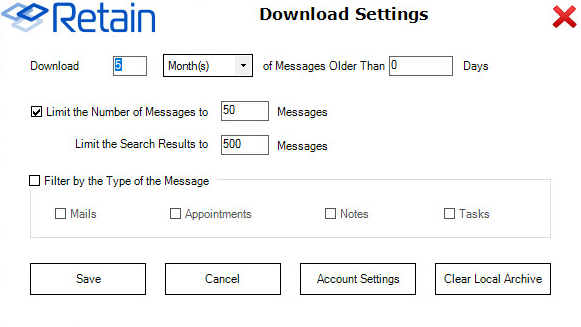
Figure 11: Download Settings Dialog
-
Download: The number of Days, Weeks, Months, or Years of data to download can be set. Default, 5 Months
-
Messages Older than: How many days back that can be ignored can be set as well. For example, you might want to look back into the archive for 3 months of items but you don't need the last 30 days. Default, 0 Days.
-
Limit the Number of Messages to: How many messages to download to you workstation. Outlook does not like to deal with very large local storage files so it is best to keep this number small. Default, 50 messages.
-
Limit the Search Results to: This will limit the number of messages downloaded after a search. Default, 500 messages
-
Filter by the Type of the Message: You can restrict the plugin to Mail, Appointments, Notes, and/or Tasks. With this optioned checked, you will have to check which items are to be downloaded. Default, all unchecked, so all items will be downloaded.
-
Clear Local Archive: This will empty the local archive folder on your workstation of all items, and folders except the default set of folders. To remove all folders the plugin will need to be uninstalled.
Plugin Settings
This dialog box allows more general changes to the Retain Plugin.
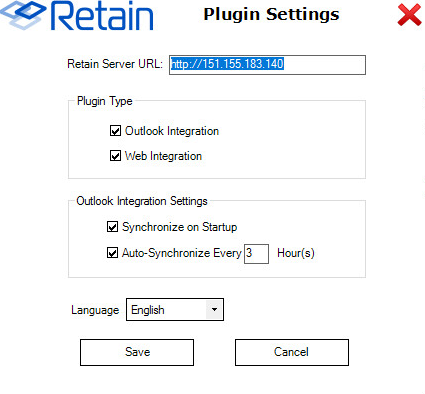
Figure 12: Retain Plugin Settings
-
Retain Server URL: This is the IP address or Host name of the Retain Server where the archive is stored. Your system administrator will provide or set this for you.
-
Outlook Integration: This allows the plugin to add the Retain Download folders to Outlook.
-
Web Integration: Launch Retain: This enables the Launch Retain button that opens a new browser window to your Retain archive mailbox.
If Outlook Integration is enabled:
-
Synchronize on Startup: When Outlook starts up, the Retain plugin to check for new items in the Retain Archive.
-
Auto-Synchronize Every "3" Hours: The plugin will check for new items in the Retain archive every 3 hours by default.
Language
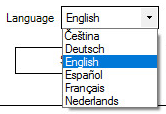
You can select the following languages for display in the Outlook interface: