5.7 Configure Exchange Module for On-Premise Exchange
The Exchange module must be configured in the Retain Server before any communication between Retain and an existing Exchange message system can occur. Open the Retain management page on the Retain Server, and select Module Configuration.
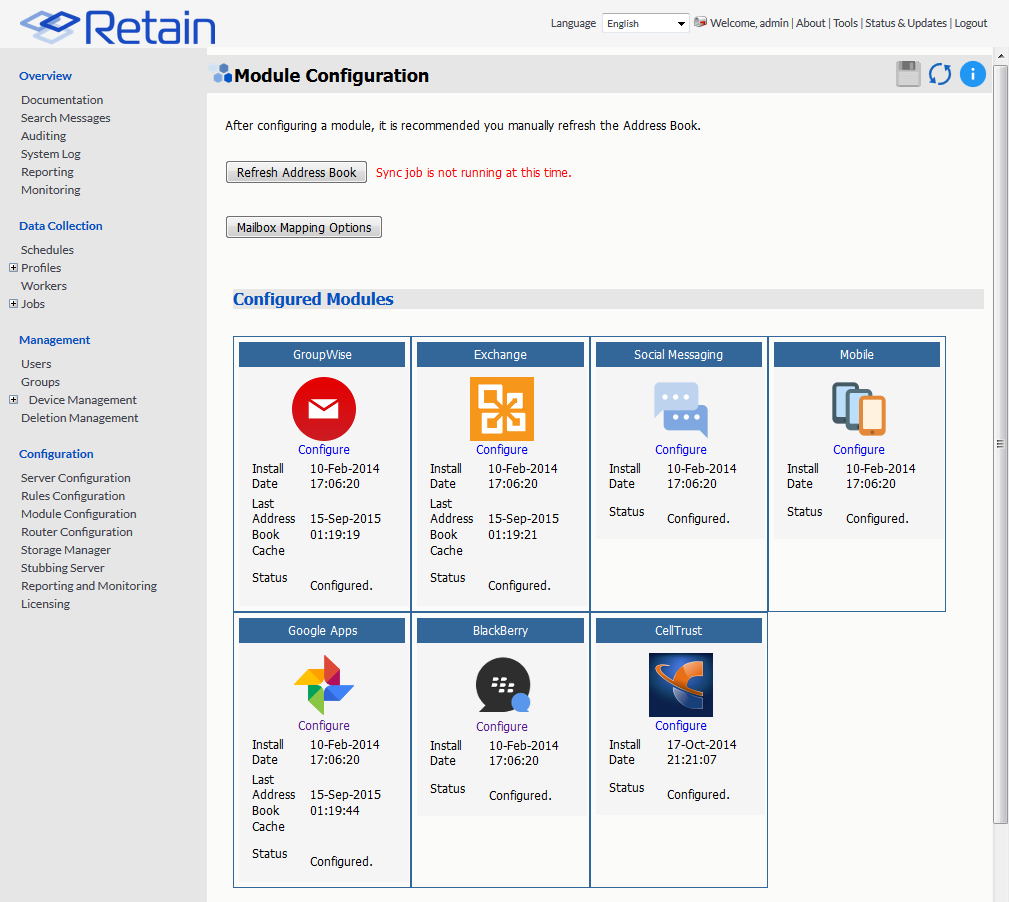
Select the ‘Configure’ option in the Exchange module. A new window or tab will open with the module configuration.
NOTE:Ensure that your Retain Server DNS is set to the same DNS server that your Exchange server uses. The Exchange module uses these DNS setting to auto discover critical information about Exchange stored in Active Directory and will not function correctly unless both systems are pointed to the same DNS server.
5.7.1 Core Settings
The module needs to be enabled on this page to make it active in the Retain system.
The module can be given a name.
The Send Method option enables either the SMTP Forwarding or FTP features. For either feature to appear and function, the Module Forwarding tab must be configured on the Server Configuration page. See that section for more information.
Normally all the checkboxes on this tab are always left selected. It is rare that you would ever deselect any of them. Two cases where you might, would be: troubleshooting (as instructed by Technical Support), or retrieving an old email system.
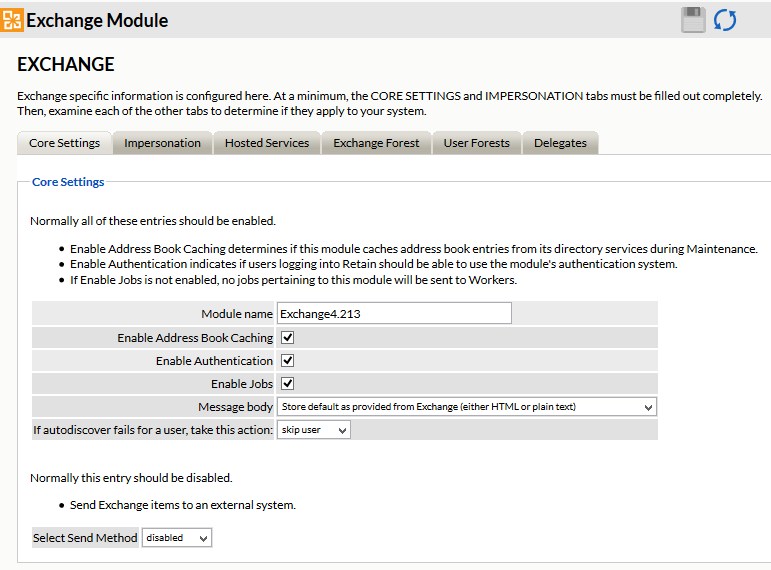
The Enable Address Book Caching function allows Retain to regularly cache the online email systems address book and synchronize it with Retain. This is critical for administration, authentication, and archiving purposes. It is recommended to cache the Address Book once every 24 hours to keep the Retain storage system up to date. By default, maintenance is set to cache the Address Book once every 24 hours.
The Enable Authentication checkbox determines if end-user authentication is performed when the user logs into Retain. If it is deselected, the Retain system will NOT authenticate the user against the email system and the user will not be able to log in unless another authentication method is enabled.
The Enable Jobs checkbox determines if configured data retrieval jobs are ever passed to the Worker. Even if the individual job is fully configured and enabled, if this checkbox is switched off, no jobs configured for this module will be processed.
The Message body allows the administrator to decide whether to store either the HTML or plain text message body, or both.
Send Method
The Send Method option enables either the SMTP Forwarding or FTP features. For either feature to appear and function, the Module Forwarding tab must be configured on the Server Configuration page. See that section for more information.
5.7.2 Impersonation
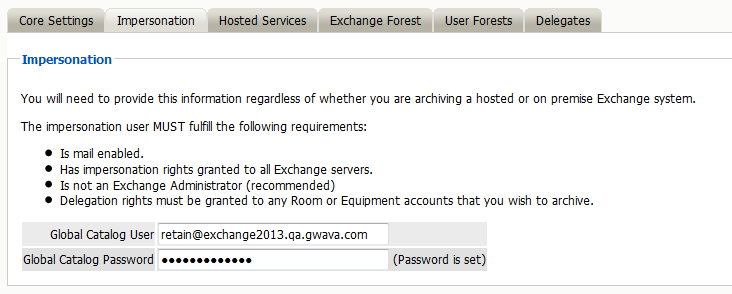
If the Impersonation and Core Settings tabs are not completely configured with the correct information, the hosted system will not be archived correctly.
5.7.4 Exchange Forest
Retain needs to know where to access the Global Catalog Host and existing domains before any archiving can be accomplished.
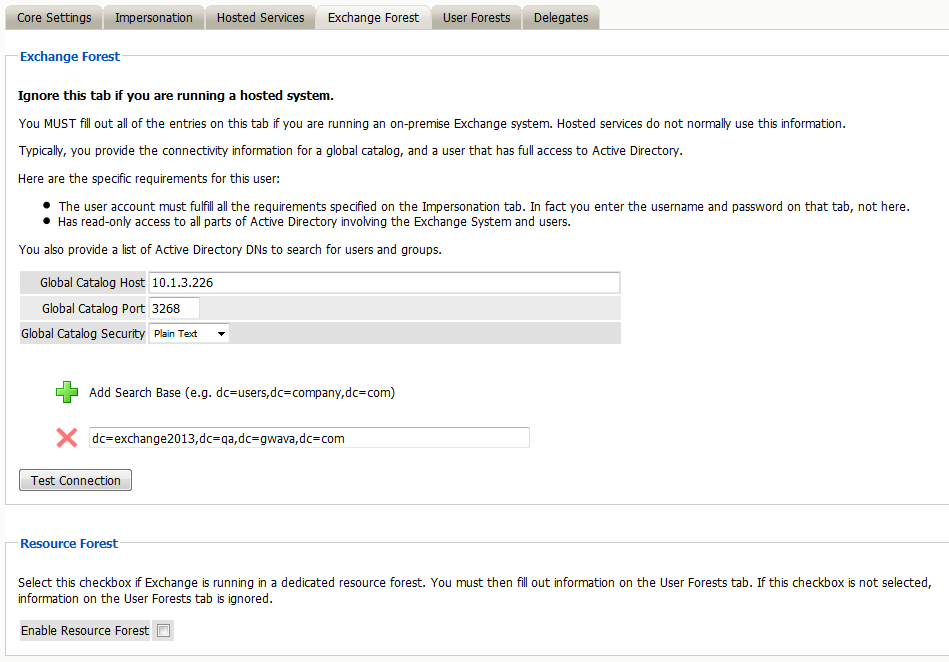
Open the “Exchange Forest” tab and enter the IP address or hostname of the Global Catalog Host.
Click on the Green Plus sign to add a search base. This should be set to the highest level of the LDAP domain so the entire address book can be found. For example: DC=exchange2013,DC=qa,DC=gwava,DC=com
Retain uses Active Directory extensively when integrating with Exchange. Its uses include: populating the address book, authentication, and access to the Exchange System.
There are settings required for Exchange, see the Exchange Permissions required for Retain section.
On the Exchange Forest tab, you configure all the Active Directory information you need for an Exchange forest. There is no need to fill out any information on the User Forest tab unless the users exist in a separate forest from the Exchange Forest.
On the Exchange Forest tab, specify whether to use SSL or not for the Global Catalog Security and the search base, (use of SSL with the Global Catalog Security and search base is highly recommended). The search base is the LDAP path to the base of where Retain will start searching for valid Exchange users.
The Global Catalog Port defaults depend on whether SSL is used for security or not. (SSL is strongly recommended. Default ports are 3268 for plain text, and 3269 for SSL.) Adjust as appropriate for your system.
You also must provide the credentials of an Active Directory user. This user is special It must have full read rights to Active Directory, be a mailbox-enabled, user, and be granted various Impersonation and Delegation rights. More on this is discussed in the Exchange Permissions required for Retain section. The username must be in UPN format, (user principal name).
This search base, in LDAP form, must be high enough in the tree to include ALL users, groups, and servers. Multiple search bases can be specified, though it often results in a less efficient interface. These are LDAP search bases which allow Retain to resolve all users, groups, and servers of interest in the forest.
After the Search Base has been added, test the connection to ensure information and connection works. The test performs a simple login to confirm that the user exists, the Exchange Server is reachable, and that the credentials are accepted. The test does not confirm impersonation or delegation rights necessary for the Service Account.
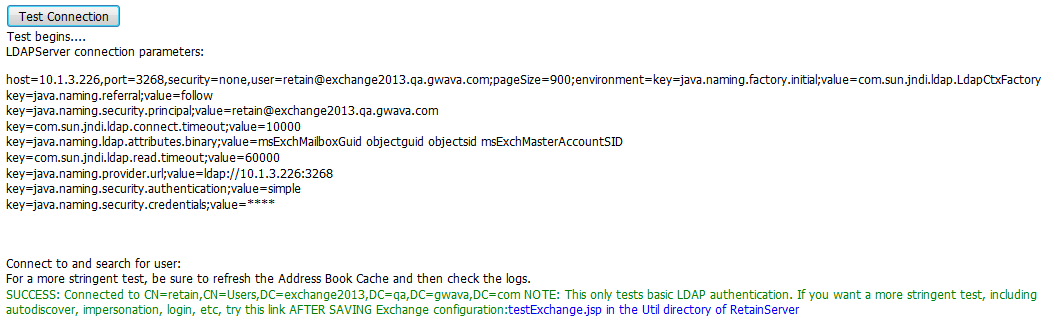
If the test results in an error stating: “FAILURE: User doesn't exist or is not mail enabled,” It indicates that the user’s mailbox is unavailable. A mailbox is not required for Retain to utilize the specified user. If the user Retain utilizes does not have a mailbox, this error may be ignored. However, if the user specified does have a mailbox, this may indicate connection issues.
If the test results in an error with an LDAP error code 49 it is an authentication error. The important bit of information is what comes after the data field. That is the LDAP connection error code that applies to this case.
-
525 user not found
-
52e invalid credentials
-
530 not permitted to logon at this time
-
531 not permitted to logon at this workstation
-
532 password expired
-
533 account disabled
-
701 account expired
-
773 user must reset password
-
775 user account locked
The Exchange Forest tab is the only tab required by the Server and the Worker to archive mail from the Exchange system. The User Forest tab, however, is required for Exchange systems utilizing a resource forest, to allow the end user to log into Retain.

If the system contains a Resource Forest, enable the checkbox on the Exchange Forest tab and save changes. If the Resource Forest checkbox is not enabled, the User Forests tab will be non-functional and all settings contained on that tab will be ignored. The checkbox must be unchecked in a single forest Active Directory deployment, but must be checked in a multiple forest Active Directory deployment.
Check all information to ensure that it is correct and save changes, and then configure the User Forest if required.
User Forest
The User Forest must have an entry for each user forest attached to the system.
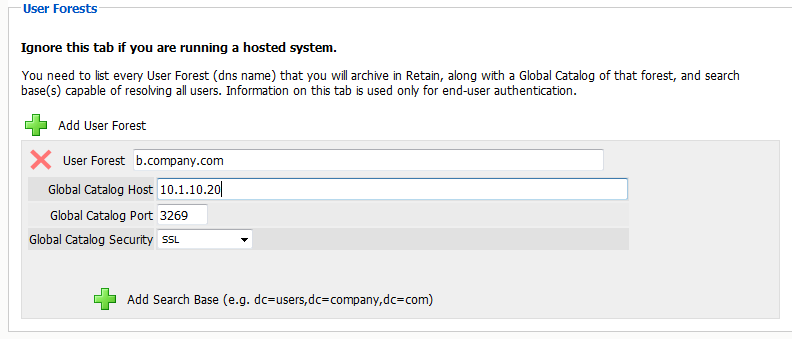
Select the green ‘+’ button and input the LDAP information required by the Forests’ Global Catalog server: IP address or hostname, port, security, (SSL is strongly recommended), and all search bases to include all the users. No administrative credentials are required. Each end user’s provided credentials will be used on login.
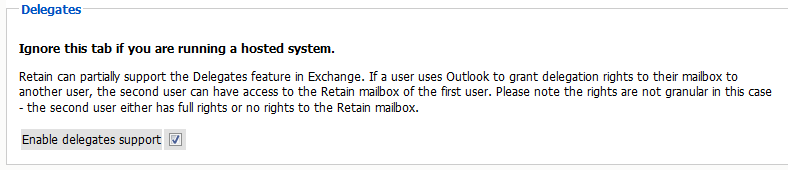
Delegates
You can set Retain to use delegate rights with On-Premise Exchange.