7.10 Device Management
Devices are added to and deleted from Retain through the Device Management interface.
Device Management involves 3 distinct operations. The first operation is to provision the device which adds the device into the Retain system. The second operation is to register the device which starts the flow of messages into Retain to be archived. The third, optional, operation is the creation of a Retain user account for the email address the device is associated to if it doesn't already exist.
Devices can be provisioned in one of 3 ways:
-
Add a device individually through the Add Device button below.
-
Import the information for a batch of devices through a CSV file
-
Automatic provisioning of devices through an LDAP regulated group
Devices can be registered in one of 2 ways:
-
an email can be sent to the associated email address, opened on the device with the Retain Service installed on it, the registration link in the email clicked on and the enrollment code in the email should be provided when requested.
-
automatic registration of devices is available if the IMEI number of the device is provided If registration fails or it it needs to be done again the device can be selected in the table below and the Reregister Devices button can be used to have the registration email sent out again. Once registration is completed messages will begin to flow from the device into Retain to be archived.
Users can be created automatically using the settings in the Create Users tab of the Mobile Module.
Mobile
Once a device is added to the interface, Retain creates an email which contains an activating link. Users need to open this email and follow the link on their mobile device. The link should be activated through the Retain application on the Android device. The activation email can be customized. The template this email is generated from is located in the file:
…\RetainServer\WEB-INF\classes\config\mobile\registeruser.html
The email sent to users may be customized, including any specific instructions for the organization, can be added or modified here, and all emails sent to users will contain information placed in this template. Information on the email variables is listed at the end of this page.
When a device is added, an email is sent to the user with a unique enrollment code. Devices which have been activated will show a Device ID and a UID. Once registered, the Retain app will start collecting data setup in the profile section, (SMS, MMS, and phone call), and will send it to the Mobile Router to be archived in the Retain System. NOTE: While it is possible to register devices without utilizing a registration email, the process requires the manual creation of a registration file for each device. If required, call support for details.
Each column is sortable press the arrows to sort by that column. The search box allows you to filter the Device List.

To add a device to the Retain system, open the Device Management window and select the Add Devices button.
The Add Devices window opens, which allows administrators to select and add multiple users. The system may also add users which are not cached in the Retain system, but they must be added one at a time. Manually input the name, associated email address, and phone number at the bottom and select the ‘add user’ button.
NOTE:Phone numbers can only be added with "Add Device for A New User" or adding the phone number to the CSV file for Batch Device Registration. There is no option to edit the user to add the phone number when adding the user by searching "Add Devices for Existing Retain Users"

Email Registration
Email registration sends an email to the user. They will have to open the message on their phone to register the device.
Email registration requires: Display Name and Email Address.
Automatic Registration
Automatic registration will register the device without user intervention.
Automatic registration requires: Display Name, Email address, Phone Number, and IMEI number.
Devices are only enrolled once. If a user acquires a new phone, or if they change phones, a new registration needs to be completed to maintain the correct codes.
To re-register a device, select the desired device and press the Re-register Devices button. Once pressed, Retain will recreate the enrollment, remove the old Device ID, and resend the registration email. The end user will need to repeat the enrollment process stated in the email to register the new device.
A device without a Time of Registration is not registered. A Not Registered device has had the registration process begun but the user has not completed the registration process. No archiving is being done until the process is complete.
Once devices have been added and registered, they are accessible to be modified, removed from, and archived by the Retain system.

The Delete Device button will remove the device from device management but will not remove the data.
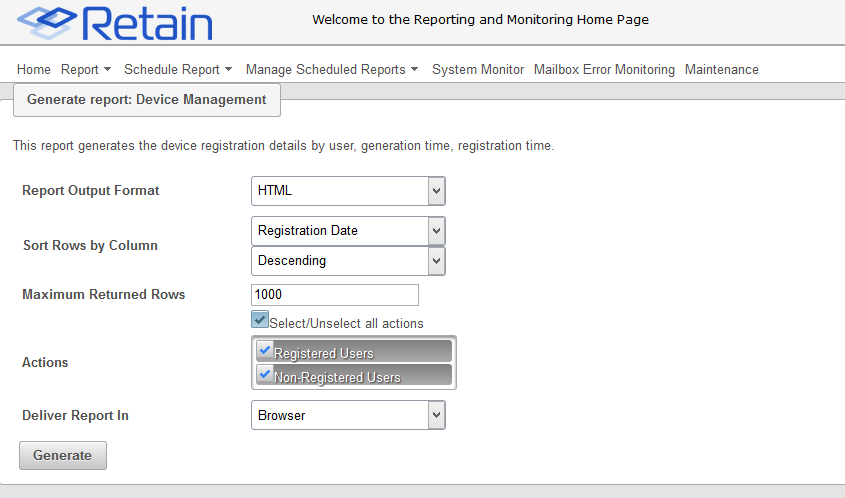
The Generate Report button will open a new Reporting and Monitoring: Generate report window, where a report can be created.
7.10.2 Provisioned Group
A provisioned group of users in your LDAP system can be used to register user devices. All fields are required for automatic provisioning of user devices.
Provisioned groups are synced every 8 hours. A manual sync process can be triggered by clicking on the “Synchronize Now” button.
When a user is added to the provisioned group, during the sync process the user will be identified as new user by Retain.
If there are only name and email address fields a registration email will be sent and the user will have to complete the registration process manually.
If there are name, email, phone and IMEI fields then the device will be registered automatically.
If there is no email address then an error will be logged and the user will not be added. Changing the email address will trigger a new registration during the next synchronization process.
If a user is removed from the provisioned group then the archiving of messages will be disabled during the next synchronization. If the user is added back into the group archiving will resume after the next synchronization, messages and calls from the period outside of the group will not be archived. The same mailbox will be used unless the email address was changed.

Common name: The common name of the provisioned group.
Context: The context of the group.
LDAP Directory Implementation: Choose NetIQ eDirectory or Microsoft Active Directory.
LDAP Server: The hostname or IP address of the LDAP server.
LDAP Port: 389 or 636.
Use SSL: if desired.
LDAP Admin User: The username of an LDAP admin.
Password for LDAP Admin User: Password of the LDAP admin user.
LDAP attribute for Full Name: Specify the Display name field.
LDAP attribute for Email: Specify the email field.
LDAP attribute for Mobile phone number: Specify the mobile phone number field.
LDAP attribute for IMEI: Specify the IMEI of the mobile device field.