8.5 Advanced Search
The Advanced Search tab contains the ability to specify vast amounts of criteria and combine search terms to exclude and include various searchable items to retrieve specific information. This search works better, the more you know about what you are looking for, as it allows fine tuning of criteria.
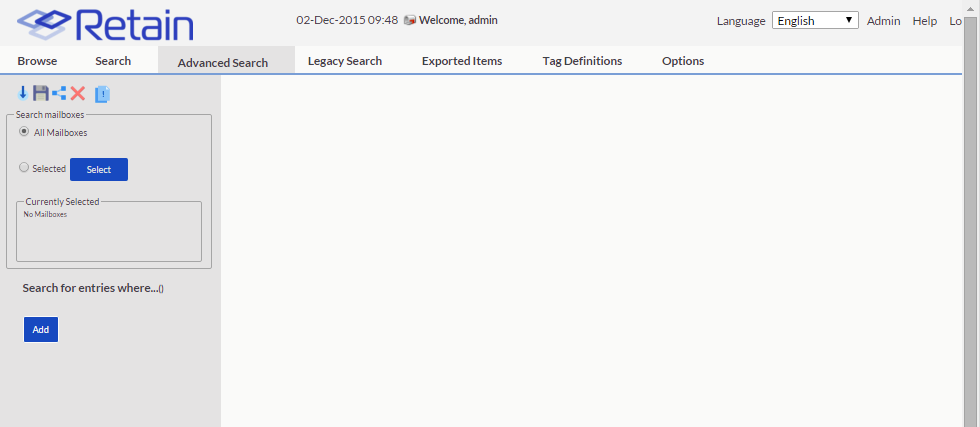
Searches will be restricted to the mailboxes specified in the ‘Search Mailboxes’ window. By default, all mailboxes are set for searching. To limit the search to the mailbox or mailboxes specified, click on the ‘Select’ button to open the ‘Select Mailboxes’ window. The ‘Select Mailboxes’ window functions exactly the same in advanced search as it does in the standard search.
The system will begin to display results as soon as either the search mailboxes have been specified, or new search criteria has been added. To add new criteria, select the ‘Add’ button.
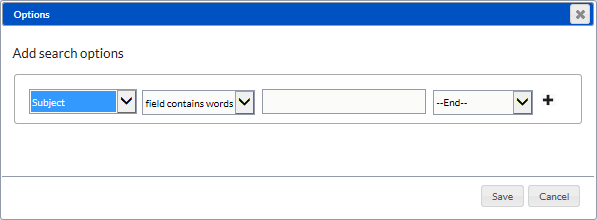
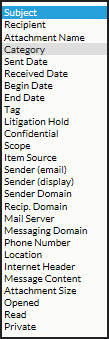
The Search Criteria contains the ability to specify where to search, operating criteria - (word ends with, word starts with, field contains words, field contains phrase), and the desired search terms. The list of search items and fields available to be specified in the drop-down list is shown. Each variable on the list is tied to appropriate search operators, (date range allows the specification of a date, Confidential tags have a true/false operator, etc.)
Subject
Recipient
Attachment name
Category
Sent date
Received data
Begin date
End date
Tag
Litigation hold
Confidential
Scope
Item scope
Sender (email)
Sender (display [name])
Sender domain
Mail server
Messaging domain
Phone number
Location
Internet header
Message content
Attachment size
Opened
Read
Private
In addition, the interface allows for no limit of search terms. additional terms may be added to he search criteria and connected to the previous search terms. Additional criteria may be logically connected with ‘and’, ‘or’, or ‘new group’. To add a new search term and criteria, select the ‘+’ directly to the right of the existing search criteria.
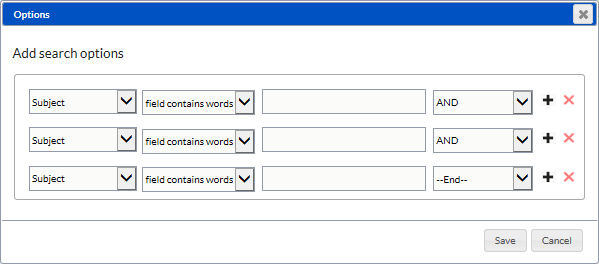
By default, when a new search term is added, it is automatically ‘AND-ed’ together with the previous search term. This allows you to be able to build complex search terms to fit known data.
When building complex search criteria, it is critical to know what you are looking for. For instance, if an insider trading tip was suspected, and the recipient was known as well as some details about the message and when it must have been sent by, the following search could be compiled:
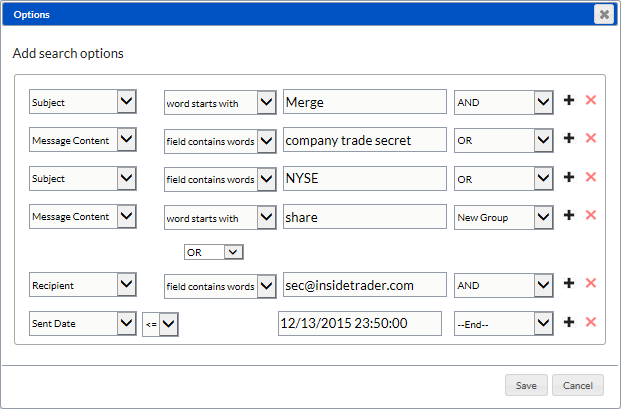
In this search, any message sent which stated ‘merge’, or ‘merger’ in the subject, and contained a known company secret in the message body, or, discussed the name of an executive involved, would be displayed. In addition, the search would also grab any messages sent to the suspected contact before the merger date. Additional criteria which could be added includes the company’s stock listing or any further details pertaining to the proposed leak.
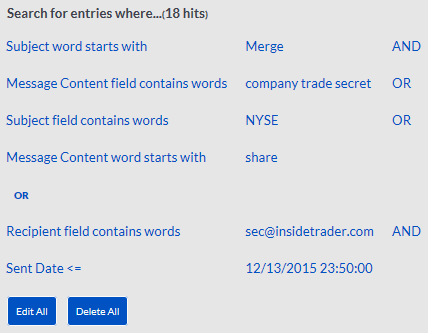
To begin the search, select the ‘Save’ button at the bottom of the query window to perform the search. The active criteria is now listed in the left pane, and may be edited or removed. To add criteria, select the ‘Edit All’ button to add to or refine the search criteria.