

SetPlat Example 1:
The following figure illustrates a standard dialog box for accessing a password-protected site using Netscape Navigator.
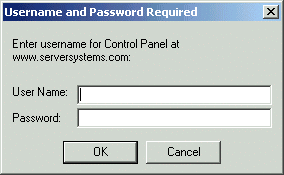
The following script illustrates a simple way to log in to this site:
Type $username #214
Type $password #330
Click #1
However, this script limits users to one username/password combination for all http-authentication Web sites accessed through Netscape. Because the dialog box illustrated above always contains the name of the Web site to log in to, such a limitation poses a significant problem.
The solution to this problem is to use a dialog block with a SetPlat statement similar to the following:
Dialog
  Title "Username and Password Required"
  Ctrl #330
  Ctrl #214
  Ctrl #331
  Ctrl #1
  Ctrl #2
  Setplat #331 "Enter username for .* at (.*):"
Enddialog
Type $username #214
Type $password #330
Click #1
The power of this script is in the following line:
Setplat #331 "Enter username for .* at (.*):"
The script first reads the following line from dialog control ID 331:
Enter username for Control Panel at www.movell.com:
The script then applies the regular expression to this text.
Regular expressions are a powerful way to manipulate text strings. However, for most purposes you can use the basic commands listed in the following table:
| Basic Command | Action |
|---|---|
* (an asterisk) |
Matches any character |
. (a period) |
Matches zero or more of the preceding character |
( ) (parentheses) |
Makes the contents of the parentheses a sub-expression |
After the user has run the script, the user sees the username and password saved as www.serversystems.com.
The text matched inside the parentheses then becomes the symbol application. If a dialog #Ctrl-ID is not specified, the symbol application will be unconditionally changed to the application specified in the regular-expression argument. An unconditional SetPlat command is only valid if specified before Dialog/EndDialog statements.
SetPlat Example 2:
Dialog
 Title "Login"
 Ctrl #1
EndDialog
ReadText #301 ?Text
Regsplit "Please enter the password for (.*) account"
?Text ?User
SetPlat ?User
Type $Username #1
Type $Password #2
Click #1