Searching the Knowledge Base
Knowledge Base Search
A variety of search options can be used
to find information in the Knowledge Base. Search options include:
A
single character wildcard search using the "?" symbol.
A
multiple character wildcard search using the "*" symbol.
A
fuzzy search using the tilde, "~" symbol at the end of a
single word. For example, to find words similar to roam, enter "roam~"
and this will return terms like foam and roams.
Searching the Knowledge Base
To search the Knowledge Base:
Go
to the Self Help tab
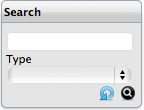
Use
the Search box to enter a text based search
(See: Full Text Search.)
Or,
select an Item Type, to display Classification options
Click  to display all Articles created
for this Item Type
to display all Articles created
for this Item Type
To
refine the search, select a relevant Classification
To clear the fields click  .
.
Click
to search the Knowledge Base
The Search Results are displayed
Click
on the Title to expand the Article.