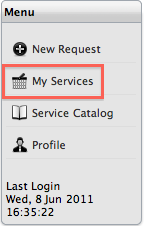
The My Services view in the Customer Portal displays services that are assigned to the Customer or the Org. Unit to which they are assigned.
The Service Catalog Menu list option is available if the system has the Show all Services option enabled in the Admin>Setup>Privileges>Customer tab. This allows the Customer to view all services offered by the service desk, regardless of their ownership status and provides them with the ability to request access to Services they may not already own.
Within the Services tab, Customers can log a Service Request against any service included on the list. See: New Request.
If Customers have access to multiple Services, a new Request can be easily generated by selecting a service within the My Services or Service Catalog list view to access the Service Details, then clicking the New Request menu option. This will pre-populate the Service Request fields, leaving the Classification and Description to be completed before saving the Request.
Searching for Services
To search for Services, Customers can use the Search option within Search window sidebar. The search can be refined by Service number, Type or Category. By selecting the Category, the fields defined as Customer Visible for the Category selected are displayed.
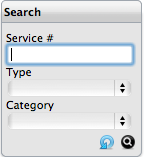
Use the  to execute the search or
  to
reset the search field.
to
reset the search field.