
The Responses tab within an Item Category allows the Supervisor to define template replies for Notes sent related to requests received against the Item Category. This ensures the service desk responds to issues in a consistent manner, and in line with the support organization's policies and protocol. Additional templates can be configured within the Item Type>Responses tab. These templates are only available for requests related to the Item Type.
The following screen displays a list of default template options available within the Notes tab of an Incident:
To edit template Responses:
Go to Configuration>Categories
Select the hyperlink
for the relevant Category
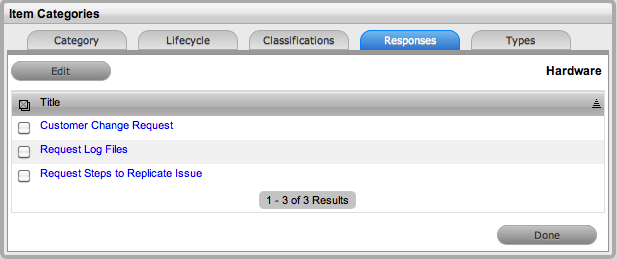
Move to the Responses tab
Click Edit
Select the relevant
Title hyperlink
The template contents are displayed.

Amend the Note template and click Save.
To add a Note template:
Go to Configuration>Categories
Select the hyperlink for the relevant Category
Move to the Responses tab
Click Edit

Click the Add button
Enter the template Title

Complete the contents for the Note
Click Save.
To delete a template:
Go to Configuration>Categories
Select the hyperlink for the relevant Category
Move to the Responses tab
Click Edit
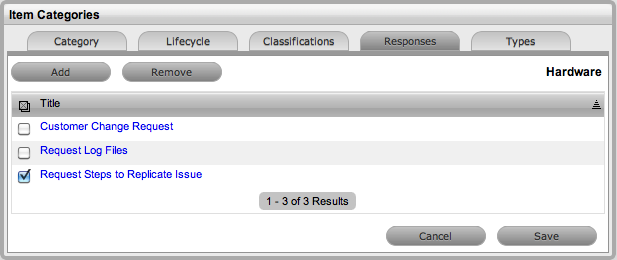
Check the box in the column next to the template Title
Click the Remove button.