Select Setup>Billing
Click Yes to enable
Invoices
When an Invoice is enabled, the following options become available.
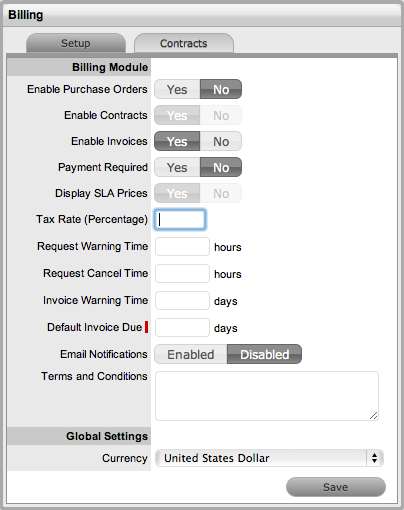
Options |
Description |
|---|---|
Contracts |
Contracts are enabled automatically when Invoices are activated. |
Payment Required |
Setting Payment Required to Yes will require line items on invoices to be paid before they become active in the system. Any incidents logged against an unpaid Contract or Item cannot be worked on until payment is received.
|
Tax Rate (Percentage) |
The rate used to calculate tax on an invoice subtotal. |
Request Warning Time |
Where a Contract has not been paid and requests have been raised, a reminder email can be sent stating that payment is due. Use this field to specify the length of time in hours from the opening of the incident before sending a reminder email. |
Request Cancel Time |
Specifies a waiting time for requests with a Status of Pending-Unpaid before they are cancelled. |
Invoice Warning Time |
Enter the number of days prior to the due date to send the Customer a reminder email regarding non-payment of an invoice. |
Contract Renewal Time |
The system can automatically send a Contract Renewal Invoice before the end of a contract. Enter the number of days prior to the contract expiry to send the renewal invoice. |
Default Invoice Due* |
Enter the number of days to calculate an invoice due date. |
Email Notifications |
Enables the system to update Finance Users, via automated emails, regarding matters relating to POs, Invoices and/or Contracts. |
Terms and Conditions |
Free text entered in this field is included in the invoice emailed to the Customer. |
Purchase Order Company Details |
This option is displayed if the Purchase Orders option is also enabled. Enter the Company details to be displayed on Purchase Orders. |
Currency |
Select the currency for all financial transactions within the system. |