1.5 Using Novell Support Advisor
1.5.1 Analyze
To analyze a server you first select a server that you have previously added and click analyze. Depending on the type and subtype of connection created, Novell Support Advisor will attempt to connect and collect data from the specified device.
If Novell Support Advisor is able to successfully connect to and gather information from the connection specified, a message will appear indicating the it has successfully validated the connection and will move on to the data collection process.
During the data collection process a progress bar will indicate the overall progress of the data collection process. Depending on your network, the connection type, and the server being analyzed this collection time can vary greatly. If for some reason the data collection appears to have stopped and looks like it won't complete you can cancel the process.
Upon data collection completion, communication with the target system is closed and the rest of the processing occurs on your local machine.


When a result entry is selected, a description regarding the pattern and the condition found is displayed below, along with possible solutions for that specific match. If a solution is available, it will glow in blue.
Each result will direct you to your next step. Possible solutions include:
-
Novell Technical Information Document (TID)
-
Security Alert
-
Bug
-
Video
-
Script
-
Misc
-
Cool Solution
-
Patch
Resolved?
If you find that a result is incorrectly returned or that that solutions provided are inadequate select the "resolved?" button. Through this interface you can provide information regarding the pattern back to Novell for review.
HTML Report
Report of the current analysis results and links to solutions.
Archives
The Archives view is a history of all of the analyses that have been run by Support Advisor.
There are 3 views
|
Connection Archives |
History of single connection analysis |
|
Group Archives |
History of group run analysis |
|
Custom Archives |
Manually load archives gathered outside of Support Advisor for analysis |
On selecting your connection or group you will be shown all of the archives from that selection, when it was gathered and analyzed, the overall result count by criticality and several actions that can be performed on the archive.
Archive Actions
Custom Archives
When you enable the Custom Archives option you point to a directory where Support Advisor will look for archives to be analyzed. (Currently only archives gathered on Linux using supportutils is supported). When a custom archive is analyzed an HTML report for the results will also be created and placed in the location of the custom archive directory specified.isabled by default (enabled in “Settings’)
Groups
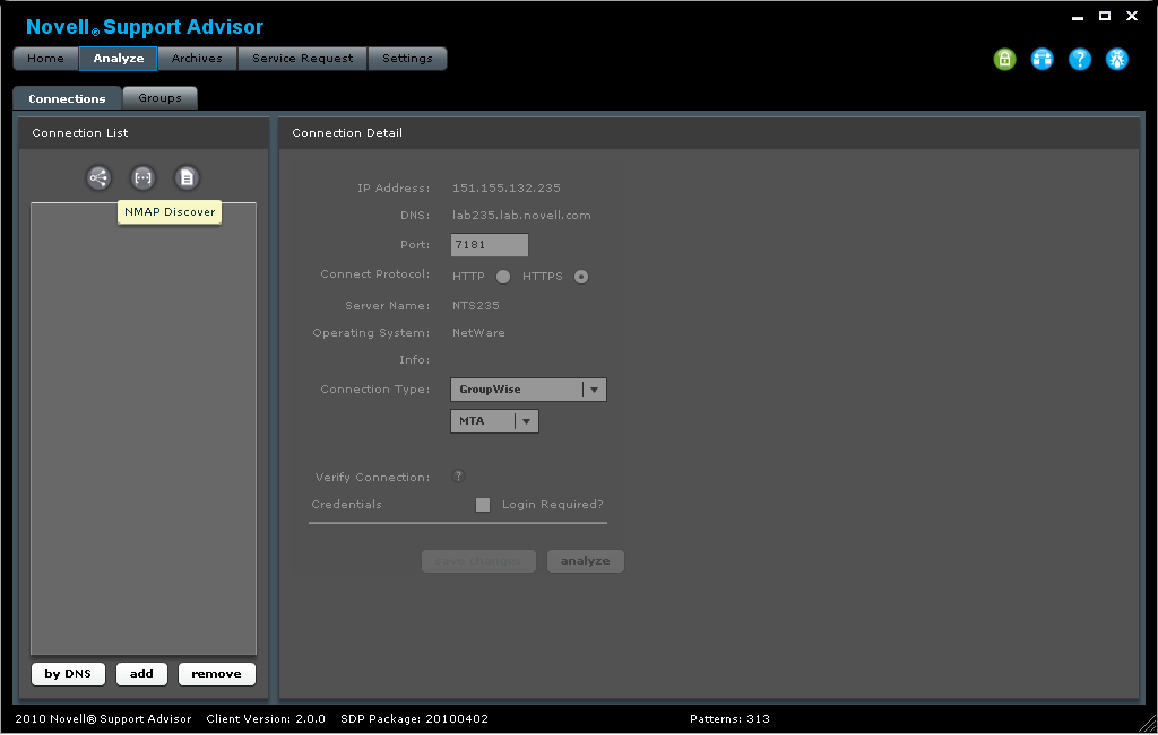
The "Groups" section is used to run an analysis on many connections of the same type at once. To be able to use the Groups functionality, you must be logged into the local database.
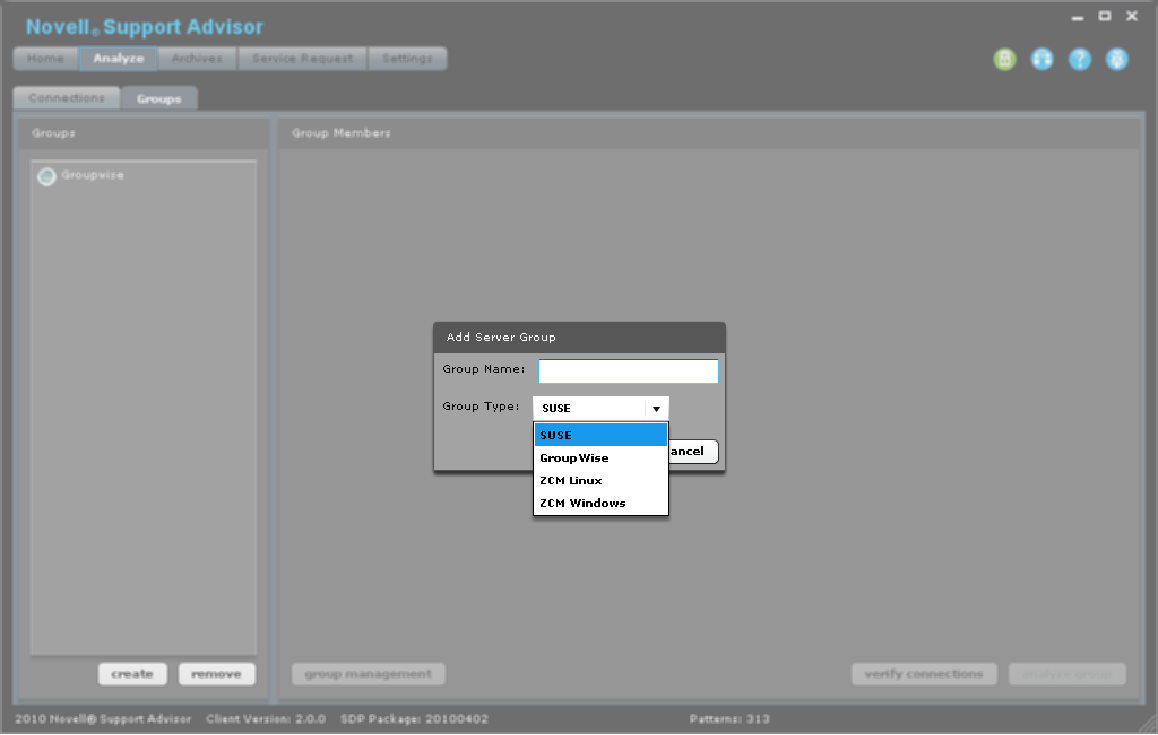
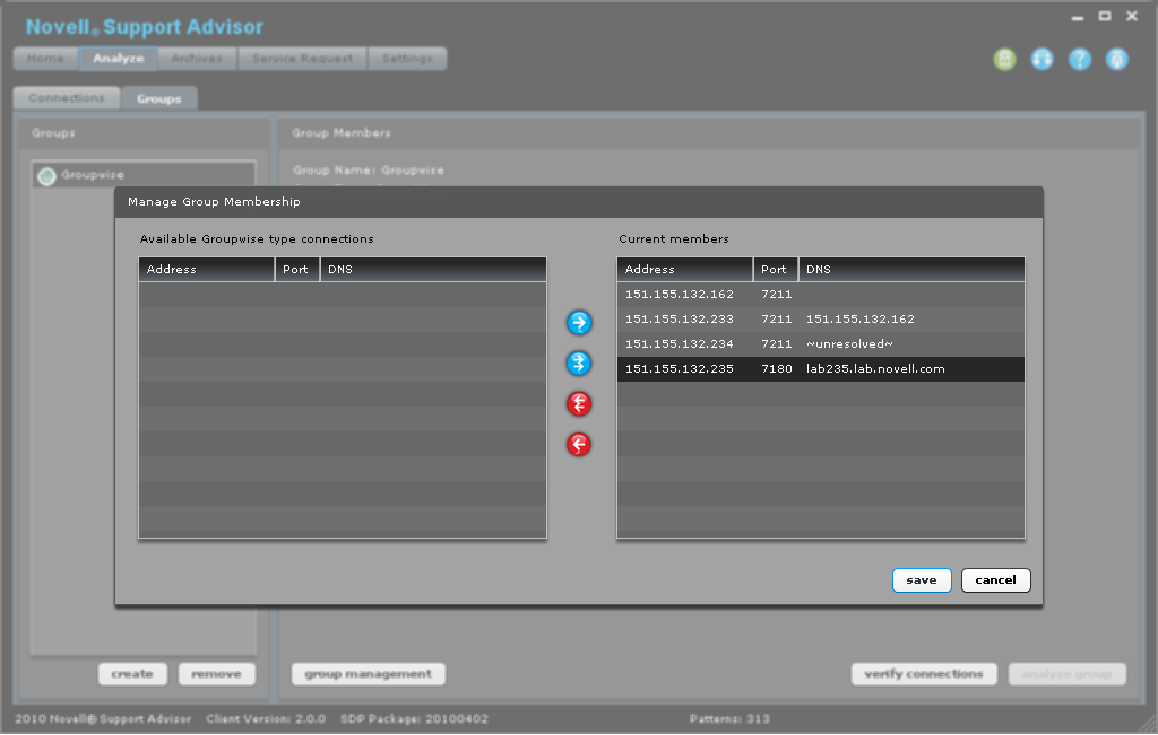
First create the desired new group of the connection type (GroupWise, Linux, etc..). A filtered list of your connections of the type that can be members of your group will be displayed. Select which connections you would like to be part of the group.le to use the "Groups" functionality you need to be logged into the local database.
After the group is created and populated, verify that your group will run correctly. By selecting the "verify connections" button, Support Advisor will test the members of the group to see if they can be analyzed. Verified connections will be identified with a green check, and unverified connections will display a red exclamation.
If a single server within a group has incorrect credential for connecting, double-click on the server. A new window will open, allowing you to modify the connection credentials. After the modifications are complete, the group verify can be performed again.
An analysis can still be performed even if all of the servers within the group have not been verified. However, those servers that failed verification will not be included in the group analysis. Likewise, if one of the servers fails or is cancelled during the group analysis, that server will also be omitted.
Settings
General
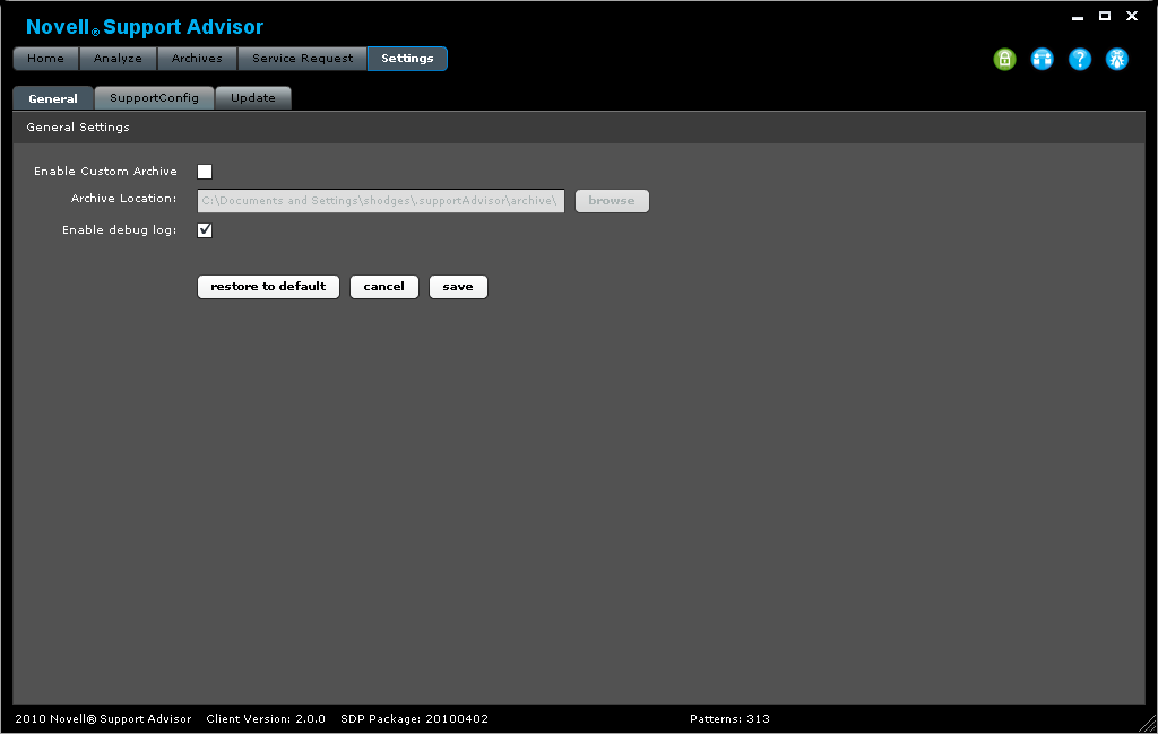
Enable Custom Archive: check to analyze Linux archives gathered outside of Support Advisor
Archive Location: the directory location where Support Advisor will look for custom archived
Enable debug log: The current active log is written to ~/.supportAdvisor/nsaLog.txt. Each time Support Advisor starts a new nsaLog.txt is created for that session. Previous session logs are rolled (up to 4) in ~/.supportAdvisor/logs/
Perl Location: The Perl engine used for running login for Linux systems. The Windows installation of Support Advisor will include a lightweight version of Strawberry Perl. Linux and Macintosh systems generally have Perl already installed and the default location/instance of Perl is used. If Perl is not present or a different version is desired, the path to the executable should be set here.
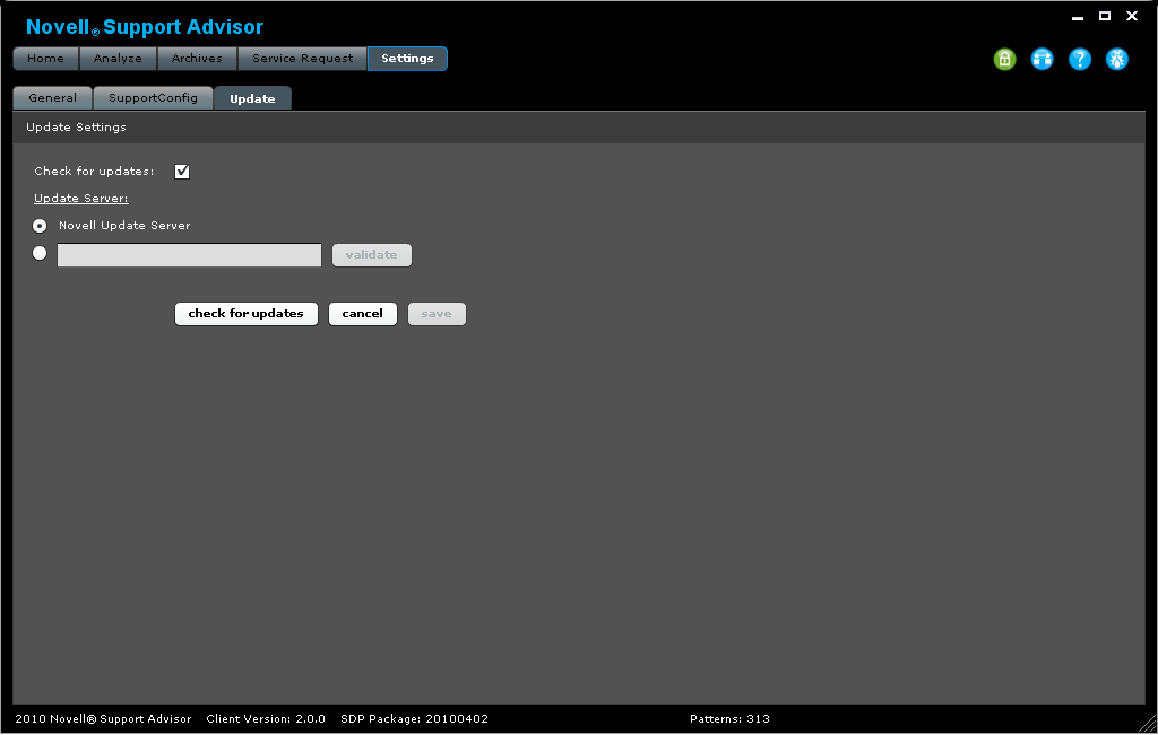
Update
Check for updates: When enabled, Support Advisor checks if there are any pattern or client updates available upon start up
Update Server: The Novell Update Server will almost always be used. It is very rare that you would specify any other server for the update location.