Database
This section is used to specify the JDBC Database connection details that the service management application uses to connect to the database.
Configuring Database Settings
To configure database settings:
-
Select Setup>Database>Edit The Database Configuration screen appears.

Database Setup
Database Type
Use the dropdown box to select the type of database.
Server Host
Enter the IP Address of the Server Host.
Server Port
Enter the Server Port number.
Database
Enter the database name.
User name
Enter the Username
Password
Enter the Password.
-
Enter or modify database connection details
-
Select the Test button to verify the details entered and check the connection
-
Click Save.
The system must be re-started for any changes to take effect.
Test Button

Allows the Administrator to validate the database connection details between the service management application and the database. A system message will advise whether the connection was successful.
Advanced Button

The Advanced options allows the Administrator to change the default connection type, as well as generating scripts based on the database selected.When the Advanced button is clicked, the Connection Type field displays a drop-down menu to select the JDBC connection. This option is set by default to Internal JDBC.
Changing the connection type to Custom JDBC Driver allows the Administrator to change the driver. This option is NOT recommended.
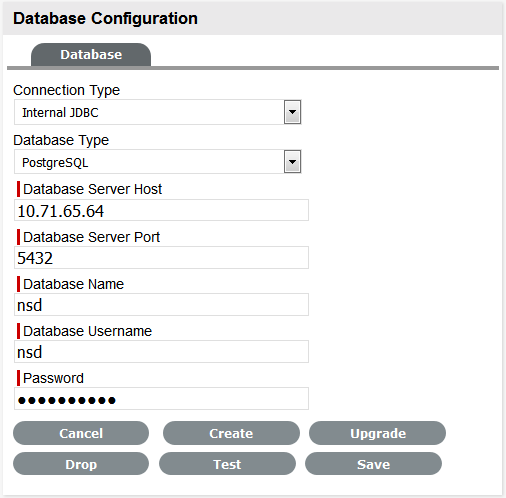
The buttons displayed provide the following functionality:
|
Advanced Settings |
Description |
|---|---|
|
Create |
Generates a SQL creation script for the connected database that can be used by a DBA to create the system database. |
|
Upgrade |
Allows DBAs to upgrade to the database for a new release. Before upgrading make a backup of the existing database. |
|
Drop |
Creates a script that the database administrator can run against an existing system database to erase the schema and content. |