Using the TCP/IP Utilities
The TCP/IP transport software includes the following utilities:
- LWPCON, which displays local and remote configuration information, network statistics, and TCP/IP service status
- PING, which checks for network connectivity to a specific host
Using the LWPCON Utility
The LAN WorkPlace Console (LWPCON) utility is a DOS menu-based application that lets you display TCP/IP configuration, statistical, and service information for your workstation and remote hosts on your network. With LWPCON you can
- Check the configuration parameters for your workstation and remote hosts on your network
- Forcibly close TCP connections
- Check whether remote hosts are available
- Check the network route used to connect you to a remote host
- List the services available on a remote host
- Determine which remote host services are currently available
- Determine what remote host information is available from your network's DNS name servers
- Set an entry in the routing table
In addition to these capabilities, LWPCON provides several statistical displays that network administrators can use to monitor network traffic and isolate problems.
Starting LWPCON
-
To start LWPCON from the DOS prompt, type the following command:
lwpcon
<Enter>
The utility displays the Available Options menu. You begin all LWPCON activities from this menu.
Checking Workstation and Remote Host Configuration
Use the following procedure to check the TCP/IP configuration settings for your workstation or for a remote host on your network:
-
From LWPCON's Available Options menu, choose Local Workstation or Remote Host.
If you choose Local Workstation, the utility displays the Local Workstation Options menu.
If you choose Remote Host, the utility prompts for the remote hostname.
-
If prompted for a hostname, enter the hostname or IP address (in dotted notation) of the host for which you want to view configuration information.
The remote host must be running an SNMP agent program. For example, a remote server must be running a program such as TCPIP.NLM, which automatically loads SNMP.NLM. A remote PC workstation must be running programs such as TCPIP.EXE and SNMP.EXE.
After you enter a valid remote hostname or IP address, the utility displays the Remote Host Options menu.
-
Choose Overview to display configuration information.
The utility displays a host overview screen.
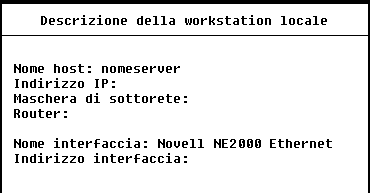
The host overview screen displays the following TCP/IP configuration information:
-
Hostname ---the fully qualified name of the remote host or local workstation
-
IP address ---the address configured for this host or workstation
-
Subnet mask ---the subnetwork mask configured for this host or workstation, if your network has subnetworks
-
Router ---the address of the IP router, if your network has one
-
Interface name ---usually displays the name of the device driver providing network connection support
-
Interface address ---the hardware or MAC address of the local workstation or remote host
-
To return to the Available Options menu, press
<Esc> as needed.
The other choices on the Available Options menus (Interfaces, Protocols, Tables, and SNMP) provide statistical information that is of interest to the network administrator.
Listing and Closing TCP Connections
Occasionally a TCP connection might not be closed properly (for example, when a remote connection is severed unexpectedly). This can result in a shortage of TCP resources (sockets) on your workstation.
Use the following procedure to list and close TCP connections:
-
From LWPCON's Available Options menu, choose the following:
- TCP Connection Table
- TCP Connection Table
- TCP Connection Table
The utility displays the TCP Connection Table.

For each workstation connection, the utility displays the workstation (Local Host) address and port and the remote host address, port, and status.
-
Choose the connection you want to close and press
<Delete> .
Use caution in deleting established connections. When you delete a connection that is in use, you lose any unsaved data.
-
When prompted, press
<Enter> to close the connection.
-
To return to the Available Options menu, press
<Esc> as needed.
Determining Remote Host Status
Use the following procedure to determine the status of a remote host:
-
From LWPCON's Available Options menu, choose the following:
- Services
-
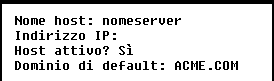
When prompted, enter the name or IP address (in dotted notation) of a host on the network.
The utility displays a status table for the remote host. If the remote host is running and available on your network, the value in the Host Up field is Yes.
-
To return to the Available Options menu, press
<Esc> as needed.
Checking the Network Route to a Host
If you are having difficulty connecting to a host or the response from the host is slow, you may want to verify the connection between your workstation and the remote host.
Use the following procedure to check the route between your workstation and a remote host:
-
From LWPCON's Available Options menu, choose the following:
- Services
-
When prompted, enter the name or IP address (in dotted notation) of a host on the network.
-
From the Services Options menu, choose Trace Route.
The utility displays a route table.
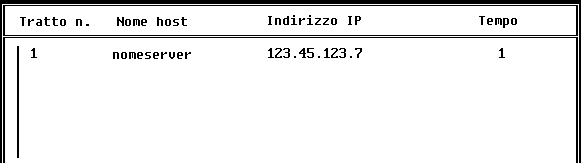
The route table lists the name and IP address of each intermediate host through which your connection is routed, starting with your router (hop 1) and ending with the remote host you specified. The route table also lists the amount of time in milliseconds required to make each intermediate connection. A time of 0 indicates that fewer than 55 milliseconds were required to connect, as is often the case for a LAN connection.
If a host in the route does not respond to LWPCON within its time limit, the table displays the message Not Available. You can use these messages to determine where a problem is occurring in reaching a remote host. For example, if both hop 6 and hop 7 are part of the same network and both are not available, you might suspect that their network is down.
-
To return to the Available Options menu, press
<Esc> as needed.
Checking Remote Host Services
Use the following procedure to display information about the availability of remote host services:
-
From LWPCON's Available Options menu, choose the following:
- Services
-
When prompted, enter the name or IP address (in dotted notation) of a host on the network.
-
From the Services Options menu, choose Check Active TCP Services.
The utility displays a list of TCP services.

This list includes a service number with each well-known TCP port number. For example, the File Transfer Protocol service, usually service (port) 21, provides services used by FTP.
-
To check the availability of a service for which you do not know the port number, choose the service you want to check.
If a service is available, LWPCON replies with the following message:
servicename is active.
If the service is inactive, a problem exists on the remote host. The server program that supports this service might not be running on the remote host. The remote host administrator can check and activate the service.
-
To check the availability of a service for which you know the port number, choose Other.
-
When prompted, enter a TCP port number.
-
To return to the Available Options menu, press
<Esc> as needed.
Displaying Host Information
Domain Name System (DNS) name servers maintain information about hosts on a network. You can use LWPCON to display information the DNS name server stores for the hosts on your network. Use the following procedure to display DNS information for a remote host:
-
From LWPCON's Available Options menu, choose the following:
- Services
-
When prompted, enter the name or IP address (in dotted notation) of a host on the network.
-
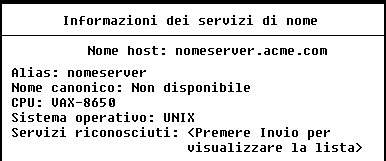
From the Services Options menu, choose Query Name Service.
The utility displays the Name Service Information screen, which lists the available DNS information for the remote host.
-
To return to the Available Options menu, press
<Esc> as needed.
Using the PING Utility
The PING utility tests a workstation's network connections. This utility sends ICMP echo packets (ICMP ECHO_REQUEST) to the remote host you specify and records the time it takes the host to respond to the packets. The utility uses the ICMP protocol's mandatory ECHO_REQUEST datagram to get an echo response from the specified host or network router.
This utility lets you specify the number of packets that PING sends to the remote host as well as the size of the packets and the time interval between packet transmissions. You can specify one size for all packets or vary the size incrementally. You can also specify that the utility display the IP addresses and hostnames of the IP routers along the path of the packet between your workstation and the destination host.
Command Syntax
PING hostname [option . . .]
Command Parameters
Replace hostname with the name of the host you want to ping.
Replace option with one or more options from the following table.
Option |
Description |
Default Value |
|---|
/R[N] |
Enables the trace route function so that PING displays the IP addresses and hostnames of the IP routers in the path taken by the ICMP echo packets. |
- |
|
Include N to display the IP addresses without displaying the hostnames. |
|
/Tn |
Modifies the destination response timeout value. Type the time in seconds. |
2 |
/Nn |
Modifies the number of packets you send to the destination host. |
1 |
/Pn |
Modifies the amount of time (seconds) that PING waits before sending a packet to the destination host. PING begins waiting once it receives a response from the destination host for the previous packet. You can type a 0 for a continuous stream of packets. |
0 |
/Ln |
Modifies the fixed size of ICMP echo packets. The minimum size of a packet is 12 bytes; the maximum size is 8192 bytes. |
12 |
/Sn |
Specifies the starting packet size for variable-sized ICMP echo packets. The minimum size of a packet is 12 bytes; the maximum size is 8192 bytes. |
12 |
/In |
Modifies the number of bytes that PING uses as an increment between variable-sized ICMP echo packets. |
1 |
Errors
If you type a hostname that PING cannot resolve with DNS or with the host file, PING displays the following message:
PING: hostname could not be resolved
If an error occurs in any of the socket functions used by PING, the utility displays the error and exits.
Examples
Some of the options have default values. When you do not specify these options when entering the PING command, the utility uses these default values. For example, when you type the following PING command
PING JUPITER.ACME.COM
<Enter>
the utility uses the default options as though you typed the following command:
PING JUPITER.ACME.COM /T2 /N1 /P0 /L12
<Enter>
When you send one packet with the PING utility, the utility displays response statistics for the one packet. For example, after you send a packet to the JUPITER.ACME.COM host, the utility displays transmission statistics in the following format:
|
Packet: 1 Length: 12 Response: 54 ms. JUPITER.ACME.COM (1.2.3.4) responded in 54 milliseconds |
|
You can use the /N and /P options to send multiple packets to a remote host and specify the amount of time the utility waits between packet transmissions.
For example, the following command sends nine packets to JUPITER.ACME.COM with a pause of five seconds between packet transmissions:
PING JUPITER.ACME.COM /N9 /P5
<Enter>
When you send multiple packets, the utility displays information about the status of each packet, including information about the number of packets you sent and received as well as the minimum, average, and maximum response times for the packets as follows:
|
Packet: 9 Length: 12 Response: 54 ms. JUPITER.ACME.COM (1.2.3.4) response statistics: 9 packets sent, 9 responses received Minimum response time: 54 milliseconds Average response time: 54 milliseconds Maximum response time: 54 milliseconds |
|
You can use the /L option to test your network to see how it performs with a packet of a specific size. For example, you can send a 100-byte packet to host JUPITER.ACME.COM by typing the following command:
PING JUPITER.ACME.COM /L100
<Enter>
You can use the /L and /N options to send multiple packets of a specific size to the remote host. For example, you can send nine 100-byte packets to host JUPITER.ACME.COM by typing the following command:
PING JUPITER.ACME.COM /L100 /N9
<Enter>
You can determine the maximum size of packets transported by your network by varying the size of the packets. You vary the size of the packets using the /N, /S, and /I options together. For example, to send 10 packets, the first containing 100 bytes and each following packet being 10 bytes longer than the previous packet, type the following command:
PING JUPITER.ACME.COM /N10 /S100 /I10
 <Enter>
You can use the /R option to trace the route or network path between your workstation and the remote host. For example, the following command traces the route to the JUPITER.ACME.COM host:
PING JUPITER.ACME.COM /R
<Enter>
The utility displays the route from the workstation to the specified host as follows:
|
Packet: 1 Length: 12 Response: 109 ms. JUPITER.ACME.COM (1.2.3.4) responded in 109 milliseconds HOP IP Address Host Name Time 1 1.2.3.6 ROUTER1.ACME.COM 0 2 1.2.3.7 ROUTER2.ACME.COM 0 3 1.2.3.8 ROUTER3.ACME.COM 0 4 1.2.3.4 JUPITER.ACME.COM 109 |
|