Security Considerations with Novell Single Sign-on
Supporting Multiple Users
If multiple users use a Windows* 95/98 workstation, each user might have access to the first user's secrets.
To prevent this situation, complete the following steps at the workstation:
-
At the Control Panel, select Passwords > User Profiles.
-
Select Users Can Customize Their Preferences > click OK > reboot the workstation.
After you select this option, the operating system creates a new and unique profile for each user that logs in to the workstation. v-GO can then use the separate profiles.
Applying Password Policies
You can apply password policies to user-entered passwords in some applications that don't provide this capability natively.
When passwords are entered into v-GO's Logon Wizard, rather than directly into the application's password change dialog box, v-GO can enforce a password policy if it has been properly configured to detect the password change event.
To set up a password policy, create an nssoPasswordPolicy object.
-
In ConsoleOneTM, right-click the desired nssoSingleSignon object.
-
Click New > Object > nssoPasswordPolicy > OK.
-
Name the object (for example, ResearchPol).
-
(Optional) Define properties.
If you check the Define Additional Properties check box and click OK, you go to the nssoPasswordPolicy General page. You can complete the following tasks:
- Enable v-GO to automatically generate passwords.
- Prevent users from using unacceptable passwords.
If you have created an nssoPasswordExcludeList object, you can navigate to and select it > click OK > OK.
To continue making changes, click OK > Apply.
Excluding High-Risk Passwords
You can prevent users from entering high-risk passwords by using an nssoPasswordExcludeList object.
-
Right-click the nssoSingleSignon object.
-
Click New > Object > nssoPasswordExcludeList > OK.
-
Enter a name (for example, ResearchList).
-
(Optional) Define properties.
If you check the Define Additional Properties check box and click OK, you go to the PasswordExcludeList page.
To add words to the Exclude List window, click Add > enter words.
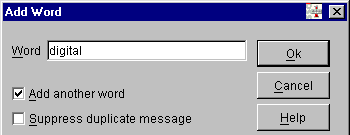
To add words one-at-a-time, click Add > enter a word > click OK. To quickly add one word after another, check the Add Another Word check box > click OK.
You can also complete the following tasks at the Exclude List window:
- To edit a word in the list, click Modify.
- To export the excluded words to a file, click Export > navigate to a directory > enter a filename.
- To import words from an exported file, browse to and select the file.
- To overwrite duplicate words without having an Already Exists message appear, check the Suppress Duplicate Message check box.
- To append names to a file, click Export > check the Append to File check box > browse to and select the file >click Yes to save > OK.
- To save the list and exit, click OK. To save the list and continue making changes, click Apply.
-
(Optional) Check the Create Another nssoPasswordExcludeList.
You can create a separate list of passwords for each application. You can also create just one list and then reuse it.
Using Enhanced Protection
Novell® SecretStoreTM enables you to provide additional protection by
- Locking SecretStore
- Setting a master password and hint
- Setting a password for an application
Locking SecretStore
With the Enhanced Protection option enabled for any secret in Novell SecretStore, if you change the user's NDS® password, SecretStore enters a locked state. When SecretStore is locked, no secrets stored with the Enhanced Protection option can be read until SecretStore is unlocked.
SecretStore can only be unlocked if the user provides the last NDS password that was set. Since an administrator should not know the user's previous NDS password, Enhanced Protection-protected secrets are kept safe.
NDS and SecretStore can distinguish between user-initiated password changes and those done by an administrator. SecretStore only locks when an administrator changes a user's password. An encrypted hash of the user's previous password is updated in SecretStore only if the user initiates the change.
If the user has changed an NDS password at least once since the account was created and before enhanced protection-protected secrets are stored, this protection is completely secure. When a user does this, the administrator doesn't know the previous password. As a standard practice when you set up new User objects in NDS, require the user to change the password at first login.
Users that have Administrator-equivalent rights (that is, they have Supervisor rights but are not the actual network administrator) need to be careful when setting their own passwords. If a user sets a password when logged in as an Administrator-equivalent user, the user's SecretStore will be locked.
Setting a Master Password
The Enhanced Protection Master Password feature provides an alternative way for users to unlock SecretStore. The Master Password feature enables you to store and update a persistent password in SecretStore. If you (the administrator) reset an NDS password, the user can unlock SecretStore by using the master password instead of the previous NDS password.
SecretStore Manager (SSMANAGER.EXE) provides an interface to the master password. This utility enables you to store a hint along with the master password. If you later enter an incorrect password when unlocking SecretStore, SecretStore Manager can display the hint to remind you of the master password.
Other interfaces that unlock SecretStore (such as those built in to the Lotus* Notes* and Entrust connectors) will accept the master password in place of the previous NDS password. However, these interfaces might not be capable of displaying the hint.
To set a master password and hint, start SecretStore Manager (or SecretStore Status) from the Single Sign-on program group > click Options > Set Master Password.
Also, you can set the master password from SecretStore Manager by entering
ssmanager.exe /sp
This command opens the Set Master Password dialog box. This capability might be useful if you want to encourage users to set their master password and hint.
Setting an Application Password
Application Password is an optional enhanced protection feature designed to secure an application's secrets from other applications running on the authenticated workstation. This optional password, stored on a per-secret basis when secrets are written, prevents an application from reading a secret unless it can supply the correct application password on the NSSOReadSecret() function call.
Application passwords are defined by the Single Sign-on-enabled application that creates the secret. Application passwords should be unique for each application and user. They are true application secrets that will not be known by the user or by any other application.
v-GO for Novell Single Sign-on uses the application password feature when the Use Application Password option is set for that application in the Single Sign-on configuration of that application in NDS. The Application Password feature is also available to any developer of Single Sign-on-enabled applications and connectors.
If secrets are stored with Application Passwords, you cannot view or read them unless you store a master password. SecretStore Manager prompts for the master password when you attempt to view a secret stored with an application password.
Copying SecretStore from One Tree to Another
Using SecretStore Manager, you can copy your SecretStore content from one tree to another.
Scenario: Digital Airlines purchases the AdVenture Company. The former AdVentureCo employees are given accounts in the DA tree. These employees can authenticate to both trees and copy their secrets from their account in AdventureCo to their new account in the DA tree.
v-GO works against only one SecretStore at a time. v-GO provides a limited copy function by letting the user synchronize v-GO secrets to a new tree or object if they can authenticate to the old tree. However, v-GO doesn't copy any non-v-GO secrets to the new tree. SecretStore Manager does copy those secrets.
In both cases, the key to security is to require the user to re-authenticate to the source tree object and ensure that SecretStore is not locked before the copy of information is permitted. Otherwise, someone could steal secrets.
Disconnected Authentication
For performance, v-GO caches its secrets from SecretStore in NDS to an encrypted information store on the workstation's Windows directory as the following:
username AML.INI.
In v-GO for Novell Single Sign-on, you can configure this local store to persist after the NDS authenticated session is closed. For laptop users, this configuration can provide access to logon data while on the road.
Synchronization occurs when the computer (and v-GO) is started in the NDS-connected network, whenever logon data is updated in the local store, and when v-GO shuts down. Access to the local store is granted when the user logs in to Windows.
NSSO 2.1 includes and installs the Novell Modular Authentication Service (NMASTM) Enterprise Edition client. This client provides v-GO with NDS disconnected authentication and password reveal re-authentication features.By default, the NSSO Workstation Install program (NSSOINSTALL.EXE) installs the NMAS client and configures the Novell ClientTM to display the NDS Password fields on the NDS login dialog box. An NDS password post-login method stores a NICI-encrypted, hashed copy of the NDS password in the registry. NSSO then compares this encrypted password with username and password credentials that the user enters in response to disconnected authentication or re-authentication events.
If users use non-NDS password methods, each user must use the NDS password method once to establish the password credentials on the workstation. You can then remove the NDS password method from the logon process for normal biometric, smartcard or token authentication to the directory.
Using NDS Screen Saver
NDS Screen Saver uses NDS to authenticate a user to unlock a Windows workstation. Intended to run on Windows 95/98, NDS Screen Saver requires the Novell Client for Windows 95/98 3.30.
The NDS Screen Saver bundled with the Novell Single Sign-on package is part of the NMAS client. The full NMAS Enterprise Edition 2.0 provides centralized administration of the Screen Saver, including control of the fifteen-minute maximum timeout value. You can decrease that value, but you cannot increase it above fifteen minutes.
When you install Single Sign-on on Windows 95/98 workstations, NDS Screen Saver is installed by default. You can optionally install Screen Saver on Windows NT/2000 workstations.
When a workstation is disconnected from the network, NDS Screen Saver uses NICI services to securely store an encrypted hash of the user's password in the registry. After the screen has been locked, Screen Saver allows a re-authentication similar to NDS functionality at a server console.
NMAS 2.0 is required to centrally administer the screen saver. The configuration allows you to enable or disable whether users do the following:
- Select a screen saver
- Access the screen saver's Settings and Preview buttons
- Set or modify the screen saver's Wait timeout value
All settings available to the user will be displayed on the Display Control Panel. The workstation user can access the setting that you have allowed.
Once installed on the workstation, this component will automatically be used. Whenever the workstation is locked or the screen saver has started, an NDS dialog box allows the user to authenticate to NDS. If the authentication succeeds, then the workstation will be unlocked and the user can get to the desktop.
You can also unlock the workstation, but this will cause the user to be logged out. In this case, any programs that the user was running will be terminated. Use this feature with caution, because unsaved files may be lost.
Also, if you lock your workstation, you might need to unlock it.
Scenario: Your workstation is connected to NDS and is using NDS Screen Saver. You lock your workstation. You lose your connection to the network. To unlock your workstation, you do one of the following:
- Reboot your workstation.
- Wait for the connection to time out.
To install NDS Screen Saver, run the CLIENTSETUP.EXE program from \CLIENT\NMAS\SCREENSAVER on the Novell Single Sign-on CD.
NOTE: When you lock Screen Saver on Windows NT, the screen might go blank after the timeout value. Due to a Windows issue, the unlock dialog box does not appear for about two minutes.
Previous | Next