2.5 Setting Up
As shown in the figure below, testing a LAN adapter and driver pair requires at least two machines—one machine contains the adapter to be tested. This machine is referred to as the System Under Test (SUT). Software to test the adapter and driver runs on this system. The second machine will have running a special piece of software called the Test Agent. This machine is called the test agent machine. The test agent machine must contain adapters compatible with the adapters being tested (e.g., speed, etc.).
Figure 2-1 Test Configuration
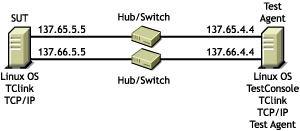
The testing process is controlled by a program called TestConsole. This program is separate from both the test agent software and the software running on the SUT that performs the tests. TestConsole can be run on either the SUT or the Test Agent machine or can optionally be run on a separate third machine. We recommend that TestConsole be run on the same machine as the test agent.
One final software program should be mentioned here. TCLink is a program that runs on both the SUT and the Test Agent machine. TestConsole also starts its own version of TCLink.
-
Ensure that four Ethernet adapters are installed: Two adapters of the type being certified in the system under test and two in the Test Agent machine. We recommend that all four adapters be of the same type to ensure compatible characteristics (maximum linespeed, etc.). The two adapters under test must be identical.
-
Ensure the test machines are connected via Ethernet switches or hubs that support the maximum linespeed supported by the LAN adapter under test.
There should be two separate LAN segments and thus two separate switches or hubs connecting the test machines. One adapter from each machine should connect to one switch or hub and the second adapter from each machine should connect to a second switch or hub.
-
Log in as root on each of the machines in the test configuration.
-
Open a terminal and type tclink <Enter> on each of the machines in the test configuration.
This brings up a TCLink agent that provides communications to TestConsole as well as providing other functionality to the LAN tests themselves. Leave this agent running for the duration of the testing. Status information is displayed on the TCLink screen. This information may be useful if problems occur during testing.
-
Ensure that the IP address displayed in the TClink screen of the system being tested is the IP address of the adapter being tested. If the address is not the same as the adapter being tested, modify the /etc/hosts file to ensure that the adapter IP address you are testing has the host name.
NOTE:If TCLink has been re-started on one of the machines, use the refresh button in the TestConsole test station selection dialog to add the IP address for that machine to the dialog.