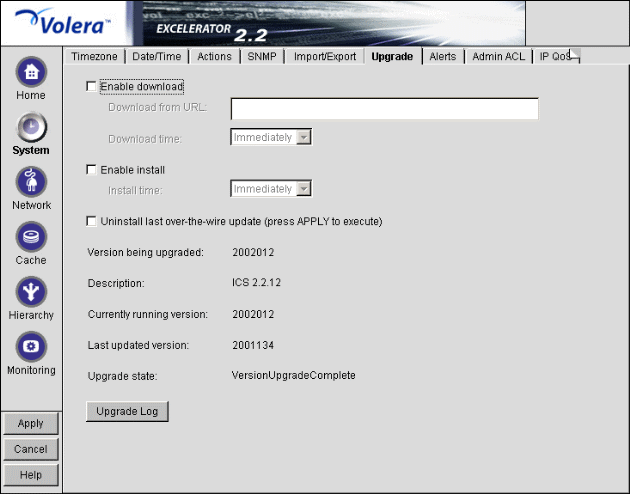
Figure 81
The Upgrade tab lets you set patch and upgrade parameters so you can download and install patches to the appliance. It also lets you uninstall the most recently applied patch.
Over-the-wire upgrades are secured through signing.
IMPORTANT: Forward proxy authentication must be disabled in order to upgrade the appliance. Otherwise, the upgrade will fail.
NOTE: We recommend you update the appliance's clone image after an upgrade. See Restoring the Appliance to the Clone Image, Actions Tab, and Upgrading the Appliance.
Enable Download: Lets you set the appliance to download updates automatically. If you check this box and enter the URL for the patch in the Install from URL field, the update is downloaded as scheduled in the Download Time field. A valid entry for Install from URL is any valid URL or DNS name for a Web site.
Enable Install: Lets you set the appliance to install patches automatically. If you check this box, patches downloaded to the appliance are automatically installed as scheduled in the Install Time field.
Uninstall Last Over-the-Wire Update (Press APPLY to Execute): If you check this box after the patch is downloaded and installed into the appliance, the patch is uninstalled or backed out when you click Apply. Only the most recently applied patch can be backed out.
Version Being Upgraded: Displays the version number of the current update. The version of the current update appears in this field the moment the update process begins. You cannot upgrade Excelerator to a lower version than the one currently installed.
Description: A text name associated with the update file.
Currently Running Version: The update version number the appliance is currently running. Before installing the first update, this number is 0.
Last Updated Version: The update version number of the last update applied. For example, if you are currently running update version 3, this number might be 2.
Upgrade State: A state value indicating upgrade status. State values include Not Started, Download Pending, and Version Download Complete. The field is updated each time you click Upgrade.
Upgrade Log: Displays the text messages that have been generated by the upgrade process.