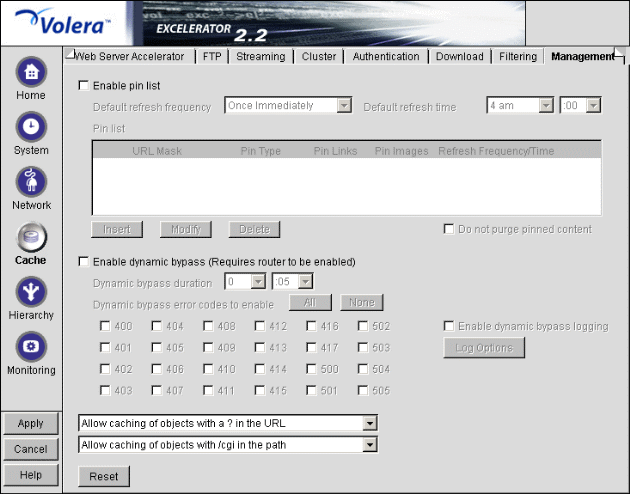
Figure 148
The Management tab lets you identify objects that will be either pinned (explicitly downloaded and retained in cache as long as possible) or bypassed (explicitly not cached when requested by users). It also lets you specify how pinned objects are stored on the appliance (pin type).
Enable Pin List: Activate pinning on the appliance. For information regarding what pin lists are and how they function, see The Pin List and Pin List Examples.
NOTE: This option affects only the pinning of objects on the appliance. It has no effect on whether objects are cached unless the pin type is set to Bypass.
Default Refresh Frequency: Specify when the appliance checks to see if items should be added to or removed from the list of objects being pinned. At refresh time the appliance re-evaluates the objects in cache for the URL list and downloads those objects that have changed. For absolute URLs, objects in links are also evaluated down to the link level specified. Choices range from one time only to any arbitrary time interval.
Default Refresh Time: Specify the time of day or the time interval when pinned objects will be refreshed. To specify an interval, you must first select Timed Interval from the Default Refresh Frequency drop-down list.
The pin list lets you specify URL patterns for identifying objects on the Web. You configure each URL pattern in the list with specific handling instructions as explained below.
URL Mask: Specify complete or partial URL patterns. A single URL mask might apply to a large set of URLs, or it might be so specific that only a single file on the Web matches it. For more information, see Pin List Examples.
Pin Type: Specify whether and how the appliance will cache objects that match the URL mask.
Pin Links: Specify how many link levels Excelerator will follow the pin type rule you've established.
Pin Images: Pin image files that reside on a different host than the page requested.
Refresh Frequency/Time: Specify a refresh frequency and time for the URL that is different from the default values shown above the pin list. After inserting the URL, click Modify to see the dialog box that lets you change these fields. Functionality is the same as described for the default refresh frequency fields.
Do Not Purge Pinned Content: Start the purge with this option selected to purge everything from the appliance's cache except for the content which you have pinned.
The Dynamic Bypass feature lets you configure the appliance so that specific errors from Web sites are explicitly not cached and subsequent requests to the Web sites are simply passed through for a specific time period. For more information, see Dynamic Bypass.
IMPORTANT: The Dynamic Bypass feature only works in transparent proxy mode.
Enable Dynamic Bypass (Requires Router to Be Enabled): Checking this option enables the Dynamic Bypass feature.
Dynamic Bypass Duration: The period of time in hours and minutes that the URL remains in the Dynamic Bypass list, causing Excelerator to transparently pass matching requests through to the origin Web server.
Dynamic Bypass Error Codes to Enable: This section lists all valid HTTP 1.1 errors. You can check and uncheck all the errors using the All and None buttons, or you can check only the errors you want enabled for dynamic bypass.
Enable Dynamic Bypass Logging: Checking this option enables logging of all dynamic bypass transactions. Log entries include the time of the log entry, the word Bypassed, and the URL added to the Dynamic Bypass list.Click Log Options to set log file rollover options and specify the handling of the oldest log files. For help with setting these options, see The Appliance Offers Two Log Rollover Options. For information relevant to the dynamic bypass feature, refer to Configuration Step 3: Specifying Rollover Options, and Configuration Step 4: Specifying Handling of Older Files.
The two drop-down lists below the pin list let you specify object caching based on the following:
The Cache option lets you specify whether cachable objects that meet the criteria are always cached.
The Cache option is sometimes misinterpreted to imply that objects meeting the criteria are always cached. That is not the case. The Excelerator appliance will not cache objects that Web server administrators have marked non-cachable.
IMPORTANT: Even if either of the Cache options is selected, objects with a question mark or /cgi in the path will not be cached unless you have enabled the Cache Objects That Have no Validator or Expiration Date option in Tuning dialog box for the services you want affected. For more information, see Advanced Options (Tuning) Dialog Box.
By the same token, the Do Not Cache option is sometimes misinterpreted to imply that objects meeting the criteria are never cached. Objects containing question marks and/or /cgi in the path might meet other criteria that cause them to be cached. This option actually only causes Excelerator to ignore question marks and /cgi in determining whether to cache objects.
IMPORTANT: Even if the Do Not Cache option is selected, objects with a question mark or /cgi in the path may be cached if they have a Validator and/or an Expiration in the header.
Click the Reset button to return the two drop-down lists to their default (do not cache) settings.