Process Manager User's Guide
CHAPTER 7
This chapter discusses the use of the Process Server Console to manage deployed processes.
From the Composer Enterprise Server main console page (shown below), click the "Process Console" icon in the top row of buttons:
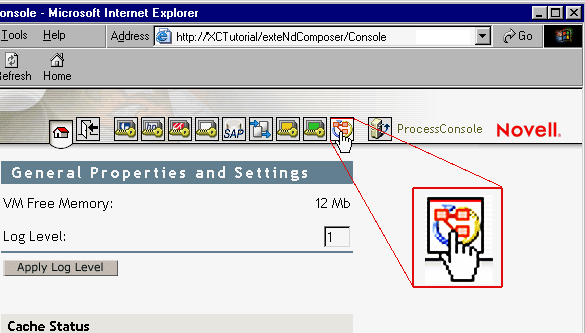
NOTE: Composer Enterprise Server and the Process Server should be installed and running on your application server prior to attempting to access these consoles.
After clicking the Process Console button, a new screen should appear in a new browser window, as shown in the section below. Notice the presence of four tabs (Main, Statistics, Status, and Log). These tabs are discussed in the sections to follow.

The console's Main tab reveals a screen comprised of the following sections:
Each of these sections is described below:
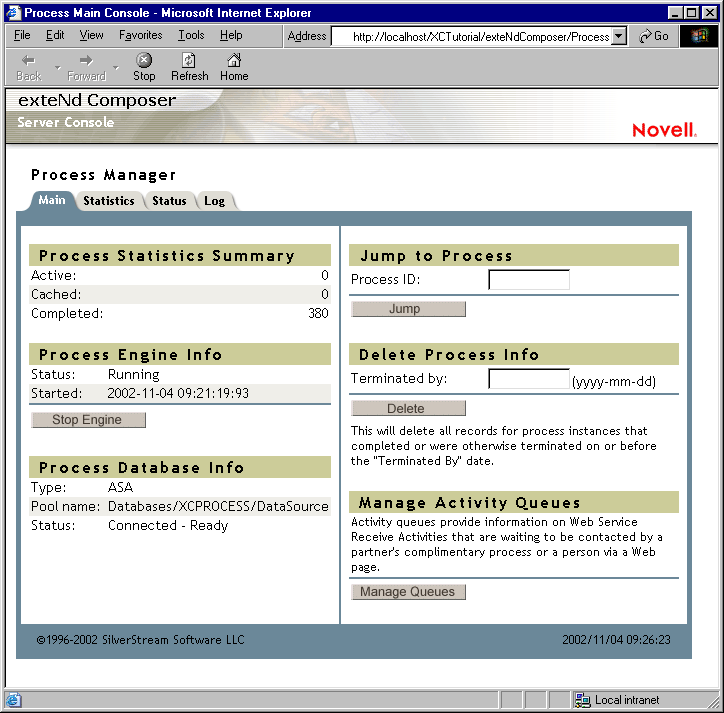
The Process Statistics Summary section displays the count of Active, Cached, and Completed processes. The latter refers to the number of process instances that have run since the Process Server was started (i.e., the Start date given in the next section), whether they ended in success or a fault of some kind.
The Process Engine Info section shows whether the process engine is running and, if it is running, the date and time at which it was started. If the process engine is running, the Process Engine Status is "Running" and the button below is labeled "Stop Engine." If the process engine is not running, the Process Engine Status is "Suspended" and the button below is labeled "Start Engine."
The Process Database Info section displays general information regarding the process database. (See the first few pages of this guide, as well as the product Release Notes, for information on setting up this database.) This is the database Process Manager uses to persist "state data" for long-running processes.
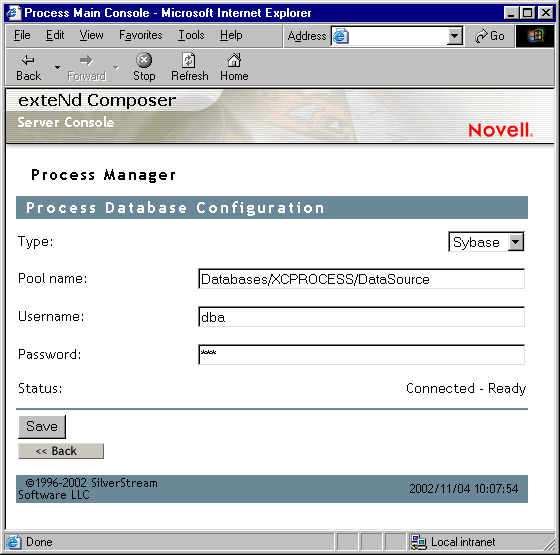
Configure—the Configure button will be displayed only when the Process Engine is stopped. Pressing the Configure button in the Process Database Info section will display the Process Database Configuration page, from which you can configure the database (see below).
To configure the database, select a database type from the dropdown list (e.g. Oracle, DB2, ASA, etc.) and enter a pool name. You may save the configuration by pressing the Save button. Once the Configuration is saved, you can initialize the database by pressing the Initialize Database button. The Initialize Database button is displayed only when the status is Connected—Not Initialized.
The Jump to Process section of the main console enables you to display the status of a specific process by entering the ID of the process and pressing the Go button.
Process records can be completely deleted via the Delete Process Info section. You may delete all information for process instances that were terminated (e.g. completed or otherwise terminated) by a specified date. To do this, enter the "Terminated By" date and press the Delete button. For example, if you enter 2002-02-01 and press the Delete button, all records for process instances completed or otherwise terminated on or February 1, 2002 will be permanently deleted.
NOTE: When a process finishes running or is manually terminated, only the process instance's input documents and output documents will be maintained. Any interim documents created by the process instance will be purged, automatically, upon termination of the process instance.
You may administer activity queues by pressing Manage Activity Queues button on the Main tab. Doing so will display a page with two tabs that provide queue statistics and queue status.
The Queue Statistics tab displays a table that contains a sorted list of addresses in the activity queue and a count of the work items assigned to that addressee. These statistics are automatically refreshed every 60 seconds.
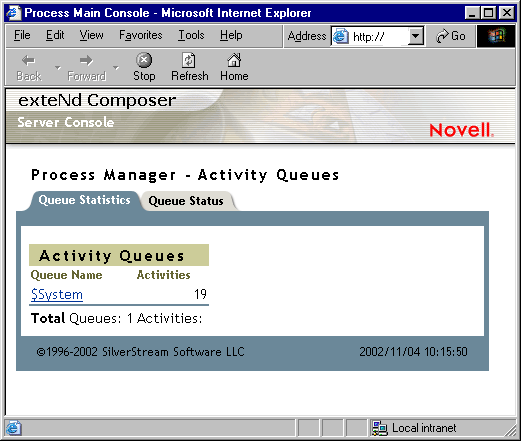
The Queue Status tab (see illustration below) displays a table with the following columns:
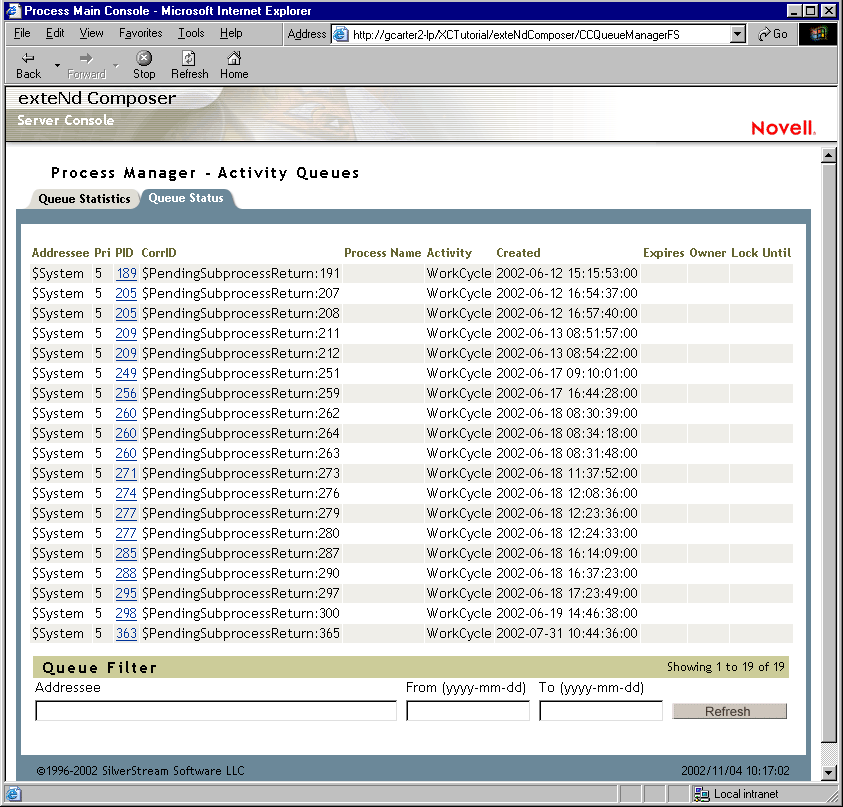
The PID column contains hot links to the Process Detail info for the process instances. (This will open in a new browser window.) The Process Detail windows are discussed in a later section.
If the activity does not have a timeout, the Expires column is blank.
If the Activity has been locked via the Lock Waiting Activity Action, the Owner column displays the name of the Owner of the Locked Activity and the Lock Until column displays the date to which the activity has been locked. If the Activity does not have a Lock, the Owner and Lock Until fields are blank.
Optionally, you may filter Queue Status by Addressee by entering an Addressee name. You may also choose to display only those activities that were queued within a specific range of dates by entering the range of dates in the From and To fields.
The Queue Status tab, like other Composer Process Manager Console pages, displays up to twenty (20) records per page. If there are more than 20 records, a controls at the bottom the page allow you to move to the first page, the previous page, the next page, or the last page.
Process Manager Console: Statistics Tab
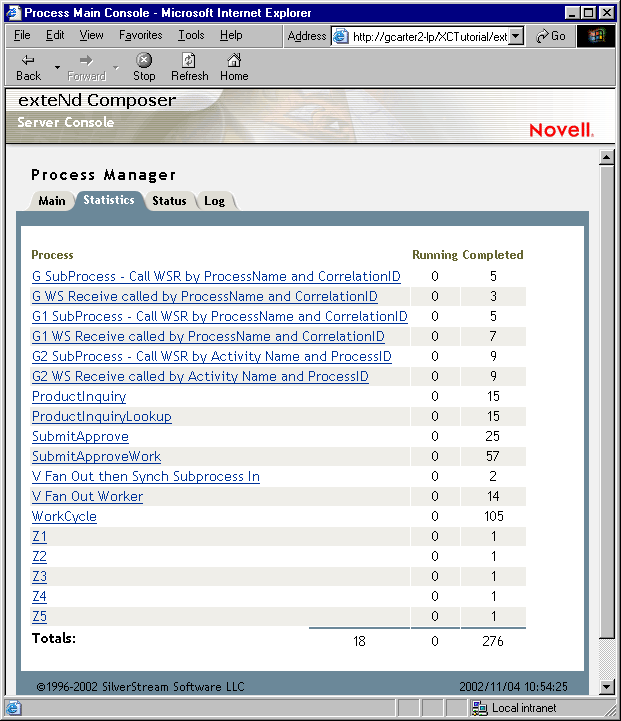
The Process Manger Console's Statistics tab provides a list of all processes and a count of Running and Completed process instances for each process. (See below.) On the Totals line at the bottom, you will see (from left to right) the total number of Processes (not process instances, but different process models), Running process instances, and Completed process instances. The processes are listed alphabetically by name on the left. Each name is a hot link that will take you to a Status page listing a status table filtered by the process name.
The Process Manager Console's Status tab gives you a view of the overall execution status of all processes, filterable by process name and date range, with control over which field to sort by. The filter controls are at the bottom of the page.
As always, 20 result lines are displayed at a time. To page through the available results, click the First, Prev, Next, or Last links at the lower right corner of the page.
This view is not updated in real time. Therefore, a Refresh button is provided near the bottom right corner.
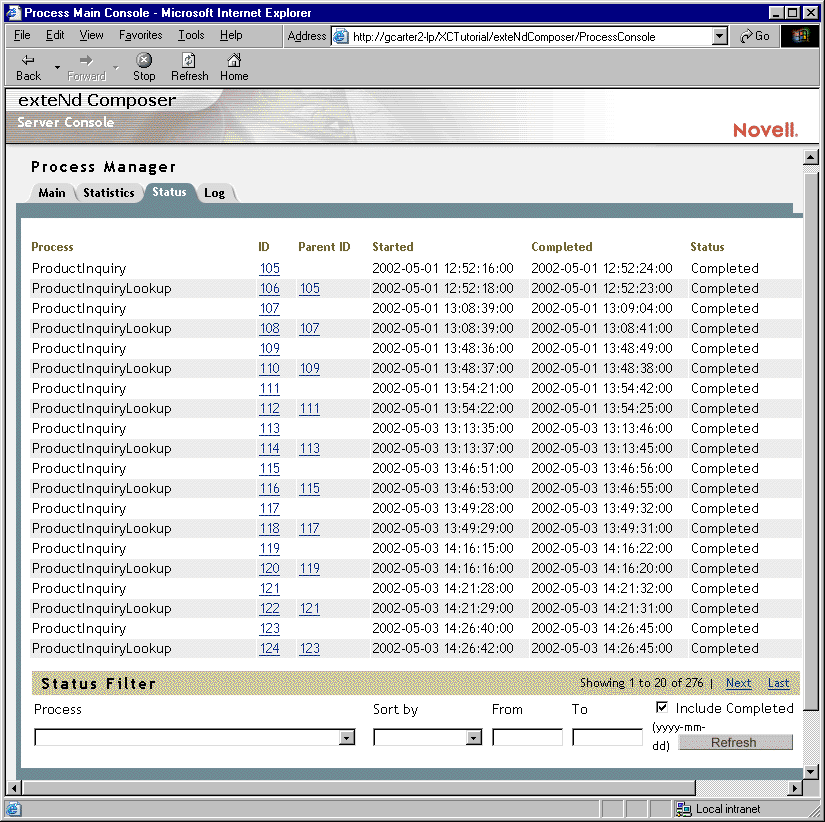
Process ID and Parent ID numbers are clickable links. You can "drill down" on a specific process instance by clicking the appropriate Process ID link. Clicking a link will open a new browser window in which the Process Detail page, described later, is presented.
The Status Filter control group (bottom of page) allows you to control how processes are displayed in the Status tab view. You can choose, for example, to display process instances for a specific named process using the Process drop-down control.
Using the Sort By control, you can sort the list of displayed processes by Process Name, Process ID, the Create Date/Time, the Modify Date/Time or the Status.
By entering dates in the From and To fields, you can display processes that were started and, optionally, completed within a specified range of dates. Check the Include Completed check box if you want to display records of finished processes.
After selecting your filter options, press the Refresh button to display a new list of processes based on your current Filter and Sort settings.
The Process Manager Console's Log tab displays log messages in the following format, sorted by Date and Time:
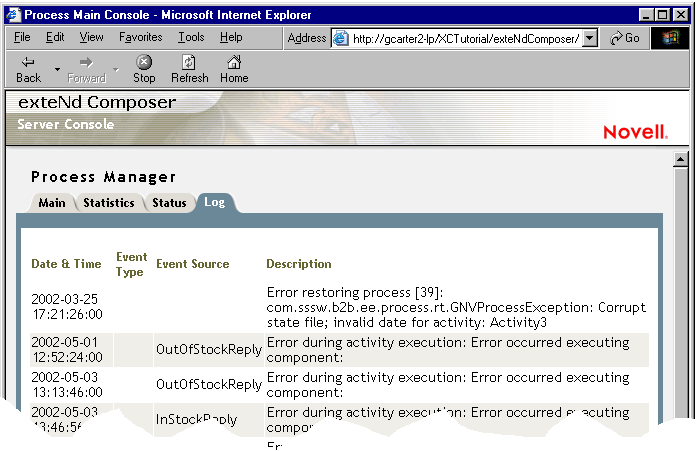
You may filter the view of the log by clicking on the checkboxes at the bottom of the page:

After making your desired choices, press the Refresh button.
When you click a link for a process instance (such as any of the links in the ID column of the Status Tab in the main process console), you will see an Activity Detail view for that process instance pop open in a new browser window. (Using multiple browser windows, you can monitor multiple process instances simultaneously.)
The detail viewfor a process instance has three tabs: Activities Detail, Messages and Log.
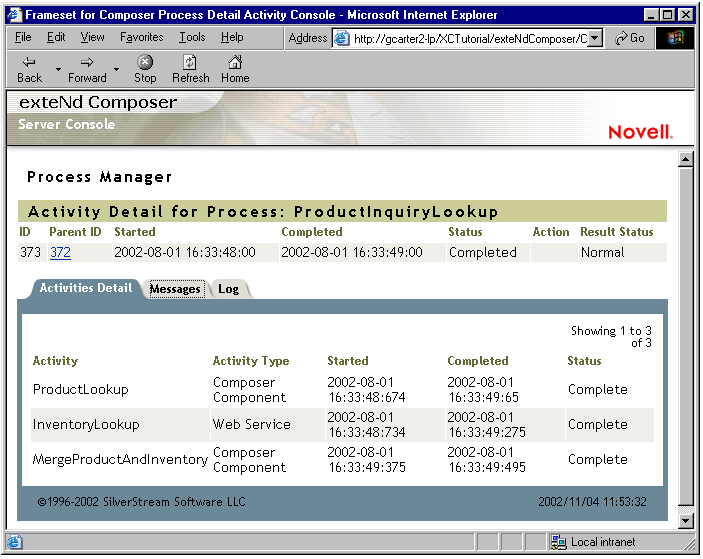
Activities Detail is the first tab on the detail page and is the default view when the window first opens.
In this tab, you'll see the Name, ID, Start Date/Time, Completed Date/Time, and Status of the individual activities that comprise the process instance. The process instance will be listed as either Running or Complete. If the process is running, buttons will be present enabling you to Suspend or Terminate the running process instance.
The columns in the Activities Detail tab view have the following meanings.:
The Messages tab gives you a view of the process instance's messages (i.e., input and output documents). The messages are sorted by name.
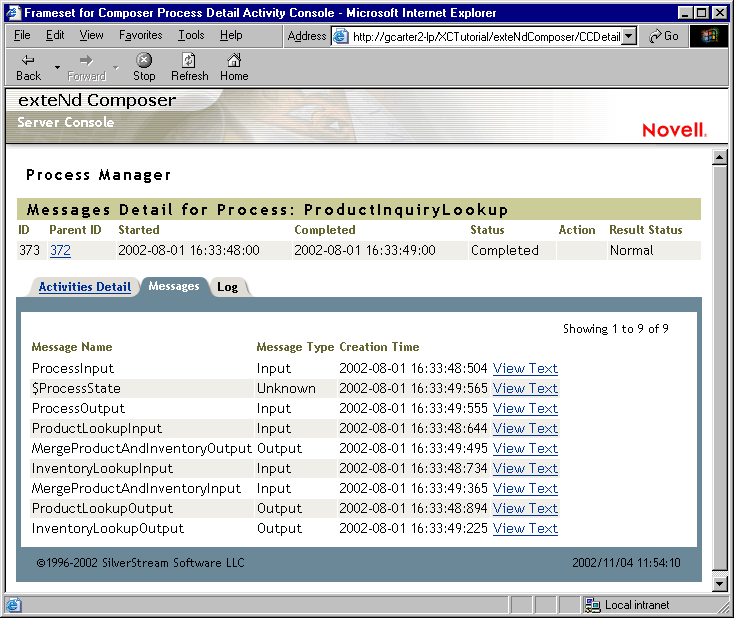
The Messages tab displays the following information:
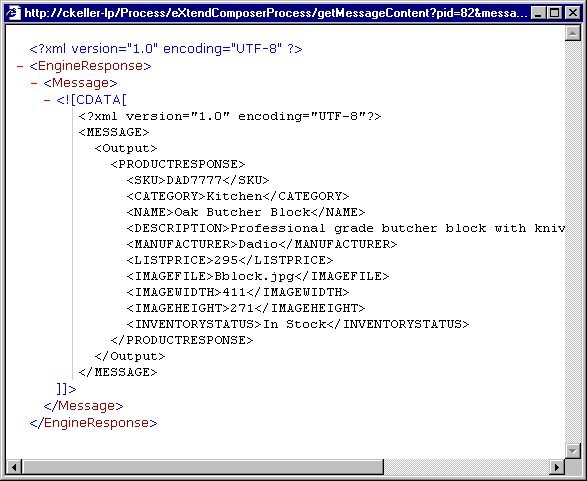
The Log tab summarizes logged events of various types. See below.
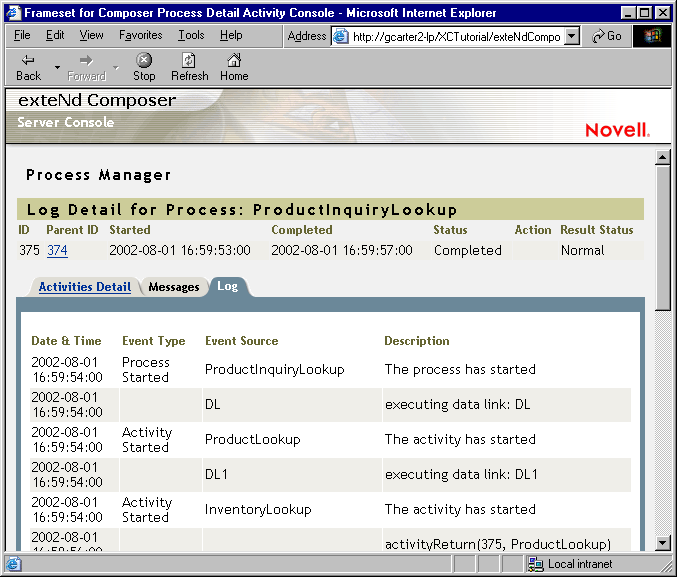
At the bottom of the window (scroll down as necessary), you'll find checkboxes that you can use to control the types of events summarized in the table.

Select the checkboxes of interest, then click the Refresh button to bring up a listing of logged events (appropriately filtered).
Copyright © 2004 Novell, Inc. All rights reserved. Copyright © 1997, 1998, 1999, 2000, 2001, 2002, 2003 SilverStream Software, LLC. All rights reserved. more ...