2.4 NetWare Installation

There are two ways to install Redline on a NetWare Server. The Windows based installer and the NetWare based install script. The Windows install script is, by far, the preferred and best method. With the NetWare install script you can install Redline to any NetWare Server through any remote console like RCONSOLE, SSH or RCONJ. The Windows Installer requires an up to date NetWare client, logged into each server that Redline is to be installed onto with a user with sufficient rights to the SYS volume.

2.4.1 The Windows Installer

  • From the /redline/netware/ folder run the setup.exe. Click Next.
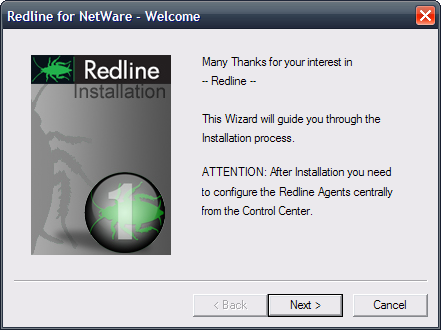
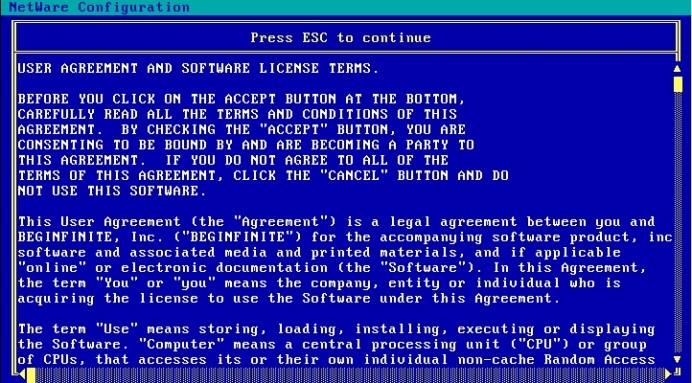
  • Accept the license agreement. Click Next.

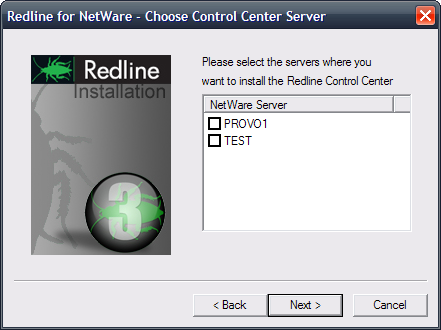
  • Select the server that the Control Center will run on. Click Next.
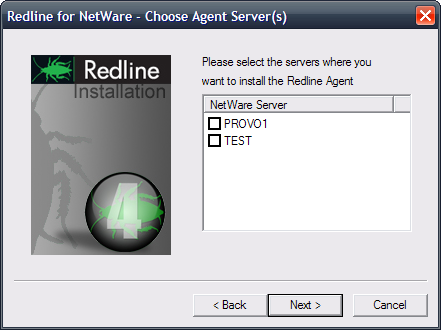
  • Select the server or servers that the Agents will run on. It is possible to install the Control Center and Agents with one setup on multiple machines. Click Next.
  • Select Install / Update and click Finish. It is possible to have the installer configure Redline to run in a protected address space. That way it isn't necessary to modify the NCF files to start Redline in protected memory. By default, Redline installs two files, RLCCP.NCF and RLAGP.NCF which can be used to start the Control Center or Redline Agent into a protected address space at any time.
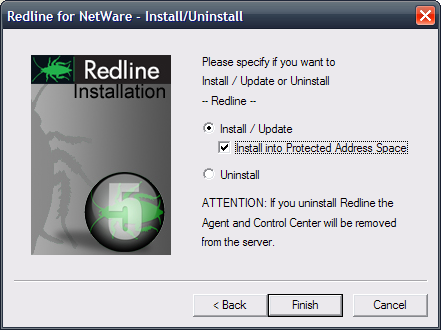
The Windows Installer updates your AUTOEXEC.NCF file after successful installation automatically.

The NetWare Install Script

  • Run NWCONFIG from the NetWare System Console and select Product Options.
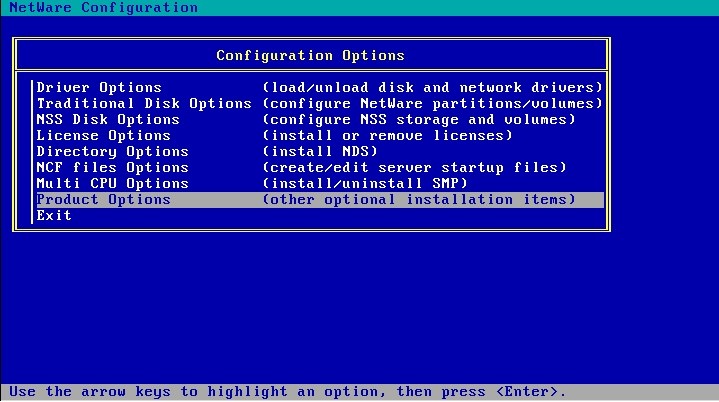
  • Select Install a product not listed from the menu
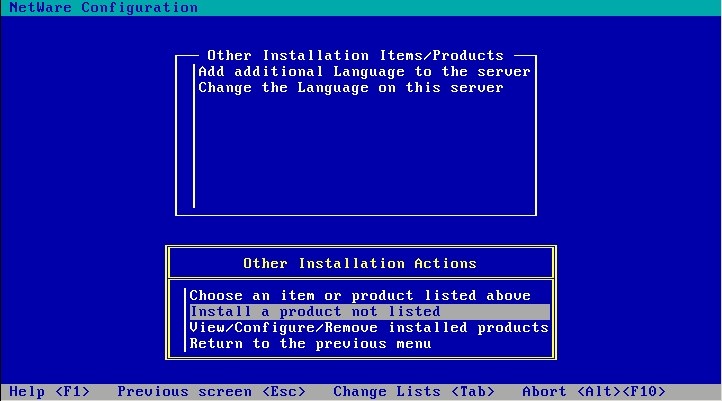
  • Specify a directory path where Redline was unpacked after download.
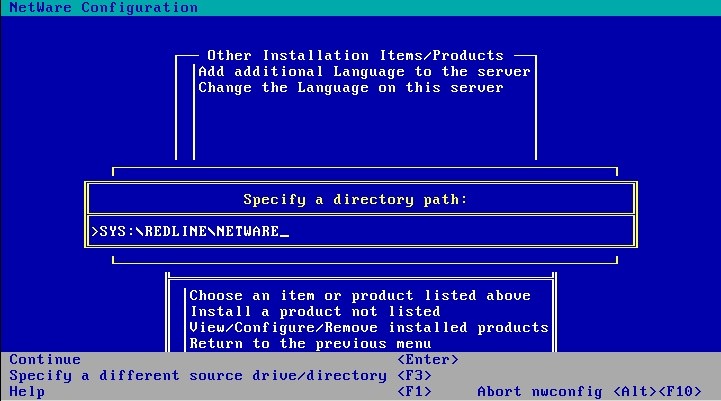
  • Accept the license agreement.

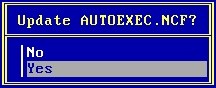
  • Update AUTOEXEC.NCF after installation.
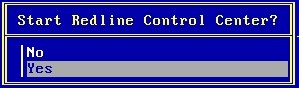
  • After Installation, you can start the Control Center from the installation script.
After successful installation Redline shows up in the list of installed products.

Install Control Center to a non-SYS Volume on NetWare

Redline expects to be installed on the SYS volume in a NetWare system. To move Redline to another volume requires several steps. The example assumes that the new volume is named MYRL, and Redline is to be moved directly under the root. (e.g. MYRL:\opt\Beginfinite\Redline is the product path)

  • Stop the Redline Control Center. If an Agent is running on the same server, stop the agent as well.

  • Check your search paths and look for the Redline search path with the SEARCH command. Look which search number the redline path has. In our case the Redline search path is number 18. It is likely that this number is different in your environment.
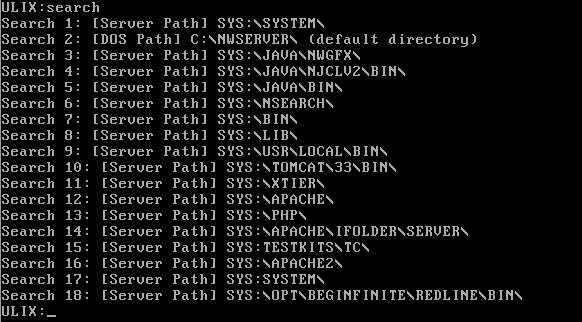
  • Remove the current search path

    SEARCH DEL 18 (Or whatever the number is in your environment)
  • Move the entire SYS:\opt\beginfinite\redline tree to MYRL:\opt\beginfinite\redline, including all subdirectories.

  • Create an empty folder on SYS, which will be a placeholder. It is recommended to create a folder SYS:\mnt\posix\myrl. Do not create any subfolders in this new folder. This is necessary because Redline is a POSIX application on NetWare, and SYS is the virtual root on Netware, comparable with / on Linux or UNIX.

  • Type EDIT SYS:\etc\pathtab at the system console. If prompted to create a new file, do so. Add the following line to PATHTAB and save it:

     /mnt/posix/myrl <space> myrl:\, where <space> is a space character.

This step enables POSIX mapping between the /mnt/posix/myrl mount point on SYS and the real Netware volume where Redline was copied to.

  • Type EDIT myrl:\opt\Beginfinite\redline\bin\rlcc.ncf . Correct the path, which currently points to SYS. Be aware that you need to specify a NetWare style path here; which means you need a path in the form VOLUME:\opt\beginfinite\redline\conf\rlcenter.conf.

  • Add the new search path

    SEARCH ADD MYRL:\opt\beginfinite\redline\bin
  • EDIT AUTOEXEC.NCF, and add the same search path. Remove any old obsolete search path.

  • On NetWare 6.5 and OES you can test if POSIX paths are working, if BASH is installed on your system. type:

    BASH
    cd /mnt/posix/myrl
    ls

You should see the content of MYRL:\ in the folder sys:\mnt\posix\myrl..

  • Edit myrl:\opt\beginfinite\redline\conf\rlcenter.conf and change all path names. add /mnt/posix/myrl to all path names:

    ...
    LogFilePath=/mnt/posix/myrl/opt/beginfinite/redline/logs
    DataPath=/mnt/posix/myrl/opt/beginfinite/redline/db
    ConfigPath=/mnt/posix/myrl/opt/beginfinite/redline/conf
    ImportPath=/mnt/posix/myrl/opt/beginfinite/redline/imp
    SoftwarePath=/mnt/posix/myrl/opt/beginfinite/redline/software
    ...
    CCTemplatePath=/mnt/posix/myrl/opt/beginfinite/redline/CC-Templates

You should now be able to run the Control Center from volume MYRL by typing RLCC. If more information on pathtab and POSIX path names is needed, check the Appendix of this manual.

Start Control Center on NetWare

During installation, a search path to SYS:\OPT\BEGINFINITE\REDLINE\BIN was added to AUTOEXEC.NCF and executed on the command line.

To start the Control Center, type RLCC on the System Console:
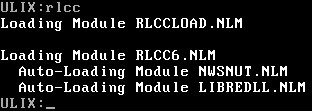
RLCC is a NCF file which loads RLCCLOAD.NLM. This is a NLM which checks whether LIBC.NLM, the NetWare Version, and Support Pack Version are current enough. If this check fails, the Redline Control Center will not start and returns a message to the user that the system needs to be updated. This avoids possible ABENDs on the NetWare server. RLCCLOAD.NLM loads RLCC6.NLM, which is the main Control Center binary.

If you want to run the Control Center in a protected address space on NetWare, it is possible to simply use RLCCP.NCF instead of RLCC.NCF. Alternatively, you can edit RLCC.NCF and replace rlccload.nlm with load protected rlcc6.nlm. In protected memory, Redline needs its own address space; you can't start it with another application in the same address space.

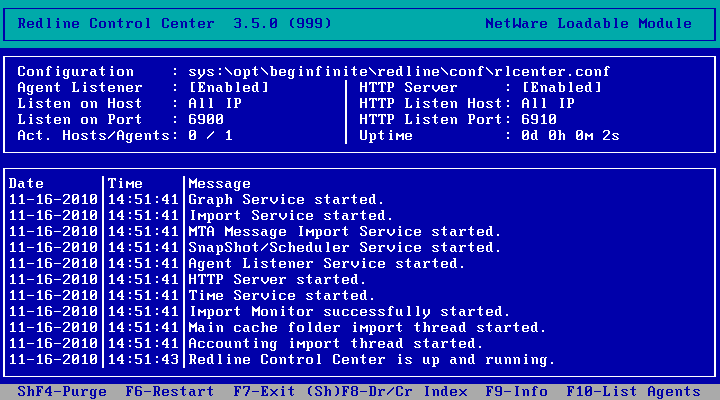
If the Control Center was loaded successfully on NetWare, you can see the Control Center screen.
Start Agent on NetWare

During installation, a search path to SYS:\OPT\BEGINFINITE\REDLINE\BIN was added to AUTOEXEC.NCF and executed on the command line.

To start the Agent, type RLAG on the System Console:
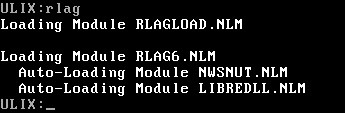
RLAG is a NCF file which loads RLAGLOAD.NLM. This is a NLM which checks if LIBC.NLM, the NetWare Version and Support Pack Version are current enough. If not, the Redline Agent will not start and returns a message to the user that the system needs to be updated. This avoids possible ABENDs on the NetWare Server. RLAGLOAD.NLM loads RLAG6.NLM, which is the main Agent binary.

If you want to run the Agent in a protected address space on NetWare, edit RLAG.NCF and replace rlagload.nlm with load protected rlag6.nlm. When run alone, Redline needs a dedicated address space. You can't start it with another application in the same address space.

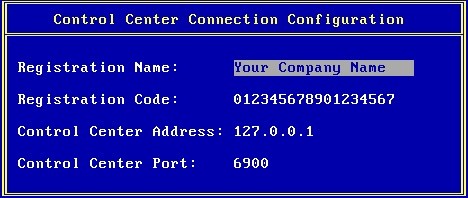
If the Agent is started the very first time, you will be asked for Registration Name, Registration Code, Control Center IP address and port. Everything else can be configured through the Control Center web interface.
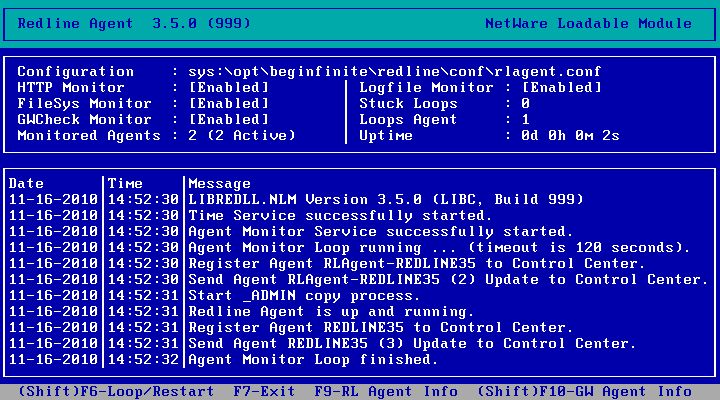
If the Agent was loaded successfully on NetWare, you can see the Agent screen.
2.4.2 Netware Cluster Installation

For High availability, it is beneficial to run GroupWise in a Cluster environment. In such a scenario, multiple servers make up a cluster, and every application is running as a resource on the cluster. For more details about NetWare Clusters refer to the Novell Cluster Services documentation.

Control Center

If you want to install the Redline Control Center on a Cluster, create a resource for the Control Center. Make sure that no other POSIX application is running in the same resource, because you cannot run more than one POSIX application in the same address space.

The next step is to install the Control Center as described earlier in this documentation on one of the server nodes, as if this is a single server. Then move the installation to a shared cluster volume. Let's assume MYRL: is a volume on a shared storage device.

  • Move the entire SYS:\opt\beginfinite\redline tree to MYRL:\opt\beginfinite\redline, including all subdirectories.

  • Create an empty folder on SYS, which will be a placeholder. It is recommended to create a folder SYS:\mnt\posix\myrl. Do not create any subfolders in this new folder. This is necessary because Redline is a POSIX application on NetWare, and SYS is the virtual root on Netware, comparable with / on Linux or UNIX.

  • Type EDIT SYS:\etc\pathtab at the system console. If prompted to create a new file, do so. Add the following line to PATHTAB and save it:

     /mnt/posix/myrl <space> myrl:\, where <space> is a space character.

This step enables POSIX mapping between the /mnt/posix/myrl mount point on SYS and the real Netware volume where Redline was copied to. Do this on every cluster node.

  • Type EDIT myrl:\opt\beginfinite\redline\bin\rlcc.ncf. Correct the path, which currently points to SYS. Be aware that you need to specify a NetWare style path here; which means you need a path in the form VOLUME:\opt\beginfinite\redline\conf\rlcenter.conf.

  • Add the new search path

    SEARCH ADD MYRL:\opt\beginfinite\redline\bin
  • Edit the start script of the cluster resource and add the same search path. "Add load address space = rlcc rlcc6 -c myrl:\opt\beginfinite\redline\conf\rlcenter.conf“ to your resource script to load the Control Center. NOTE: if multiple resources exists in the cluster, and it is possible for them to mount to the same node, different address space names must be specified.

  • Add "rlcenter unload” to your stop script for the Control Center resource.

  • On NetWare 6.5 and OES you can test if POSIX paths are working, if BASH is installed on your system. type:

    BASH
    cd /mnt/posix/myrl
    ls

You should see the content of MYRL:\ in the folder sys:\mnt\posix\myrl..

  • Edit myrl:\opt\beginfinite\redline\conf\rlcenter.conf and change all path names. add /mnt/posix/myrl to all path names:

    ...
    LogFilePath=/mnt/posix/myrl/opt/beginfinite/redline/logs
    DataPath=/mnt/posix/myrl/opt/beginfinite/redline/db
    ConfigPath=/mnt/posix/myrl/opt/beginfinite/redline/conf
    ImportPath=/mnt/posix/myrl/opt/beginfinite/redline/imp
    SoftwarePath=/mnt/posix/myrl/opt/beginfinite/redline/software
    ...
    CCTemplatePath=/mnt/posix/myrl/opt/beginfinite/redline/CC-Templates

You should now be able to run the Control Center from volume MYRL by typing RLCC. If more information on pathtab and POSIX path names is needed, check the Appendix of this manual.

Make sure you test the failover case. You can do so by moving the Control Center resource from one node to another. A real-life way is to use an Abend simulation tool. The Redline Agent can be used to simulate an Abend. Start the Redline agent with the startup parameter -a (or --abend) and hit SHIFT-F4. This will generate a Page Fault Abend, and if everything is configured correct, the Control Center resource should move to another node.

2.4.3 Agent

To monitor your clustered system, you must install the Redline Agent on every resource running a GroupWise agent. To install the Redline Agent on a Cluster, create or locate a resource for the Agent. Make sure that no other POSIX application is running in the same resource, because it isn’t possible to run more than one POSIX application in one address space.

The next step is to install the Redline Agent as described earlier in this documentation on one of the server nodes, as if this is a single server. Then move the installation to a shared cluster volume. Let's assume MYRL: is a volume on a shared storage device.

  • Move the entire SYS:\opt\beginfinite\redline tree to MYRL:\opt\beginfinite\redline, including all subdirectories.

  • Create an empty folder on SYS, which will be a placeholder for the Volume. It is recommended to create a folder SYS:\mnt\posix\myrl. Do not create any subfolders in this new folder. This is necessary because Redline is a POSIX application on NetWare, and SYS is the virtual root on Netware, comparable with / on Linux or UNIX. Complete this step for every node the Redline Agent’s resource can failover to.

  • Type EDIT SYS:\etc\pathtab at the system console. If prompted to create a new file, do so. Add the following line to PATHTAB and save it:

     /mnt/posix/myrl <space> myrl:\, where <space> is a space character.

    This step enables POSIX mapping between the /mnt/posix/myrl mount point on SYS and the real Netware volume where Redline was copied to. Do this on every cluster node the Redline Agent’s resource can failover to.

  • Type EDIT myrl:\opt\beginfinite\redline\bin\rlag.ncf . Correct the path, which currently points to SYS. Be aware that you need to specify a NetWare style path here; which means you need a path in the form VOLUME:\opt\beginfinite\redline\conf\rlagent.conf.

  • Add the new search path

    SEARCH ADD MYRL:\opt\beginfinite\redline\bin
  • Edit the start script of the cluster resource and add the same search path. Add “load address space = rlag rlag6 -c myrl:\opt\beginfinite\redline\conf\rlagent.conf” to your resource script to load the Redline Agent. NOTE: if multiple resources exists in the cluster, and it is possible for them to mount to the same node, different address space names must be specified.

  • Add “rlagent unload” to your stop script for the Redline Agent resource.

  • On NetWare 6.5 and OES you can test if POSIX paths are working, if BASH is installed on your system. type:

    BASH
    cd /mnt/posix/myrl
    ls

    You should see the content of MYRL:\ in the folder sys:\mnt\posix\myrl..

     Edit myrl:\opt\beginfinite\redline\conf\rlagent.conf and change all path names. add /mnt/posix/myrl to all path names:

    ...
    LogFilePath=/mnt/posix/myrl/opt/beginfinite/redline/logs
    DataPath=/mnt/posix/myrl/opt/beginfinite/redline/db
    BinPath=/mnt/posix/myrl/opt/beginfinite/redline/conf
    SoftwarePath=/mnt/posix/myrl/opt/beginfinite/redline/software
     

You should now be able to run the Redline Agent from volume MYRL by starting the cluster resource. If more information on pathtab and POSIX path names is needed, check the Appendix of this manual.

Make sure you test the failover case. You can do so by moving the Redline Agent resource from one node to another. A real-life way is to use an Abend simulation tool. The Redline Agent can be used to simulate an Abend. Start the Redline agent with the startup parameter -a (or --abend) and hit SHIFT-F4. This will generate a Page Fault Abend, and if everything is configured correct, the Redline Agent resource should move to another node.

2.4.4 IMPORTANT

If you run the Redline Agent on a Cluster, you should overwrite the Agent Name reported to the Control Center. In the rlagent.conf file, in the [GLOBAL] section, locate the "# Override the Redline Agent with" option and remove the 'Override' section, leaving the 'RedlineAgentName= section and fill it in. Under the [HOSTS] section, add the 'AgentName=HOST-CLUSTER-X' line. This ensures that the Redline Agent will send information with the same ID regardless from which node data is send. Uncommented lines should include the following in their respective sections:

[GLOBAL]
Agent=enabled
RedlineAgentName=Redline-CLUSTER-X
[HOST]
Agent=enabled
AgentName=HOST-CLUSTER-X

All GroupWise components monitored on a cluster should be monitored through the virtual cluster IP.