Integration Manager User's Guide
CHAPTER 1
Web Services are fundamentally changing the way enterprises exchange information and perform business transactions. But to succeed in web services development, business analysts and developers must be able to work together on sophisticated, large, distributed applications that meet strict requirements for performance, security, scalability, and reliability, in the face of increasingly stringent time-to-market demands.
The most important factor in making a successful transition to a services-based architecture that leverages modern web technologies is the availability of powerful, easy-to-use development tools. Such tools should be:
Purpose-built, from the ground up, for Web Services development
Tightly integrated by design—not a grabbag of unrelated pieces
Easy to learn and use, so that a diverse team of users—from business analysts to system administrators to software engineers—can be productive immediately in a concurrent-development setting
100% standards-aware in terms of all important Web Services technologies: XML grammars (including SOAP), description and discovery technologies (WSDL, WSIL, UDDI), transport layers (HTTP and others), directory protocols (LDAP, DSML), and security-related standards, among others.
Compatible with diverse deployment and runtime environments: i.e., a variety of application servers on a variety of operating systems
If Java is the programming language, the development environment should be fully J2EE-aware—not just a 3GL IDE (integrated development environment), but a front-to-back development, testing, packaging, and deployment toolset with full awareness of JAR/WAR/EAR issues, portal/portlet architectures, etc.
Novell's Integration Manager meets all of these criteria.
Novell Integration Manager is a development (and runtime) environment designed for rapid design and deployment of Web Services and XML integration applications—applications that can connect to diverse back-end systems and data sources.
The Integration Manager product consists of the following pieces:
Novell Integration Manager – A visual design-time tool for creating and debugging Web Services and XML-enabled back-end integration applications.
Novell Integration Manager Enterprise Server – The runtime container layer (for use on any compatible J2EE app server) that executes and manages applications created in Integration Manager.
Novell Integration Manager Connect Family – Individual add-in products that augment the capabilities of Integration Manager and Server to permit the XML-enablement of systems that rely on specialized data sources, such as EDI, CICS RPC, 3270/5250 terminals data streams, Telnet, and JMS. (The Integration Manager JDBC Connect, which allows communication with relational databases, is bundled into the core Integration Manager installation suite, as is the LDAP Connect. Other Connect products are available separately.)
All Integration Manager products are certified to run under the Novell exteNd Application Server, Apache Tomcat, IBM's WebSphere, and BEA WebLogic, with support for operating systems ranging from Windows NT and Windows 2000 to Linux, Solaris, AIX, and HP-UX.
NOTE: Novell Integration Manager Enterprise Server and Integration Manager Enterprise Connect products each have their own documentation. This Guide covers only the core development environment (which we refer to herein as Integration Manager). See the separate JDBC Connect and LDAP Connect guides for information on those component editors.
Integration Manager offers a powerful, intuitive, point-and-click GUI (graphical user interface) for rapid application development, giving the business analyst or application developer a powerful tool for creating robust XML integration applications in minimum time.
Integration Manager offers, among other features:
An XML editor with code-completion features for WSDL, WSIL, and other "specialty grammars"
A drag-and-drop-enabled XML mapping engine, with support for schemas, DTDs, XSL, XPath, and DOM Level 2
An intuitive, visual editing environment for implementing standard control-flow constructs, error trapping, logging, etc., without the need for extensive Java programming expertise
Realtime step-into/step-over debugging and animation, so that applications can be tested in real time without leaving the development environment
A multi-document interface (MDI), allowing you to work in more than one document or component at one time
Realtime registry browsing, with support for WSDL publishing/retrieval using UDDI registries
Built-in ECMAScript support (including a custom script editor and live console) for users who need fine control over business logic or data manipulation
Back-end system connectivity via Integration Manager Connect add-ins for 3270, 5250, Telnet, JMS, JDBC, CICS RPC, EDI, etc.
Deployment facilities for direct deployment of projects to the application server (with context-driven customizations for Novell, WebSphere, or WebLogic application servers)
Integration Manager also has XForm and JSP code generation features, and many other capabilities that aren't listed here for space reasons. This is just a partial list of major features.
Integration Manager is targeted at business analysts, IT managers, Java developers, and other stakeholders in the Web Services development process.
Integration Manager is designed to be accessible to users of various skill levels. (It is not a Java-programming IDE.) Business analysts with little or no programming background can quickly master complex data transformations using Integration Manager's drag-and-drop XML mapping features. Webmasters can use Integration Manager's JSP, XForms, and UDDI browse/publish capabilities to assemble sophisticated web apps with no need for additional tools. Java developers can use Integration Manager to develop sophisticated, reusable XML components that might rely heavily on ECMAScript, SQL, LDAP, custom Java classes, and/or specialized packagings (WAR/EAR/JAR files).
Because Integration Manager's GUI is rich with wizards, picklists, and drag-and-drop-enabled features, users of all skill levels (regardless of domain expertise) can become productive quickly. Sophisticated web applications that might take months to develop using a "grabbag of tools" approach often can be rolled out in weeks or days using Integration Manager.
Integration Manager application design is based on an Action Model architecture that includes two main processing constructs: components and services.
Components are executable units of work that encapsulate business logic, usually in the context of connectivity requirements.
For example, a typical JDBC component validates an incoming XML request document, maps the document's key pieces of data to an SQL inquiry, and maps the SQL result set to an XML response document. All of the business logic and data retrieval functionality of this type of operation can (and should) be encapsulated at the component level.
Services, on the other hand, typically oversee the execution of components and coordinate the flow of data between them. A typical service might wrapper a series of components that receive an input XML document, perform sophisticated document mappings/transformations, collect information from back-end data sources, execute transactions on mainframes and AS/400s, process error conditions, send context-sensitive e-mail or JMS notifications, and/or return one or more XML response documents to the original requestor(s). By breaking up a service's tasks into discrete components, important benefits—in terms of testing, debugging, code maintenance, encapsulation, and code reuse—can be realized.
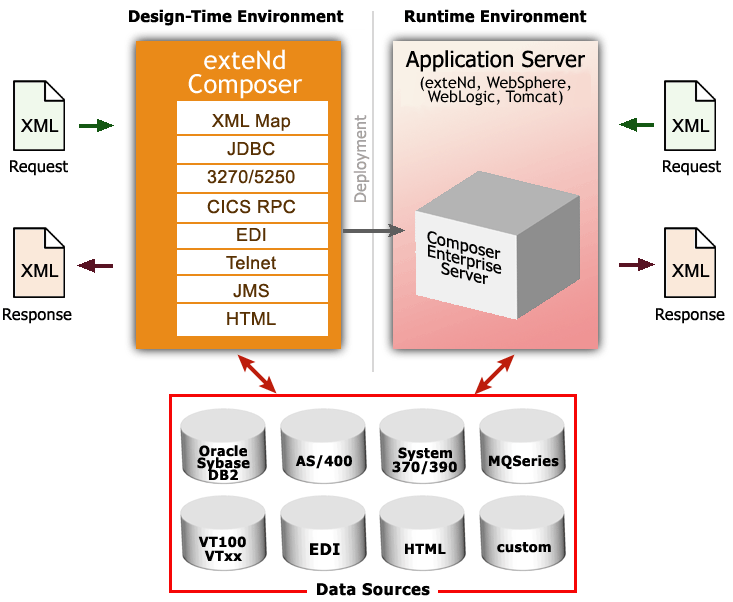
You will typically use Integration Manager to create components and services that perform B2B integration tasks involving data retrieval and transformation through XML technologies, including (optionally) SOAP and Web Services technologies. You'll deploy these components and services into a J2EE application server environment, where their execution is mediated by Integration Manager Enterprise Server (the runtime half of Integration Manager).
You can build many types of applications with Integration Manager, but typically you will create XML integration applications triggered by servlets, EJBs, custom Java objects, or incoming messages on a JMS message queue. Your applications might, in some cases, simply be used locally on the app server to provide services across local processes, with no exposure to the outside world. In other cases, your applications will be fully web-enabled. The interface(s) to your web-facing applications might or might not involve SOAP or WSDL.
In general, with Integration Manager, you can implement any kind of application where data inputs and outputs involve XML. You can also build services that use messages for inputs and outputs.
NOTE: Messaging (involving Message Oriented Middleware, such as IBM's MQSeries) is a powerful data-sharing metaphor in its own right, allowing the use of payloads other than XML. With Integration Manager and JMS Connect, you can build applications that use messages for input and XML for output; XML on the input side and messages for output; or messaging within an XML-in/XML-out application; plus other variations.
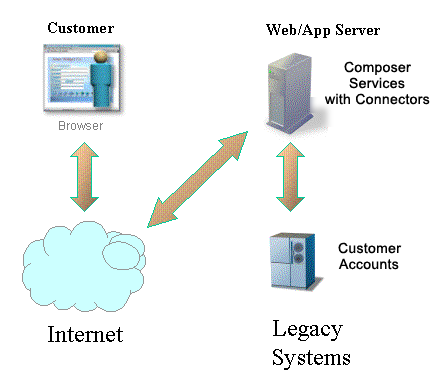
In the simple example depicted below, a buyer and a supplier connect their respective business systems across the Internet using XML and Integration Manager.
Your organization might want to build one or more of the following types of applications using Integration Manager:
Internal Application Integration Services. You may have many applications between which you want to exchange data from diverse sources. For example, you may want to connect an Oracle financial application, an SAP manufacturing application, and an in-house-developed order processing application together. Integration Manager will help you achieve this.
External Web Service Applications. You may have a need to expose a service to trading partners (or other users) via the Web. SOAP services and WSDL-based Web Services can be constructed quickly and easily using Integration Manager. Once you've designed a service in Integration Manager, Integration Manager will actually autogenerate WSDL for the service (and even publish it to a UDDI registry, if you want).
Data Warehousing Applications. Integration Manager works well with data mining and warehousing technologies, since Integration Manager's key function is to map data from disparate sources.
Packaging business applications as Web Services opens up new opportunities for automating workflows. The Web Services Flow Language (one of several emerging standards for workflow automation) provides a standard to which next-generation BPM software will build. The basis for this next-generation technology is workflow built on Web Services. SOAP and XML will be key technological underpinnings of future workflow systems.
Integration Manager plays directly to emerging standards and technologies involving automated workflow. Next-generation workflow engines will "hook up" Web Services (external or internal) to allow sophisticated long-running applications to be built, relying on BPM concepts such as timeouts/retries, conditional links between services, control flow between individual services involving parallel execution, etc. Complex choreographies involving Web Services will be attainable. (Some of the possible choreographies are described in RosettaNet Partner Interface Processes.) Integration Manager will be a valuable tool in creating WSFL-ready applications.
Integration Manager is built upon a simple hub and spoke architecture. The hub is a robust XML transformation engine that accepts XML documents, processes the documents, and returns an XML document. The spokes, or Connect products, are plug-in modules that "XML enable" sources of data that are not natively XML-aware, bringing their data into the hub for processing as XML. These data sources can be anything from legacy COBOL / VSAM managed information to Message Queues to HTML pages.
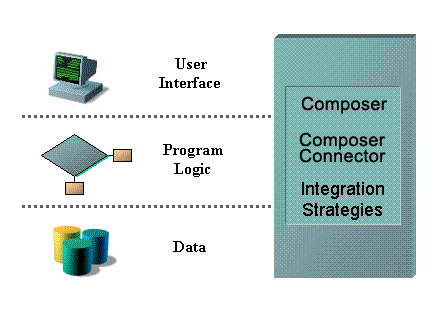
The various Connect products can be categorized by the integration strategy each one employs to XML enable an information source. The integration strategies are a reflection of the major divisions used in modern systems designs for Internet-based computing architectures. Depending on your B2Bi needs, Integration Manager can integrate your business systems at the User Interface, Program Logic, or Data levels.
In addition to JDBC and LDAP (which are core Connects, included with all versions of Integration Manager), there are additional Connect products:
JMS—Java-based messaging using the Java Message Service standard. This Connect product provides connectivity between Integration Manager applications and any JMS-aware messaging system.
3270 and 5250—Seamless connectivity with two of the most common terminal data stream types.
CICS RPC—Transparent ability to interact with COBOL systems via remote procedure calls through CICS.
Data General—Connect with Data General hosts using DG emulation.
HTML—Screen-scrape web pages and/or remap HTML data to XML data.
Telnet—Screen-scrape and interact with any Telnet data stream.
SAP—Launch Integration Manager-built services when a BAPI-enabled SAP function launches.
NOTE: This guide describes the basic functionality of Integration Manager. The addition of each Connect increases the features available to you in Integration Manager. These additional features are described in separate user guides that accompany each Connect.
Once you install a Connect product, the Integration Manager GUI will become updated with:
New xObject categories corresponding to the Connection Resource types and Component types specific to the product in question
Specialized component editors and realtime interactive Native Environment Panels (emulation screens) appropriate to the target system
These customizations and additions are automatic with the installation of the Connect and integrate seamlessly into the existing Integration Manager design-time environment.
Should the need arise to update the license string(s) associated with Integration Manager or a Connect product, you can do so at any time, using an intuitive point-and-click UI.
IMPORTANT: When changing a license string, remember that it is necessary to change the string for the design-time environment as well as the server environment. Both procedures are shown below.

 To update a Integration Manager product license string on the design-time machine:
Under the Help menu, select About Integration Manager. A dialog appears.
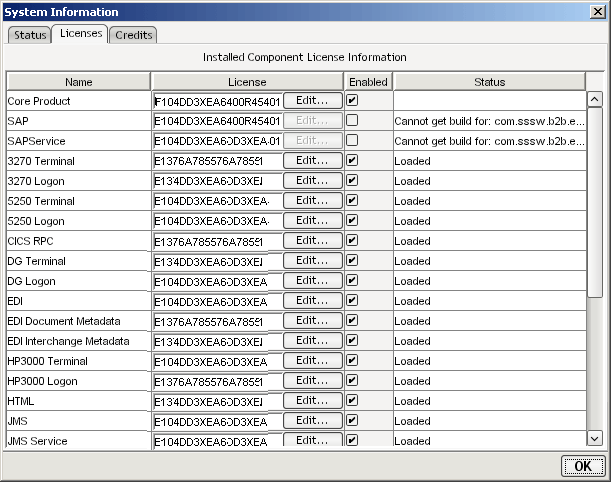
At the bottom of the "About" dialog, click the System button. A new dialog appears:
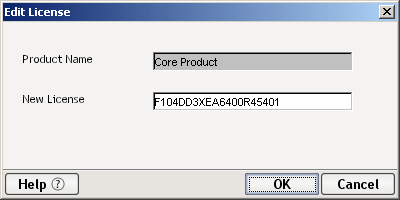
The columns of the table shown on this tab give useful information about the name and status of each Integration Manager product, including those that for some reason didn't load properly. To edit a license string, click the Edit... button next to the appropriate string under the License column. A new dialog will appear.
Click OK to dismiss the dialog.
NOTE: If the string you enter is not correct, you will get an alert dialog at this point. Doublecheck the string and reenter it. If problems persist, Cancel out of all dialogs to return to Integration Manager, then contact Customer Support.
In the System Information dialog, check the Enabled checkbox next to the field you edited, if it is not already checked.
Click OK (or use the Enter key on your keyboard) twice to return to Integration Manager.
Restart Integration Manager to make your changes take effect.
If you have not already updated the same license string on the app server, continue now to the following procedure.
When changing license strings in the design-time environment, it is critical that you make corresponding changes in the app-server environment so that Integration Manager Enterprise Server will treat the corresponding product(s) as enabled at runtime.
To update a Integration Manager product license string on the app server:
Launch the app server, if it is not already running. This should also launch Integration Manager Enterprise Server, if it was previously installed.
Go to Integration Manager's default Administrative Console page, which is typically at http://localhost/exteNdComposer/Console.
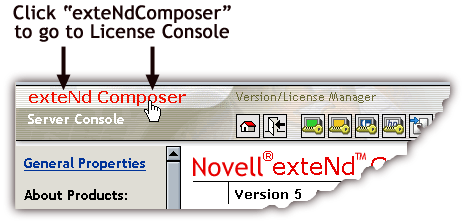
In the upper left corner of the main console page, hover the mouse over the words "Integration Manager." (See illustration below.)
When you hover the mouse over the words "Integration Manager," the words change color (to red) and new text, "Version/License Manager," appears off to the side.
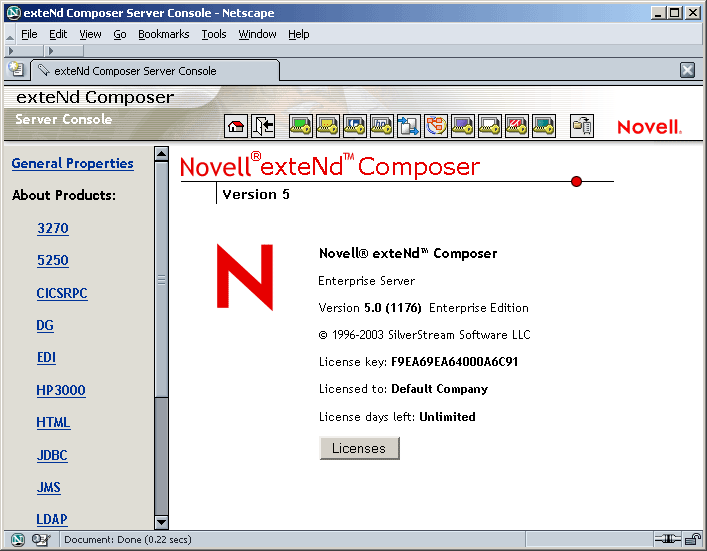
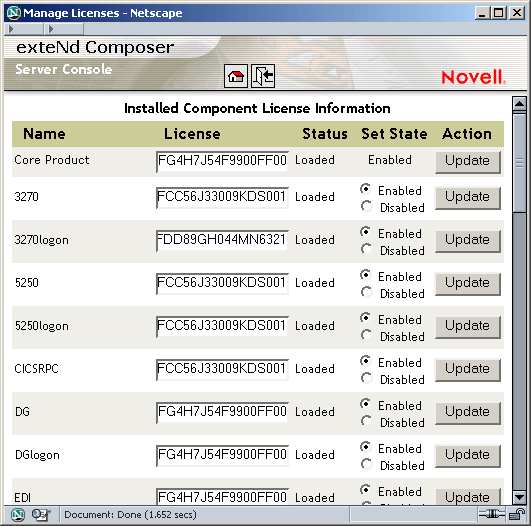
This is the main License Manager screen. In the center of the screen, you will see version and license information for Integration Manager Enterprise Server. To see additional information (and edit license strings), click the Licenses button. A new window appears:
This page shows name and status information for all installed components. Each text field in the License column is editable. Enter a new string as appropriate, then ensure that the correct Enabled/Disabled radio button is active next to the text field in question.
Perhaps the best way to understand Integration Manager is to see it in action. The Integration Manager installation includes a fully functional project, in the Tutorial Solution, that you can step through to see how the application handles a practical business operation. See the \tutorial folder, under the main Integration Manager installation folder.
For the most up-to-date documentation and tutorials (plus other resources), be sure to consult http://www.novell.com/documentation/integrationmanager6.
Copyright © 2004 Novell, Inc. All rights reserved. Copyright © 1997, 1998, 1999, 2000, 2001, 2002, 2003 SilverStream Software, LLC. All rights reserved. more ...