Policy Configuration
There are several options available in Kanaka to direct the behavior of the client. These options offer some flexibility in the setup to allow a more customized fit for individual installations. There are options for User Management and Managed Client Settings.
User Management
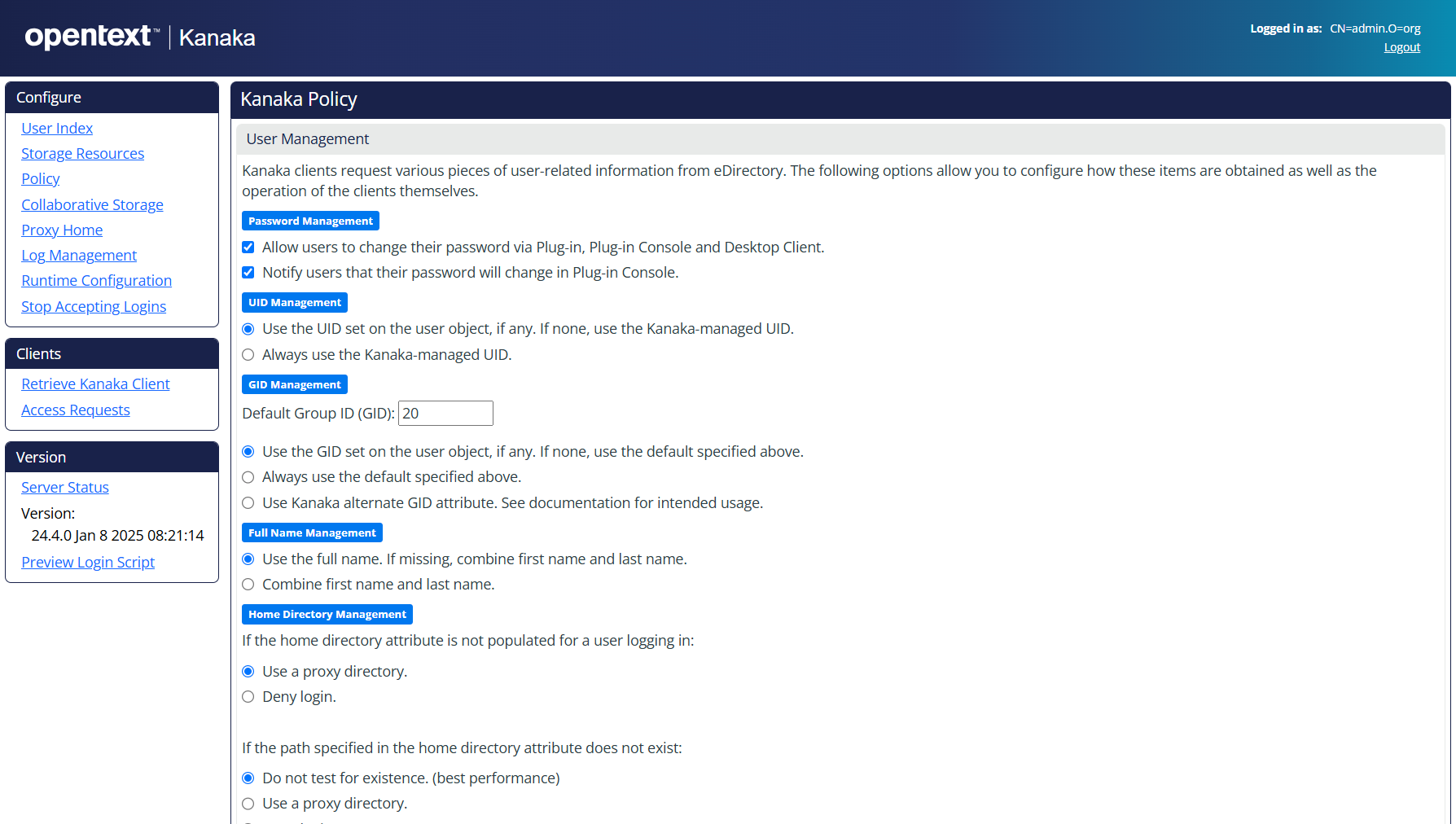
Kanaka clients request various items of user-related information from eDirectory. The following options allow you to configure how these items are obtained as well as the operation of the clients themselves.
Password Management

These two self-explanatory settings are selected by default.
UID Management

The UID is a User ID that is unique for each user logging in to macOS. This option allows you to use an existing number or use a randomly generated number from a range of numbers defined by Kanaka.
The auxiliary attribute class is posixAccount with an attribute named uidNumber.
GID Management
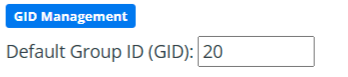
The GID is a primary Group ID for a user. It defines security levels on macOS. By default, the GID is set to 20 (equivalent to “staff” on macOS) in Kanaka. If you want your users to have admin privileges on macOS, you can set the GID to 80 (equivalent to “admin” on macOS), but this is not recommended for lab environments. The auxiliary attribute class is posixAccount. The attribute is gidNumber.
The third option is based on an extended attribute that is added during the Kanaka installation. The class in eDirectory is named cccKanakaGidNumberClass and the attribute name is cccKanakaGidNumber. You can use this attribute to define the GID for users individually.
For example, if you want students to have a GID of 20 (staff) and teachers or administrators to have a GID of 80 (admin), you can set the cccKanakaGidNumber attribute for the teachers or administrators to a value of 80 and choose the Use Kanaka alternate GID attribute option.
Full Name Management

This region lets you specify how the user’s name is displayed in the Kanaka Desktop Plug-in Console, Desktop Client, and the logout option.
Home Directory Management
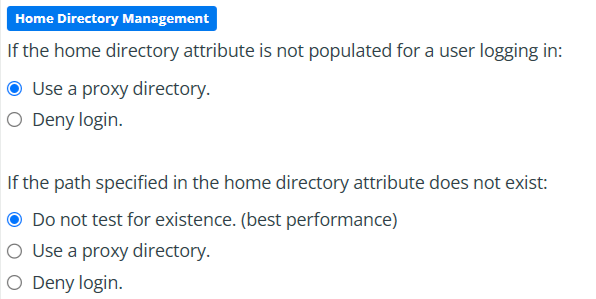
These settings give you the option to allow the user to log in or not if the Home Directory attribute is not populated. If you choose the proxy directory option, you need to add and configure a proxy home directory for your environment. This is a directory with limited rights, and you can display a message to explain (such as a document or HTML page) that the user does not have a home directory defined, and perhaps direct them to a contact at the Help Desk.
These settings also indicate whether Kanaka should actually test for the existence of the path specified in the home directory attribute. By default, this option should be turned off. If you do test for existence and the path doesn’t exist, you have the option to use the proxy directory or deny login.
Shell Management
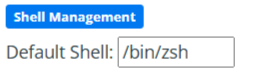
This is the default shell for the user's environment on macOS.
Kanaka Identity Driven Access
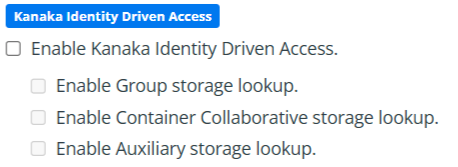
These settings enable the mounting of additional storage other than the user’s home directory.
-
Enable Kanaka Identity Driven Access: Selecting this option enables you to select the options below.
-
Enable Group storage lookup: During the installation of Kanaka, group objects are extended with an attribute called ccx-FSFManagedPath. In its simplest explanation, it is analogous to having a home directory attribute on a group object.
-
Enable Container Collaborative storage lookup: Container objects can also be extended with an attribute named ccx-FSFManagedPath. In its simplest explanation, it is analogous to having a home directory attribute on a container object. It treats users in a container as if they were members of a group, without having to manage a group object for those users.
-
Enable Auxiliary storage lookup: This option works only when you have OpenText Storage Manager implemented with Auxiliary storage defined and enabled. Auxiliary Storage is like having multiple home directory attributes.
-
Login Script Drive Mappings
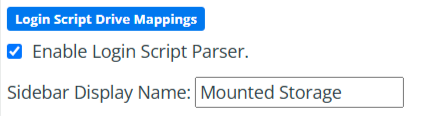
By enabling the Login Script Parser, the Kanaka Engine will parse any login scripts associated with the user.
NOTE: For details on Login Script processing and how it works with Kanaka, see Login Script Processing
Managed Client Settings
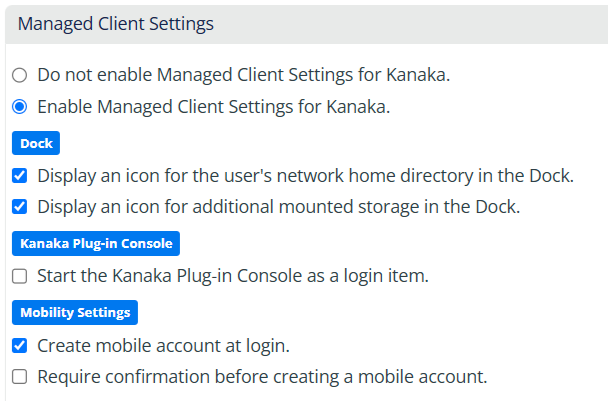
Kanaka clients can receive Managed Client Settings (MCX) configured in the Kanaka policy.
Dock
These options displays an icon on the Dock for the user’s home directory and for any additional storage that is configured.
Kanaka Plug-in Console
This setting enables the Kanaka Desktop Plug-in Console to automatically start after login.
Mobility Settings
-
Create mobile account at login: This setting will allow a local “mobile” account to be created on the workstation and will keep the user's profile and other information local.
-
Require confirmation before creating mobile account: Warns the user of a mobile account that is created during login.