To access NetStorage from a workstation:
Start your browser or Microsoft Web Folders and specify the URL for NetStorage.
The URL is http://server_ip_address/oneNet/NetStorage/. Replace server_ip_address with the IP address or DNS name of the server running NetStorage or the IP address for Apache-based services. If Apache-based services use a port other than 80, you must also specify that port number with the URL.
For example, if the IP address for NetStorage is 127.1.1.1 and the port number is 51080, then you would specify 127.1.1.1:51080/oneNet/NetStorage/.
If you have the Persistent Cookies feature enabled (See Persistent Cookies under General), the date and time on the workstation being used to access NetStorage should be within 24 hours of the date and time on the server running NetStorage in order to avoid conflicts.
Enter your username and password.
NetStorage uses your Novell eDirectory username and password, so you don't need to remember or use a separate username or password.
You can use many of the same conventions for expanding and contracting folders and opening files that are available in Windows Explorer. To create new folders or copy, delete, rename, move, or download existing files using a browser, click the File menu.
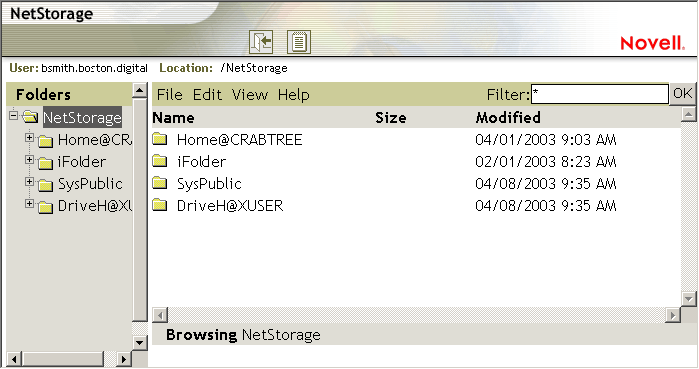
Clicking the Folder View button in the browser window displays folders in another column and lets you expand and contract folders. The Text View displays only the files and folders in the current directory and does not let you expand or contract folders.
Local files and folders in a shared directory on the Linux server where NetStorage is installed can be accessed using NetStorage. This is useful for uploading files to the local Linux server. The path to the shared folder is /var/opt/novell/netstorage/shared.
You cannot map drives or change login scripts from NetStorage.
You cannot view, salavage, or purge deleted files on Linux servers. Viewing, salvaging, or purging deleted files using NetStorage is currently only functional on NetWare servers.