Customize
The Customize
menu allows the Administrator to brand the application where system banners
can be replaced with the appropriate organizational banners. Graphics
included should be . PNG images. The Application
Banner should be 250 x 60 pixels and all other banners should be 500 x
60 pixels.
Adding a Customized Banner
To add a customized banner:
Select
Setup>Customize
Banner
Type |
Displayed |
Application |
Visible
on the Log in page of the system. |
User
|
Visible in the portals for Supervisor,
Technician, Administrator, Partner, Finance and Manager Users |
Public/Email |
Displayed on public portals for
Knowledge, Outages, Surveys and Forums. This banner is also
included in emails when the Setup>Email>Setup option
of Include Banner is set to Yes. |
Customer |
Visible in the Customer Portal.
|
To
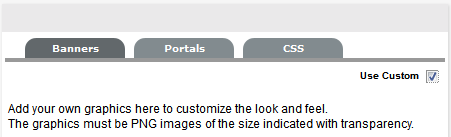
use Custom Banners, select the Use Custom checkbox at
the top of the Customize Banners
screen
To
upload a new banner, click New
A window with a browse function appears.

Browse
to the location of the image and click 
The image will be uploaded.
Repeat
the process until all banners have been replaced
Click
Save.
- When
the Purchase Orders functionality is enabled within the Setup>Billing
tab, the option to upload a logo that will be used for system generated
POs is displayed. The graphic should be saved as 150x150 PNG file.
Portals Tab
All Public Access home page messages can
be fully customized under the Portals tab. Links
to documents and downloads may be added. The home page messages can be
customized for:
To customize a Public Access message:
Select Setup > Customize
Click the Portals tab
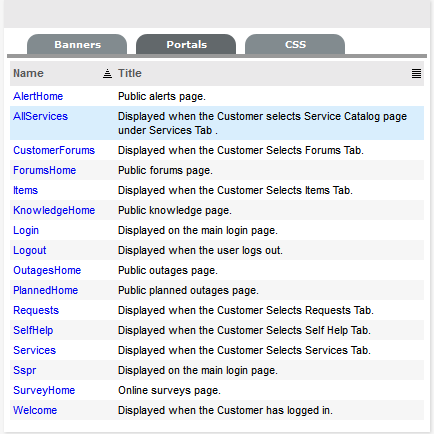
Select the Name hyperlink
The HTML editor appears.
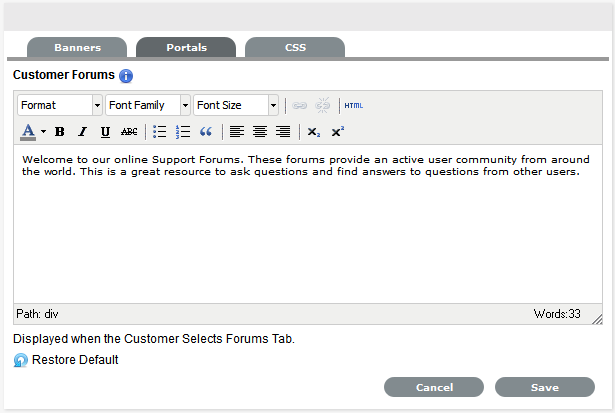
Edit the message as
required
Click Save.
Cascading Style Sheets
The system can be further customized using
cascading style sheets (CSSs) to amend:
Color
Fonts
Tabs
Graphics.
See: CSS Tab.