Select Finance>Invoices
Click New
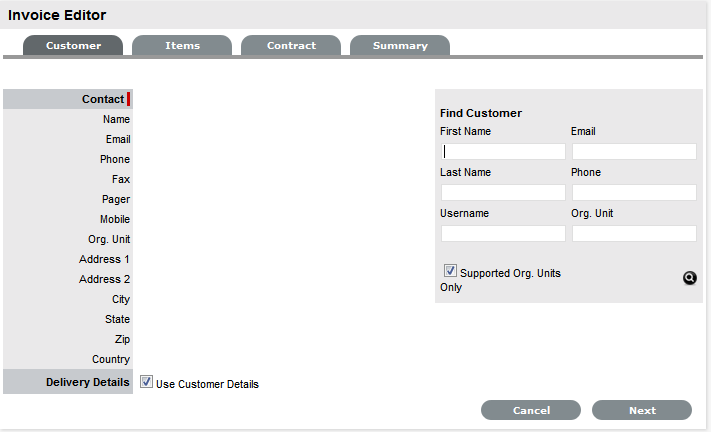
The Customer tab appears.
To assign a Customer to the Invoice:
To search for a Customer who already exists in the system, enter any known information such as their First Name, Last Name, Email Address, Org. Unit or Username in the Find Customer fields.
To view a list of all Customers in the database, leave all the fields blank.
Click

Click on a Customer's name to assign them to the Invoice
The delivery details are automatically extracted from the Customer details. If they are not the same, uncheck by clicking the tick in the Use Customer Details box and enter the correct details.Select Next to continue
To add an Item Type for an Item order:
Select
 if
the invoice is to purchase a new Item
if
the invoice is to purchase a new Item
Otherwise, click Next to purchase a service Contract.
Enter the Item Type details or, leave the search field blank and click the Search button to display a list of Item Types that can be assigned to the Invoice.
Select the relevant Item Type link to add it to the Invoice
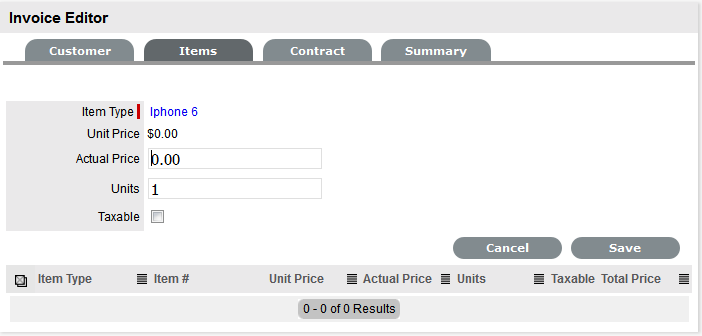
Enter the Actual Price information, if relevant and the number of units to be ordered
Mark the order as taxable if required
The tax is not included in the actual price but will be calculated within the Invoice Summary tab.Click Save to add the Item Type details to the Invoice
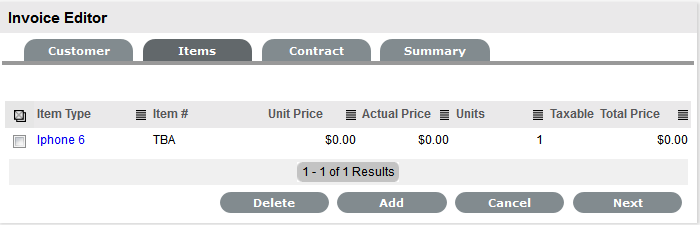
To add more Item Types, select
and repeat
the above process
Alternatively, click Next to move to the Add Service Contract tab, if required.
To add a service Contract for a newly ordered Item Type:
Select
to add a service contract to the invoice, or
click Next to go to the invoice summary.Select the appropriate SLA from the drop-down options
Select the Item type related to the service Contract
To search for an Item Type enter any known details in the Find Item Type search field.Click the Item Type link to assign it to the Invoice
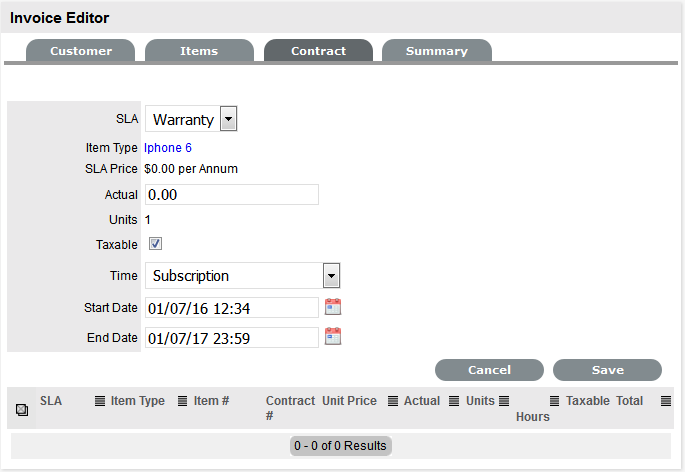
Amend the actual price, if relevant
Check the Contract as taxable, if relevant
Select the Time Period covered by the Contract:
Subscription - a contract that covers a specified period of time
Time Limited Subscription - a contract that covers either a specified period of time or number of support hours, whichever limit is reached first
Support Hours - a contract that defines the number of support hours covered
Support Hours by Month - a contract that covers a total number of support hours purchased for a defined timeframe and allocated on a per month basis.Click Save
To add another Contract to the invoice, click
and repeat the above process
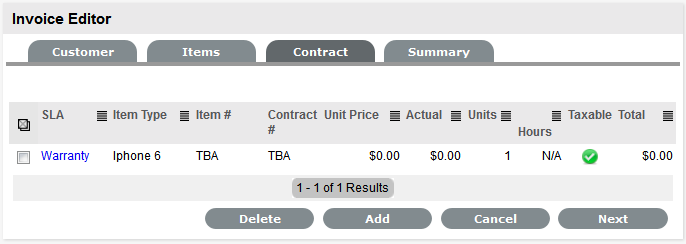
Click Next to move onto the Summary page

Enter a PO Number and make any other adjustments, if relevant
Click Save
Select
 to send the Invoice to the Customer, if
required
to send the Invoice to the Customer, if
requiredClick Done.



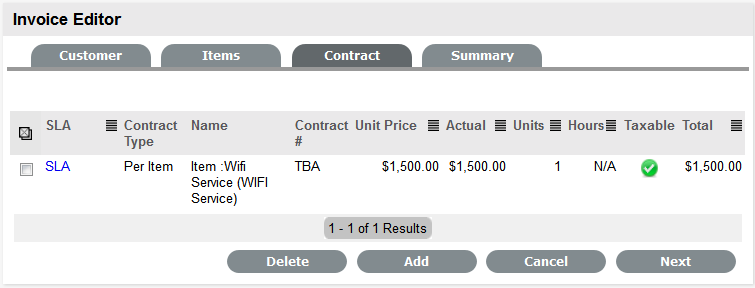
 to send the Invoice to
the Customer, if required
to send the Invoice to
the Customer, if required