User Privileges
Within the User tab, privileges for Users with the Technician and Partner Role can be configured by customizing the options within the Technicians options list. This also includes enabling functionality related to all User work hours and public holidays. Defaults can also be adjusted for Users across the Knowledge Management and Configuration Management processes.
Specific to Technician Users, the following privileges include the ability to:
-
Create new Customers
-
Create new Items
-
Reassign requests
-
Edit other Technicians' requests
-
Create, edit, publish and delete Knowledge Base Articles by default.
NOTE:Privileges assigned to the Technician Role are also applied to the Partner Role.
Enabling User Privileges
To configure User Privileges:
-
Select Setup>Privileges
The User tab is displayed.
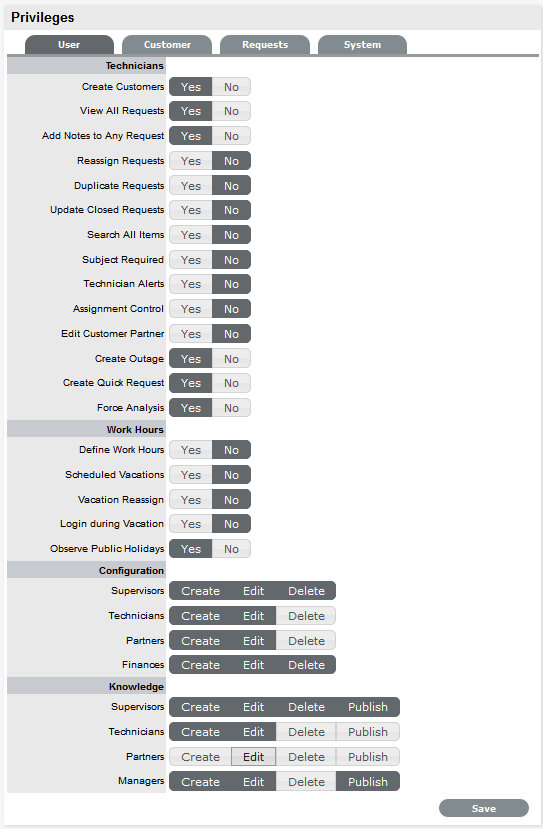
User Privileges
Technicians
Create Customers
Allows Technicians to create Customer Accounts.
Reassign Requests
Allows Technicians to reassign requests to another Technician within the same Team. When disabled, requests can only be reassigned through Escalation or changing the status of the request by the Supervisor.
Duplicate Requests
Allows Technicians to copy requests to fast track request creation. Supervisors have this privilege by default.
Manual Request Time
Disables the timer that automatically monitors and records the time when a request is in Edit Mode.
NOTE:This option is not available when Contracts are enabled in the Setup>Billing tab, as time worked on a request must be added to Notes manually by Users.
View All Requests
Allows Technicians to view all the requests, regardless of Team assignment, logged in the system for the Processes they are assigned.
Add Notes to Any Request: It also allows Technicians to add notes for the requests that are assigned to fellow Team members.
Add Attachment to Any Request: It allows Technicians to add attachments for the requests that are assigned to fellow Team members.
Update Closed Requests
Set to Yes to enable Technicians to add Notes to requests that are assigned a Workflow Exit State.
Search All Items
Within the Items tab of a request, the All Items option is displayed in the Find Item box for Technician Users, if this option is enabled.
Include Globals Default
By enabling this option, the "Include Global* Options" is ticked by default in the Find Item field, when a User is creating a request.
Subject Required
To make the completion of the Subject field mandatory for Users during the request creation process, set the option to Yes.
Technician Alerts
Allows Technicians to create system Alerts.
Work Hours
Define Work Hours
Allows the Technician's availability to be configured within the Users>Schedule tab. This ensures that Requests are only forwarded to the User during the Defined Work hours, unless there are no other Users available.
*If this option is enabled, the Users Work Hours must be defined for each User, otherwise the built-in technician assignment logic will be ignored and all new requests will be assigned to the Team Lead.
Scheduled Vacations
Allows leave to be scheduled for Users, within the Users>Schedule tab. This allows vacations to be planned and automatically detected by the System when the User commences leave. The System will not assign the User new Requests when they are on vacation.
Vacation Reassign
This option becomes available when the 'Schedule Vacations' option is active. When enabled, this option ensures active requests of the User commencing leave are automatically re-assigned to available Technicians within the User's Team.
Login during Vacation
This option becomes available when the option is active. When enabled, users can login into Service Desk and work on requests during vacation. The System will not assign the User new Requests when they are on vacation..
Schedule by Technician
This option becomes available when the option is active. When enabled, users can login into Service Desk and work on requests during vacation. The System will not assign the User, new Requests when they are on vacation.
Observe Public Holidays
This option ensures the System gives consideration to public holidays when calculating SLA times, escalations and breaches.
NOTE:When enabled, the Public Holidays sub-menu option is visible within the Admin>Localization>Holidays tab.
Assignment Control
When enabled provides the Assignment option within the User Information screen. This allows a Supervisor or Administrator to turn request assignment off for a User who is available in the system.
Edit Customer Partner
Allows Customers to be assigned to Partners within the Customer Information tab.
Create Outage
Enables a Technician to create outages for Items.
Create Quick Request
Enables a user to create a request (incident, service, or change) as a quick request, in order to save time.
Force Analysis
The system will propose relevant Solutions within the Analysis tab, during the request creation process.
Configuration
Roles
Set the default privileges for the User Roles' ability to create, edit and delete Item information in the CMDB.
If you change the default privileges, for an existing user the privileges will not be updated. Since, these settings are not system level settings. But when you create a user the default privileges are assigned.
Individual settings below user information section will determine the actual privileges for that user. If you want to change these settings for many users, use the Bulk edit feature.
Knowledge
Roles
Configure the default Knowledge Base authoring permissions for each User Role.
-
Click Yes to enable, or No to disable a Privilege option
-
Click Save.