Analysis
The Analysis tab is used to search for Solutions, Workarounds or to
relate the current Incident with other requests. It also allows the User
to convert an Incident, logged against a Service Item, to a Service Request.
To assign a Solution to the Incident, the User can apply Proposed Solutions
presented by the application or use the Search Solution facility. If a
Solution Article does not exist, an Incident solution can be created within
this screen. Once a Solution is applied to the Incident, the application
automatically closes the Incident.
Searching for a Solution
To Search for a Solution:
Click on the number
of the required Incident
The Incident Information screen appears.
Select the Analysis
tab
Click Edit
The drop-down list will become active.
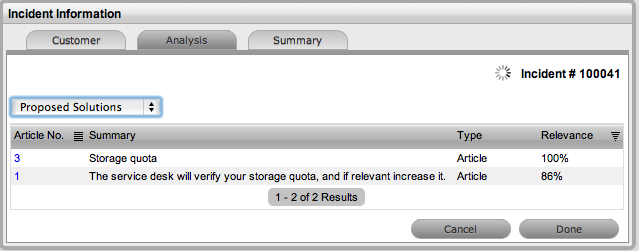
Select from the available
options, as follows:
Analysis
Tab Drop-down Options |
Proposed Solution |
Displays a list of all
solutions with a search based on Incident Description, Item
Type and Classification. To assign a Solution, select the
Solution ID number to display the solution in full. Click
Resolve if the Solution is relevant. This will close the Incident
and update the Customer. |
Search Solution |
Allows Users to enter
full text or ID number to search for possible Solution Articles.
To assign a Solution, select the Solution ID number to display
the Solution in full. Click Resolve if the Solution is relevant.
This will close the Incident and update the Customer. |
New Solution |
Displays Knowledge Base
editor to allow the User to enter a new Solution. Solution
Articles are used as Proposed Solutions for future Incidents.
See: Solution
Article. |
Convert to Service
Request |
Allows the User to make
the current Incident a Service Request and maintain the current
identification number for Customer correspondence purpose,
while recording the action in the Audit Trail. |
Proposed Workaround |
Displays a list of all
Workarounds with a search based on Incident Description, Item
Type and Classification. To assign a Workaround, select the
Workaround ID number to display the Workaround in full. Click
"Apply" if the Workaround is relevant. |
Search Workaround |
Allows User to enter
full text or ID number to search for an existing Workaround
Article. To assign a Workaround, select the Workaround ID
number to display the Workaround details. Click "Apply"
if the Workaround is relevant. |
New Workaround |
Displays Knowledge Base
editor to allow the User to enter a new Workaround. Workaround
Articles are used as Proposed Workarounds for future Incidents.
See: Workaround
Article. |
Alerts |
Shows details of the
Alerts that have been created within the Incident. |
Click Save.
Proactive Analysis during Incident
Creation
During Incident creation after the Incident
Description is completed, the system automatically searches the Knowledge
Base for possible Solutions or Workarounds that may be related to the
Incident. This search is based on the Item Type, Classification and text
matching of existing Articles with the Incident Description content. Proposed
Solutions or Workarounds are visible when the Proposed Solutions or Proposed
Workarounds filter is selected within the Analysis tab.
To assign a proposed Solution or Workaround
to an Incident:
Select the Article ID
number
The system will display the Solution or Workarounds details screen.
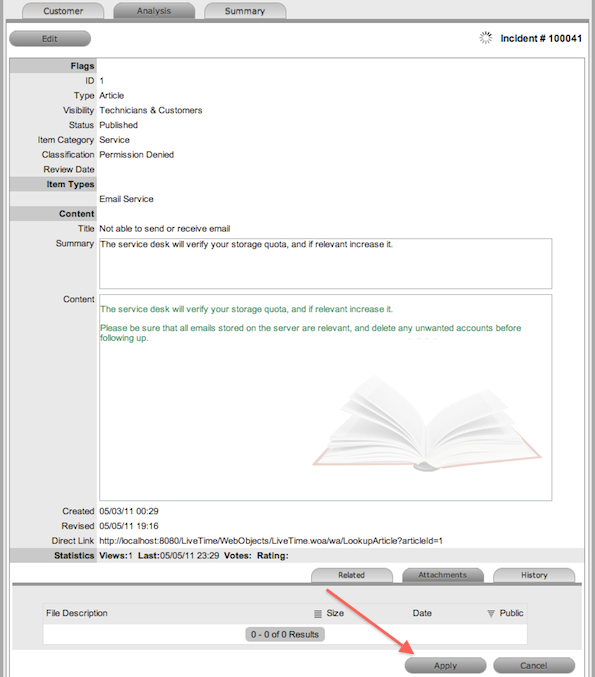
Select the Apply button.
The Incident is automatically closed when a Proposed Solution is applied.
When a Proposed Workaround is applied the Incident status remains
unchanged.
Converting an Incident to a Service Request
An Incident that has been logged against a Service Item, can be converted
to a Service Request within the Analysis tab. This action results in the
Service Request maintaining the same request identification number and
audit trail, which records the conversion.
To convert an Incident logged against a Service Item to a Service
Request:
Select Edit within the
Analysis tab
Select the Convert to
Service Request option.
The Incident ID # is associated with a new Service Request and the
Request is assigned the Entry State of a relevant Service Request
Workflow. The audit trail of the Service Request records the conversion
time and date. The customer is not notified about the Process amendment.
Linking requests
Within the Analysis tab, Incidents can be linked to other Incidents
within a pre-existing Incident Group, or linked with existing Problem
and Change Groups. A new Problem or Change Request can also be automatically
created and associated to the Incident within this Tab.
Link with other requests |
Link Incident |
Allows User to enter full
text or ID number to search on Incidents. Select an Incident ID
number to immediately link the current Incident to a Grouped Incident. |
Similar Incidents |
Displays similar Incidents
based on Item Type, Classification and Description. |
New Problem |
Allows the User to create
a new ‘Problem Group’ that links the Problem and Incident to the
new Group. The Incident status will move to ‘On Hold - Process
Escalated’. |
Link Problem |
Allows User to enter full
text or ID number to search on Problems. Select an Problem ID
number to immediately link the current Incident to a Problem Group. |
New Change Request |
Allows the User to create
a new ‘Change Group’ and links the RFC and Incident into the new
Group. The Incident status will move to ‘On Hold - Process Escalated’. |
Link Change Request |
Allows the User to enter
full text or ID number to search on Change Requests. Select a
Change Request ID number to immediately link the current Incident
to a grouped Change Request. |
Alerts |
Allows the User to create
an Alert directly related to the Incident. Displays any reminder
alerts that have been created in the Summary tab of the Incident.
Select the Alerts option to view Alerts list, and click on an
Alert Publish Date to view Alert Content. |
To link an Incident to a Group within the Analysis tab:
Select Edit
The drop-down list becomes available.
Search for a request
Group using full text or ID number
Select the relevant
search result ID number.
This automatically adds the current Incident to the existing Group.
Creating a Problem or Change Request within an Incident
An Incident can prompt the creation of a Problem or RFC within the Analysis
tab. This will move the current Incident status to On Hold - Process Escalated,
and link it to the new Problem or Change Request group.
To escalate an Incident to another Process:
Select Edit within the
Analysis tab
Select the New Problem
or New Change Request option.
The Incident is automatically escalated and its status changed to On
Hold - Process Escalated.
Creating an Alert
To create an Alert that is associated with the Incident,
within the Analysis tab:
Select Edit within the Analysis tab
Select the Alerts option in the drop-down
list
The New button is made accessible.
Click New
Refine the content for each required field:
Alert
Details |
Description |
Created |
The
current date and time. |
Publish |
The
date the Alert is published. Use the calendar icon to the
right of the field, to select a Publish date.
Set to a date in the future, or use the
default to publish the Alert immediately. |
Dismiss |
The
date the Alert ceases to be available. Use the calendar icon
to the right of the field, to select a Publish date. On this
date, the Alert will disappear from a User's Alert list. |
Severity
|
The
type of Alert to be published. The choices are:
Information
–
for general Alerts Warning – to warn Users of
potential issues Urgent – to publish an urgent
actionable message.
The icon appearing with the message will
depend on the type of Alert. |
User |
The
User type to receive the Alert, which include:
Specific
Customer or User - In the Find User or Customer list,
click search to select the recipient from the drop-down
list. User Role
- An Alert sent to a User Role will go to all Users with
that Role. Personal
Alert - A personal Alert appears on the User's own screen
at the Publish date. Organizational
Units - In the Find Org. Unit field, search
and select the recipients. Public
- A Public Alert appears when the Public Alert link is
selected on the Login Page. |
Title |
Enter
the title of the Alert. |
Message |
Enter
the main content of the Alert. |
Click Save.
Article Button

When a Solution has been applied or proposed for a request with the
Create Knowledge option set to No, the Solution is visible within the
Analysis tab and not available within the Knowledge Base. To manually
escalate a request Solution to a Knowledge Base Solution Article, with
the Analysis tab in Edit mode, select the Article tab.
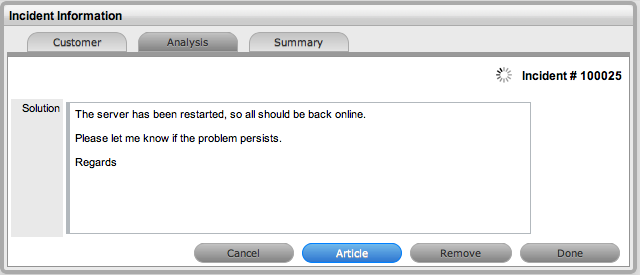
Remove Button

When a Solution has been applied or proposed for a request, the Solution
or Knowledge Base Solution Article is visible within the Analysis tab.
To disassociate a Solution from a request, with the Analysis tab in Edit
mode, click the Remove button. The Analysis tab will now only display
the default drop-down list options.