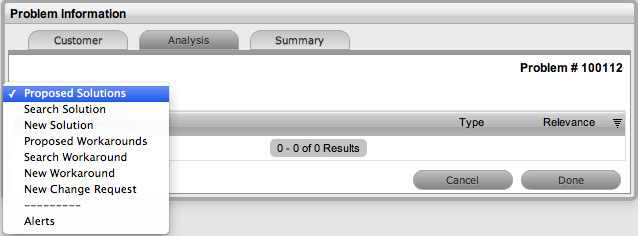
When the Force Analysis option is enabled for the system, the Analysis tab is displayed after the Problem Description is entered. This allows Users to proactively search for a Workaround or Solution within the Knowledge Base, or link the Problem to other requests prior to saving the Problem.
If analysis is not required, click Done to continue to the Summary tab.
A Workaround is a temporary fix applied to an Incident or Problem when a full Resolution is not yet available.
To assign a Workaround to a Problem, the User can apply a Proposed Workaround presented by the application or use the Search Workaround facility. If a Workaround Article does not exist, a Workaround can be created within this screen. Once a Workaround is applied to the Problem it can be viewed via the Analysis tab under the View Workaround option.
During Problem creation after the Problem Description is completed, the system automatically searches the Knowledge Base for possible Solutions that may be related to the Problem. This search is based on the Item Type, Classification and text matching of existing Articles with the Problem content. Proposed solutions will be visible when the Proposed Solution filter is selected within the Analysis tab.
To assign a proposed Solution to a Problem:
Select the Article ID number
Click
Apply to assign the Solution or select Done to revert to the Proposed
Solution list.
If the Apply option is selected, the Problem is automatically closed
and the selected Article is assigned as the fix.

For further information see Analysis Tab