Analysis
Within the Change Request Analysis tab Backout Procedures can be created
or the current RFC can be related to other requests. The options within
the Change Request Analysis tab include:
Analysis Tab Drop-down
Options |
New Solution
|
Displays Knowledge Base editor
to allow the User to enter a new Solution. Solution Articles are
used as Proposed Solutions for future requests. See: Solution Article. |
New Backout Procedure |
Allows the User to create
fallback plan, should the implementation of the Change Request
not go to plan. |
Link Incident |
Allows the User to enter
full text or ID number to search on Incidents. Select a No. link
to immediately link the current RFC to Incidents. |
Link Problem |
Allows the User to enter
full text or ID number to search on Problems. Select a Problem
ID number to immediately link the current RFC to Problems. |
Link Change Request |
Allows the User to enter
full text or ID number to search on Change Requests. Select a
Change Request ID number to immediately link the current RFC with
other Change Requests. |
New Release |
Allows the User to create
a new Release package that is automatically associated to the
RFC to manage the environment update. |
Link Release |
Allows the User to associate
the RFC to an existing Release. |
Alerts |
Allows the User to create
an Alert directly related to the Request. Displays any reminder
alerts that have been created in the Summary tab of the Request.
Select the Alerts option to view Alerts list, and click on an
Alert Publish Date to view Alert Content. |
Creating a Backout Procedure
RFC's can implement a Backout Procedure if a necessary fallback plan
is required.
To create a Backout Procedure:
Select an RFC from Change
> Change Requests
Go to the Analysis tab
Click Edit
From the drop-down list
select New Backout Procedure
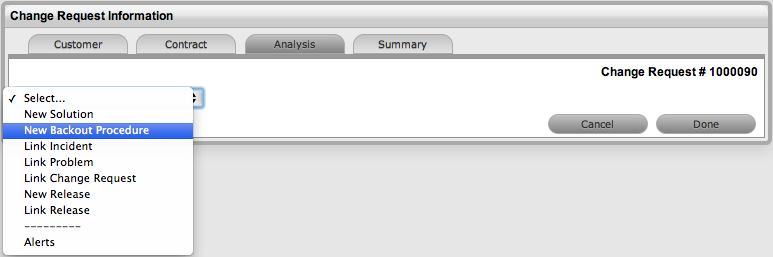
Adjust the Review Date,
if relevant
Complete the Summary
and Content fields
Upload any relevant
attachments
Click Save.
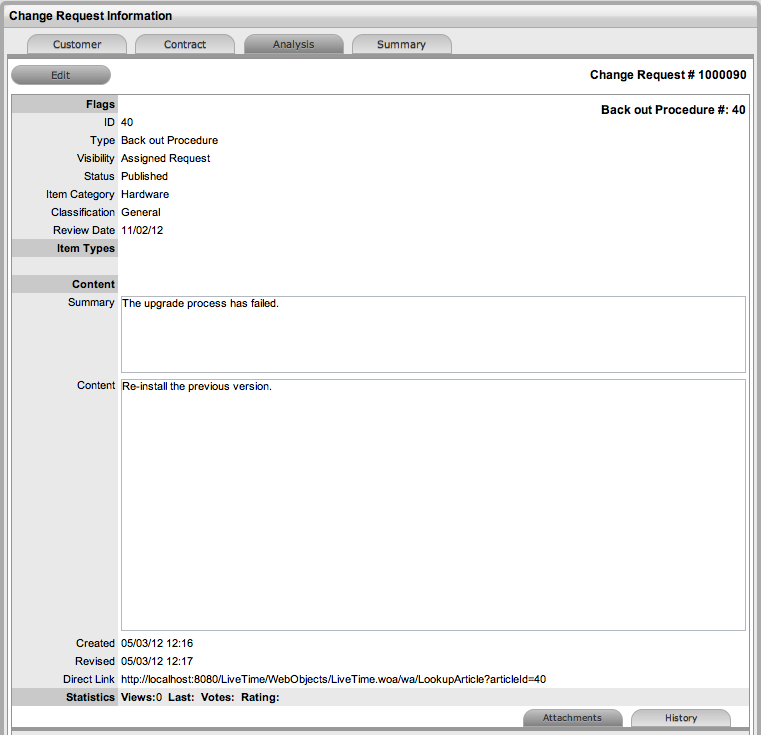
Once the Backout Procedure is created for an RFC it can be viewed via
the Request. To view a Backout Procedure:
Select the Analysis
tab for the RFC
Select the View Backout
Procedure option.
The page will expand to display the article.
Linking Requests
Within the Analysis tab, RFC's can be linked to other Incidents, Problems,
Change Requests and Releases that are new or pre-existing.
Link with Requests |
Link Incident |
Allows User to enter full
text or ID number to search on Incidents. Select an Incident ID
number to immediately link the current RFC to an grouped Incident. |
Link Problem |
Allows the User to enter
full text or ID number to search on Problems. Select a Problem
ID number to immediately link the current RFC to a grouped Problem. |
Link Change Request |
Allows the User to enter
full text or ID number to search on Change Requests. Select a
Change Request ID number to immediately link the current RFC to
a grouped Change Request. |
Link Release |
Allows the User to enter
full text or ID number to search on Releases. Select a Release
ID number to immediately link the current RFC to an existing Release
group. |
New Release |
Allows the User to create
a Release and manage the RFC implementation as part of Release
and Deployment lifecycle. When selected, the screen defaults to
a New Release Information window, where the Title and Description
can be entered and other options edited and automatically associates
the current RFC. For further information about Releases see: Release
Management. |
To link a request to a Group, within the Analysis tab:
Select Edit
Search for a Request
Group using the full text or ID option
Select the relevant
search result ID number.
This automatically adds the current RFC with the existing group.
Creating an Alert
Within the Analysis tab, an Alert that is associated with the Request
can be created by:
Select Edit within the Analysis tab
Select the Alerts option in the drop-down
list
The New button is made accessible
Click New
Refine the content for each required field
Alert
Details |
Description |
Created |
The
current date and time. |
Publish |
The
date the Alert is published. Use the calendar icon to the
right of the field, to select a Publish date.
Set to a date in the future, or use the
default to publish the Alert immediately. |
Dismiss |
The
date the Alert ceases to be available. Use the calendar icon
to the right of the field, to select a Publish date. On this
date, the Alert will disappear from a User's Alert list. |
Severity
|
The
type of Alert to be published. The choices are:
Information
–
for general Alerts Warning – to warn Users of
potential issues Urgent – to publish an urgent
actionable message.
The icon appearing with the message will
depend on the type of Alert. |
User |
The
type of Users to receive the Alert, which include:
In the Find User or Customer list, click
search to select the recipient from the drop-down list.
An Alert
sent to a User Role will go to all Users with that Role.
A personal
Alert appears on the User's own screen at the Publish date. |
Title |
Enter
the title of the Alert. |
Message |
Enter
the main content of the Alert. |
Click Save.