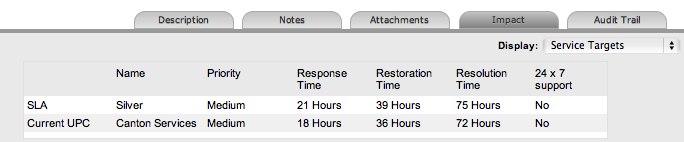
The Impact tab provides the capability to measure the progress of a Problem relative to agreed Service Level targets and Workflow time estimates. It also includes a quick reference for identifying other Services or Items affected by the Problem. This tab displays a summary of the following:
Service targets
Workflow estimates
The impact of the current Problem on related infrastructure.
The drop-down filter options within the Impact tab include:
Options |
Description |
|---|---|
Service Targets |
Displays the target response, restoration and resolution times based on the Service Level Agreement/OLA assigned to the Problem. |
Service Level Breaches |
Displays service level breaches that have occurred and allows Users to assign a breach code and explanation for the breach. |
Services Affected |
Displays the Service Item Number, the Service SLA and number of Affected Users for any Services related to the Item associated with the Problem. |
Estimates |
Provides a summary of the time estimated for each State of the Workflow based on the OLA assigned to the Problem. |
Contract Monitor |
If the current Incident Workflow State is assigned an Underpinning Contract or OLA, a table is displayed outlining the response, restoration and resolution milestones. When a milestone is met, the User is required to check the relevant checkbox. The application will automatically calculate the actual time accrued to achieve the milestone. The value displayed here is used for the Contract reports. |
Purchases |
When Purchase Orders are enabled in the system, any Purchase Orders associated with Items assigned to the Problem are accessible through this option. |
The details displayed here are drawn from the Service Level assigned to the Problem. These include the target Response, Restoration and Resolution times for a Problem, based on the Priority assigned. If an Underpinning contract or OLA has been assigned to the Problem's current state then the targets for that contract will also be listed.
For more information on Service Targets, see: Service Level Agreements.
When a Problem Service Level Agreement is violated, a service level breach is recorded against the Problem. The User assigned to the request will be notified and asked to provide a reason for the breach and assign a breach code.
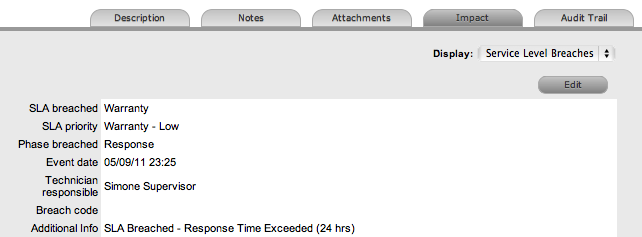
To assign a breach code:
Click the Problem number
Click Edit
Select Impact > Service Level Breaches
Click Edit
Assign a Breach Code
(The available codes are created by the Supervisor within the Service
tab.)
Add any additional information,
if required
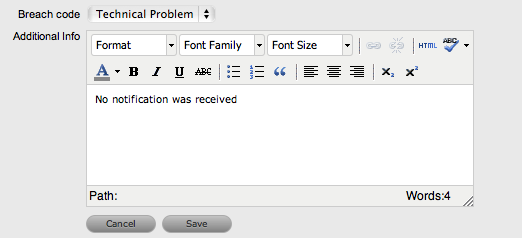
Click Save.
All breach information is used
for reporting on Service Level Agreements.
When the request is logged against an Item that is associated with Services within the Item Relationships tab, the Services Affected option displays the Service Item Number, the Service SLA and number of Affected Users.
The Estimates option allows Users to view an indication of the approximate time a Problem should remain in each State of the Problem Workflow, the amount of time logged in each State and the length of time the Problem resided in each State.
Options |
Description |
|---|---|
Estimate |
Indicates the approximate length of time the Problem will spend in the Workflow State. This field is automatically completed if an OLA or UC is assigned to the Workflow State. |
Logged |
Is a combination of time accrued against the Problem when in edit mode with the automatic timers enabled, and the sum total of Note Times manually entered by Users. |
Total |
The total time a Problem has resided in the Workflow State. |
% Active |
The percentage of the Total Time that the Problem was actively worked on when in the State. The calculation is, (Logged time divided by Total time) x 100. |
Select a Problem ID
Click Edit
Move to the Impact tab, select Estimates from the drop-down list
Select
the State hyperlink within the Status column of the Estimate Time
to be adjusted
An editor box is displayed.
Enter the adjusted time in the available field
Click Save within the editor box
Make any other time adjustments, if required
Select
Save to record all manually entered time adjustments against the Problem.
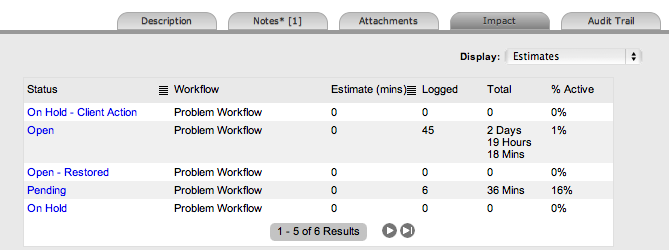
The Actual Time is automatically calculated by the system using the Logged Time accrued in each state for the Workflow. The time is recorded and displayed when the Problem moves to the next stage of the Workflow.
When a Workflow State with an OLA or Underpinning Contract is assigned to the Problem, the Contract Monitor displays the details of the Contract.
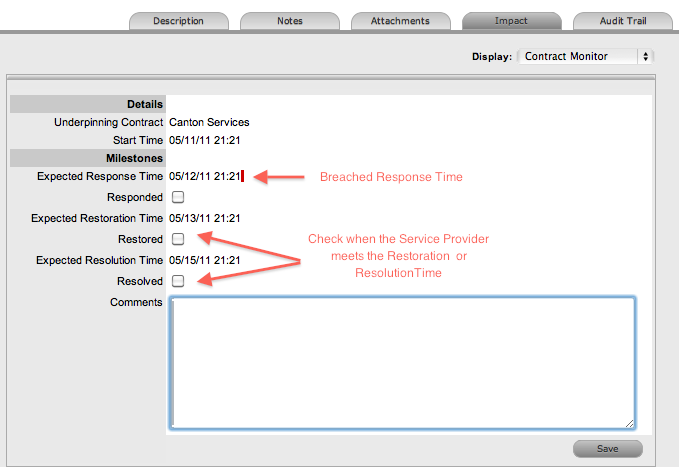
The information is used for reporting purposes and includes:
Details |
Description |
|---|---|
Contract Type |
Specifies if the Contract Type is an OLA or Underpinning Contract. |
Start Time |
Auto-generated time the Problem moved to the current Workflow State. |
Milestones |
|
Expected Response Time |
Response Time calculated using the Contract target parameters. |
Responded |
Actual Response Time auto-calculated when the User checks the box. |
Expected Restoration Time |
Restoration Time calculated using the Contract target parameters. |
Restored |
Actual Restoration Time auto-calculated when the User checks the box. |
Expected Resolution Time |
Resolution Time calculated using the Contract target parameters. |
Resolved |
Actual Resolution Time auto-calculated when the User checks the box. |
Comments |
Allows for additional comments, if required. |
If Milestones are breached the Response, Restoration and Resolution times are assigned a red marking.