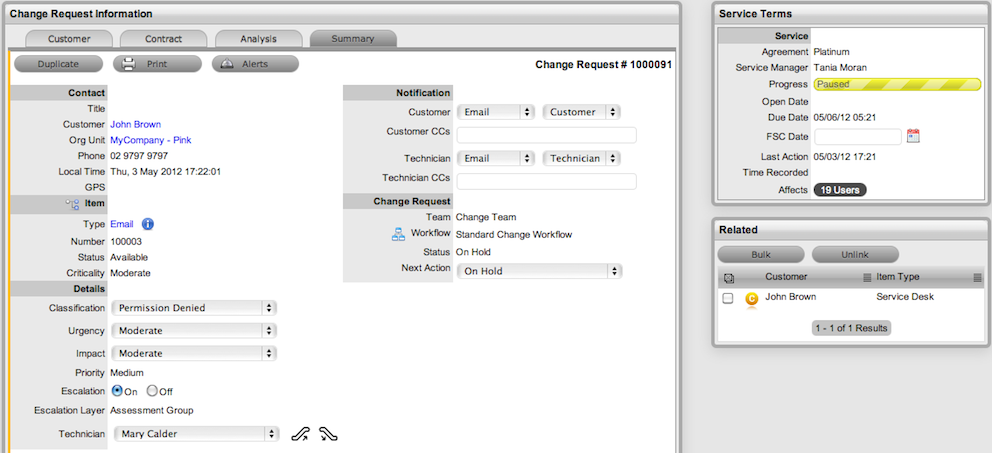
Also displayed within the Change Groups List View are any Groups that are created as Multi-Item Requests. These Requests allow for multiple Items to be assigned during the Change Request creation process and result in separate Requests being created for each Item assigned to the initial RFC, which are then displayed within the Related Requests window of the Change Request Information screen.
The Requests are managed as individual Requests to cater for any special requirements relative to each Item. For example, consider a situation where a Team deploys an update in an organization. In this instance, during the RFC creation process multiple Items are assigned to a single Change Request, which the system automatically allocates to separate RFCs that are then managed on an individual basis. This allows appropriate Teams/ Technicians to be assigned to the RFCs relative to their skill-set or departmental assignments. The implementation process more effectively differentiates between the tasks and Items being modified and ensures each Item has its own Audit Trail, Attachments and Notes for future reference.
Multi-Item Requests are also listed as separate Change Requests within the Change Requests List View.
Multi-Item Requests are created like a single Item Request, but have more than one Item assigned during the Change Request creation process. See: Create a Change Request - Item Information.
For more information about managing Multi-Item Requests, see Related Requests.
Click the relevant Item link if listed below the Find
Item search box
Or, Search for an Item or click  to Create
an Item.
to Create
an Item.
The
option to create an Item is only available to Technicians if the system
Administrator has enabled the Create Items option within the Setup>Privileges>User
screen.
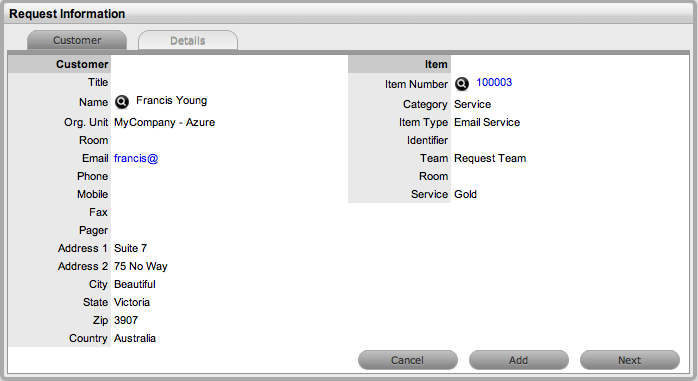
Click Next to move to
the Details tab if only one Item is to be assigned to the Request
Or, select Add to assign additional Items. If Add is selected, a Request
Selections window will be displayed that lists all the current Items
assigned to the Request.
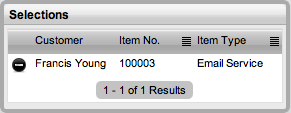
Continue to add all
the relevant Items to the Request and then select Next to move to
the Details tab
Within the Details tab the Request is profiled by assigning a Classification
and Description.
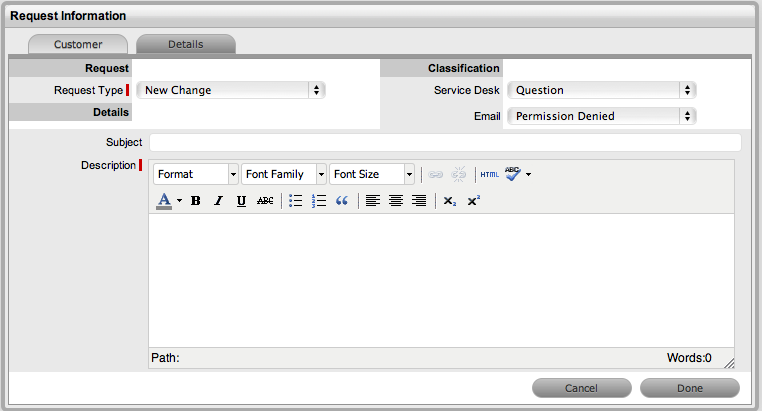
Select the Classification, enter the Subject and Description
Click Done to enter
all Requests simultaneously.
The Requests are created individually and automatically applied to
a Group.