Regions
This option allows the Administrator to customize the geographic regions
or States that are available for each Country. This information is applied
to Customers and Org Units when their contact details are being defined.
When the Customer or Org Unit "Country" field is completed within
the information screen, the States that are displayed are drawn from the
Geographic Regions defined here.
To define a State for a Country:
Go to Setup > Localization
> Regions tab
Search and select a
Country hyperlink from the list provided
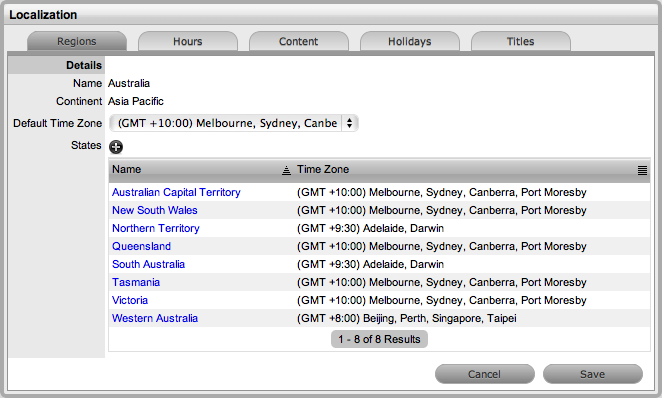
Click  to add another State or region
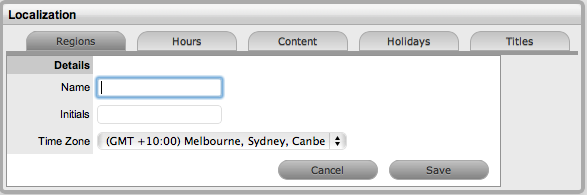
Enter the Name, representative
Initials and select the relevant Time Zone
Click Save
Repeat Steps 3 to 5
to add more regions
Select Save.
Editing States
A default or customized template can be easily edited:
Go to Setup > Localization
> Regions tab
Search and select a
Country hyperlink from the list provided
Select the relevant
State Name hyperlink.
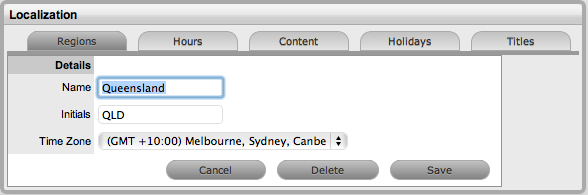
Edit the Name, Initials
or Time Zone details
Select Save.
Deleting a State
A default or customized template can be easily deleted:
Go to Setup > Localization
> Regions tab
Search and select a
Country hyperlink from the list provided
Select the relevant
State Name hyperlink
Select the Delete button
Select Save.
Region Search
To find a Country or State within a Country, the Search facility can
be used. To conduct a search:
Go to Setup > Localization > Regions
tab
Select Search
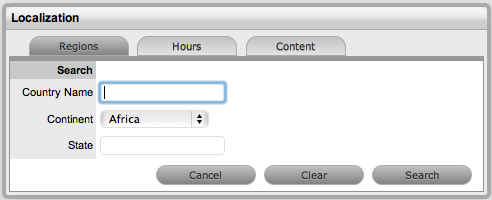
Enter the known details
Search options include Country Name, Continent or can also be refined
by the State within a Country.
Click Search.