Release Details Tab
The Release Manager defines all elements
related to the Release within the Details Tab.
After entering the initial information about
the Release, the Manager also uses the Details Tab to move the Release
through the Workflow States. Each stage of the Workflow can be assigned
to different Managers, so by moving the Release through the Workflow States,
the User is also potentially reassigning control of the Release.
Also, within the Workflow, States may be
defined as Approval or Deployment States. When the Workflow moves into
an Approval State, the accept and reject options are visible. The Manager
selects the appropriate option and the system automatically moves the
Release to the pre-configured State of the Workflow relative to the option
selected.
If the Workflow is configured as a Deployment
State, when the Release is moved into this State, the Deployment Tasks
created within the Release can be actioned by the assigned Technicians.
However, if the "Control Deployment via RFC" is enabled, when
the Release moves into a Deployment State, RFCs are automatically created
for the Deployment, and when the RFCs hit the Deploy State configured
within the Details tab of the Release, the Deployment Tasks become active
and allow Technicians to action the Tasks. The Change Manager can view
all Deployment Tasks related to the RFC within the RFC Summary screen
and when all Tasks are moved to Closed-Resolved the Change Manager can
close the related RFC.
When all Deployment Tasks are completed,
the Deployment is automatically closed by the system and the Release Manager
can close the Release within the Details Tab, by moving the Release Workflow
to the Exit State.
To create a Release:
Go to Change>Releases
Click New
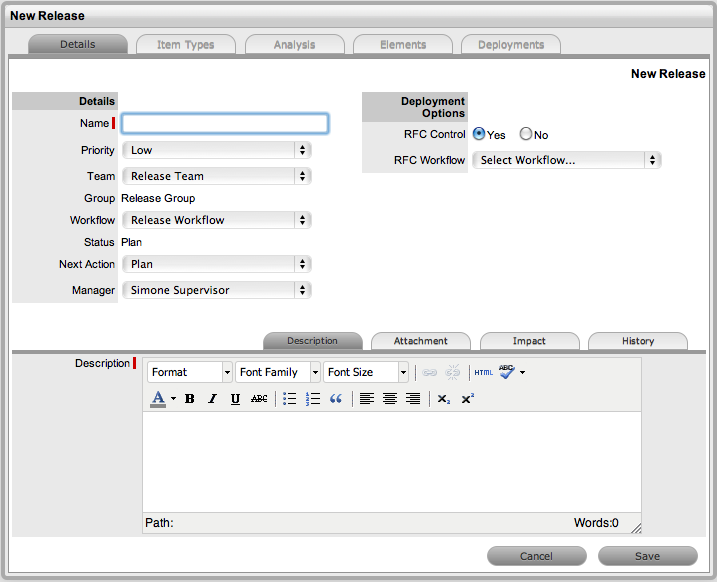
Complete the
following information:
Release Fields |
Description |
Name |
Enter a Name that reflects the objective
of the Release. |
Priority |
Set the Priority, which will correspond
to the target timeframes for the SLAs associated with the
Release via the RFCs. |
Team |
Select the Release Team who will oversee
all part of the Release. |
Workflow |
Set the Workflow that includes the relevant
stages to manage the Release.
The Release Manager moves the Release
through the stages of the Workflow, relevant to the events
being undertaken and completed. |
Status |
This is set to the Default Entry State
of the selected Workflow. |
Next
Action |
Based on the assigned Workflow, select
the next Workflow State for the Release, as required by the
next Release activity.
Some States are Approval States, when
the Release moves to an Approval State the Approve  and Reject
  options
are visible. The Release Manager selects the appropriate option
and the system automatically moves the Release to the pre-configured
next State, relative to the option applied. options
are visible. The Release Manager selects the appropriate option
and the system automatically moves the Release to the pre-configured
next State, relative to the option applied. |
Manager |
From the drop-down list of Managers
assigned to the default Entry Point of the assigned Release
Workflow, select the Release Manager to manage the project
when it is initially created.
The User defined here, is the Manager
who can edit the Release after it is saved and then move it
to the next State. |
RFC
Control |
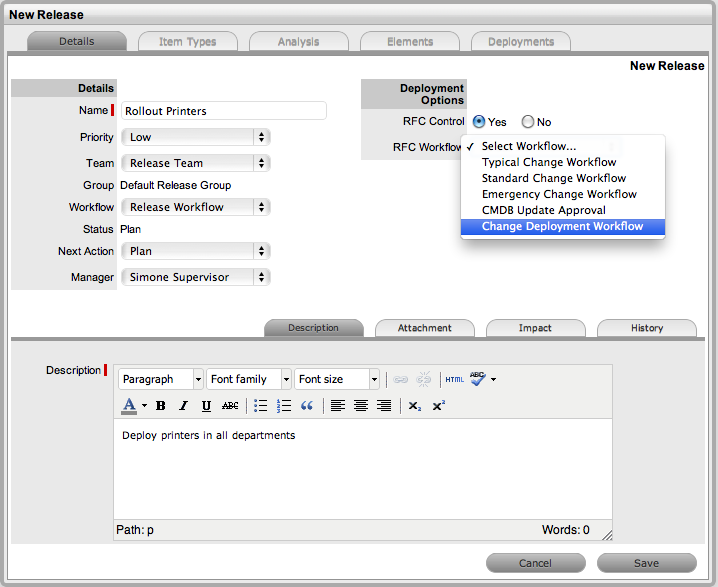
If the "Control Deployments via
RFC" option is enabled in Admin>Setp>Privileges>Requests,
this field will be displayed.
Select Yes if the Deployment is to be
routed through Change Management, to enable the scheduling
of Deployment Tasks. Select the RFC Workflow to manage the
Change Request associated with the Deployment, and set the
default Open State or Deployment State for the Tasks (i.e.,
when the RFC moves into this stage of the Change Workflow
the associated Deployment Tasks move Pending to Open allowing
the Technician to work on the Task.) |
Description |
Enter information that describes the
goal of the Release. |
Click Save
Move to the Types tab to associate the Item Types with the Release,
for Items being upgraded, replaced and installed from new.
Attachments
The Attachments tab allows the Manager to
upload any relevant files, but also provides access to any Media Files
that are associated with Deployments during the Release and Deployment
creation process.
To add Attachments to a Release, within
the Release's Details tab:
Click
Edit to display the Attachment tab New button
Click
New

Browse
and select a file
Enter
a Description, if required
Click
 .
.
Impact
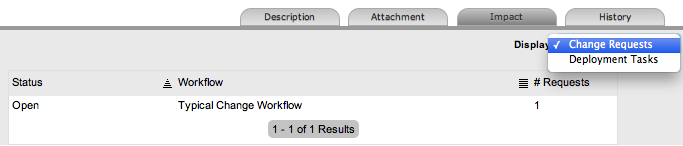
The Deployment Tasks filter view of the
Impact Tab displays the number of Deployment Tasks per Status associated
with the Release. While the Change Requests view shows all RFCs, and their
current Workflow State, associated with the Release using the Analysis
Tab and also listed in the Related tab.
History
The History tab records all changes and
updates for the Release, relative to the assigned Workflow State. To
view a historical entry within the Release Details tab:
Select
the History tab
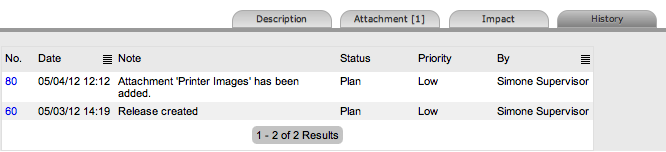
Click
on the identification number hyperlink to display the entry details
Click
Cancel.
The expanded window is closed.