Select Operations>Incidents
Select the Incident
ID Number
The Incident Information>Summary tab appears.
View Time Recorded in
the Service Terms window.
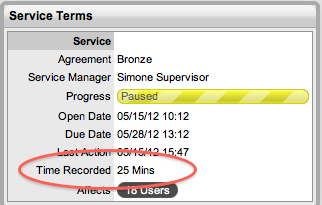
Recorded Time as displayed in the Service Terms window of an Incident, uses a combination of auto-timing, when the Admin>Setup>Privileges>User > Manual Request Time option is set to No, and manual Note Time entries to monitor the time spent working on an Incident.
The Auto-timer is activated when an Incident is opened in Edit mode. When the Incident is saved after any amendments have been made, the timer stops and logs the length of time the Incident has been worked on. This total is added to the sum total of any manual Note Time entries made by Technicians when they are adding Notes. See: Notes Tab.
The Recorded Time used by the system when the Contracts functionality is enabled is limited to the manually entered Note Time, as the Manual Request Time option is locked down to Yes. See: Contracts.
To access the Incident Time information:
Select Operations>Incidents
Select the Incident
ID Number
The Incident Information>Summary tab appears.
View Time Recorded in
the Service Terms window.