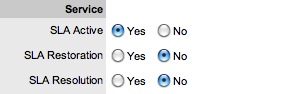
.
.Problem Workflows are a combination of any number of stages or States that cover the lifecycle of an issue to be investigated. A Supervisor creates new Problem States for the default Problem Workflow or builds new Workflows in the Service >Workflows tab. For more information about configuring Workflows. See: Workflows.
Within the Problem Information
Summary page, the assigned stage of the Workflow is displayed within the
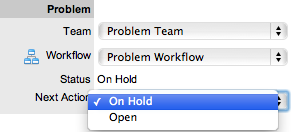
Status field, with the Next Action field displaying the options of where
the Problem can move to. To view an assigned Workflow in its entirety
select .
The system provides the following States:
Status |
Description |
SLA Timers On |
|
Open |
The Problem is open. SLA timers are running and the automated SLA reminders, warnings and escalations will fire relative to the Triggers configured for the SLA. |
Open Restored |
The Problem is still open and the issue has yet to be resolved, but a satisfactory temporary solution has been put in place. SLA triggers will fire for the SLAs Resolution Time, but the Restoration targets have been met for the Problem. |
Pending |
Work on the Problem has not yet begun. The Response-time SLA trigger will fire for Problems with this status. |
SLA Timers Off |
|
On Hold |
The Problem has been put on hold for some reason. SLA triggers will not fire for Problems with this Status. |
On Hold - Client Action |
Can be thought of as an awaiting Customer confirmation state that will allow a Problem to remain open but prevent SLA triggers from firing. (This was called Open Resolved in previous releases). |
On Hold - Process Escalated* |
The Problem has been transferred to some external process. SLA reminders, warnings and escalations will not fire for the assigned SLA. |
Pending - No Contract* |
A valid contract is not in place and one needs to be created or processed before work can commence on the Problem. |
Closed Restored |
Though the basic issue remains, a satisfactory temporary solution has been reached and the Problem has been closed. SLA triggers will not fire for Problems with this Status. |
Closed Resolved |
The issue has been resolved and the Problem has been closed. SLA triggers will not fire for Problems with this Status. |
Cancelled |
The Problem has been cancelled. SLA triggers will not fire for Problems with this Status. |
*Denote System States that cannot be deleted.
When a Problem is created, it is automatically assigned the Default Open Status, as configured within the assigned Workflow.
Any changes to the Status Type will
be recorded in the Audit Trail tab.
To manually change a Problem's Status:
Select Operations> Problem
Select a Request # hyperlink for the relevant Problem
Click Edit
From the Next Action
drop-down list select the Problem's next Status
The States listed in Next Action are based on the Problem Workflow
and its lifecycle. To view the complete Workflow lifecycle click .
Click Save.
The system can automatically move a Problem into another State through the following actions:
Closing a Problem by adding a Note
Escalating a Problem to a RFC
When Billing is enabled and payment is not received.
Requests logged with the system that do not have a valid Contract are assigned the Pending - No Contract status. These requests are locked until a valid Contract is applied, and if relevant, paid. See: Create a Contract
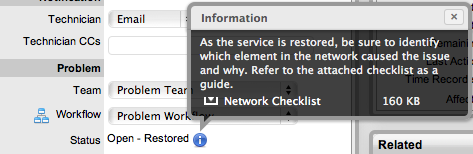
When Problems move into a State with a Status Note,  is displayed beside the Status within the Summary tab of the Problem.
Scroll over to view the
contents of the Status Note. If the Status Note includes an attachment,
click the attachment name link in the pop-up window to download
it. Click
is displayed beside the Status within the Summary tab of the Problem.
Scroll over to view the
contents of the Status Note. If the Status Note includes an attachment,
click the attachment name link in the pop-up window to download
it. Click  to close the window.
SLA Triggers fire for Problems that are in a Workflow State that have the Service Timer Active option set to Yes. The default Timer Active set for systems States can be changed if relevant for the organization. For example, it may not be appropriate for an organization to have SLA Triggers fire when a Problem is moved to the system default On Hold - Pending Approval State.
The following icons displayed in the Service Terms box, visually indicate how the Problem is tracking against the SLA and if the SLA timers are active:
Current SLA Status |
|
|
Workflow is in an SLA paused State. Triggers will not fire. |
|
Workflow is in an SLA timers on State. Triggers will fire. |
|
Workflow is in an Exit State and the SLA has been successfully met. |
|
Assigned SLA has been breached and Workflow is in an Exit State. |
Supervisor Users can verify the Timer Active status of a Workflow by scrolling over the Status in the Workflow map available in the Summary Information screen, or within the Service>Workflows>selected Workflow> Lifecycle>selected Status screen.